Best Scanner App for iPhone (2026)
TL;DR
The best scanner app for iPhone in 2026 is Filewise, because it turns paper into a clean multi-page PDF you can sign and redact, its text searchable in the app. Adobe Scan suits Acrobat users, Genius Scan covers clean everyday scanning, and CamScanner offers the widest feature set. This guide compares 7 apps.
On-device OCR. Secure, built for iOS.
Best Scanner App for iPhone in 2026
The best scanner app for iPhone in 2026 turns a photo of a page into a clean, professional PDF you can actually use later, not just a picture of a document. That means sharp edges, text you can search, and a way to sign or protect the file before you send it. Here are the seven apps worth your home screen, ranked by how well they do that job.
The best scanner app for iPhone in 2026 are:
- Filewise - Best overall for reliable, professional scans (a clean multi-page PDF you can sign and password-protect, searchable inside the app)
- Adobe Scan - Best for Acrobat integration and OCR accuracy
- Genius Scan - Best for fast, simple everyday scanning
- CamScanner - Best for the widest feature set
- Scanner Pro - Best for power users and automation
- SwiftScan - Best for cloud upload workflows
- Apple Notes and Files (built-in) - Best for a quick scan with nothing to install
You need to scan a signed lease, a stack of receipts, or your passport, and you want a document you can find again later, not a blurry photo buried in your camera roll. If you just want the fastest way to capture a single page, see how to scan documents on iPhone first. The seven picks below cover the fuller range, from a built-in option that costs nothing to dedicated apps built around scan quality, search, and security.
1. Filewise - Best Overall Scanner App for iPhone
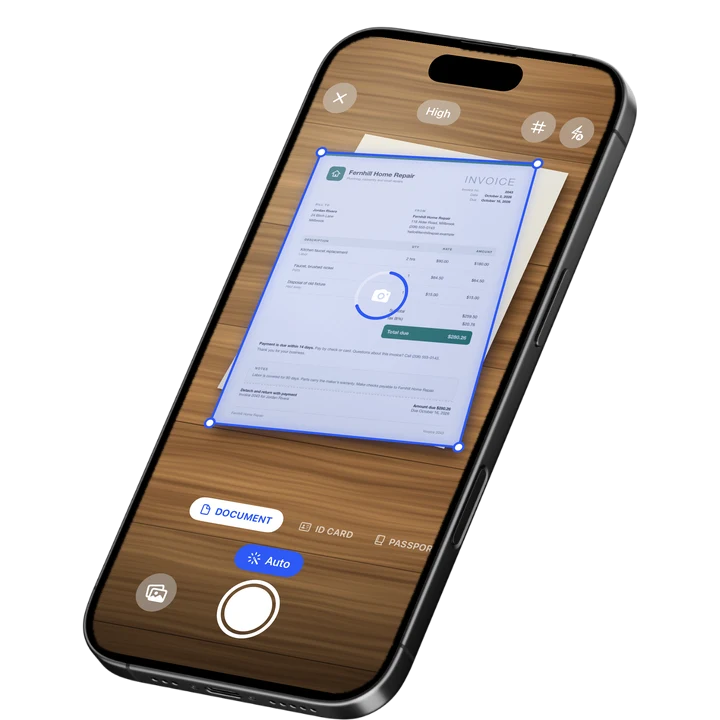
Filewise turns paper into a clean, professional PDF in one tap, with live edge detection squaring up the page and text recognition making the words inside it something you can search. It is built for people who need the result right the first time, whether that is a contract, a receipt, or an ID.
Get Filewise to turn your next stack of paper into a clean PDF you can sign and protect with a password, with text you can search in the app.
How Filewise Handles Everyday Scanning
Point the camera at a page and Filewise squares it up automatically with live edge detection, auto-capture, and perspective correction, so you get a straight, sharp page without dragging corners by hand. Keep the camera moving and every page joins the same document, with no limit on how many pages a single scan can hold.
Once the pages are captured, text recognition runs right on the iPhone in up to 25 languages, so you can search for a word inside a document you scanned weeks ago instead of opening files one by one. Some languages need a newer version of iOS. From there you can add a signature, black out a sensitive line with a redaction box, or lock the finished file behind a password before you export or share it.
Key Features for Document Scanning
- One-tap scan with auto-crop: Live edge detection and automatic perspective fix turn a photo of a page into a straight, sharp scan, with a manual crop if you want to adjust it yourself.
- Multi-page batch scanning: Add page after page to one document with no page limit, then reorder, delete, or add a blank page before you finish.
- On-device text recognition: Up to 25 languages, including English, Spanish, German and French, run right on the phone, and you can search the text of any scanned document inside the app afterward.
- Signing and fill-in tools: Draw a signature with your finger, save it for reuse, add typed text, checkmarks, or a date stamp, and copy a signature to every page of a contract.
- Redaction, watermark, and password: Blur or box out sensitive lines so they are burned into the exported file, add a watermark or page numbers, and set a password on the finished PDF.
- Modes for real documents: A Document mode for everyday paper, an ID Card mode that fits both sides onto one page at real size, a Passport mode, and an Extract Text mode for quick OCR.
Pricing
See the App Store for current pricing and plans.
Best For
- Anyone who wants a clean, professional PDF without redoing a crooked or blurry scan
- Freelancers and small-business owners scanning receipts and invoices, where paperwork already eats into billable time (see our small business statistics)
- Students and researchers who want to search the text inside scans later
- People who need an ID or passport scanned cleanly and locked behind Face ID
2. Adobe Scan - Best for Acrobat Integration and OCR Accuracy
Adobe Scan pairs strong OCR with a direct line into the Adobe Acrobat ecosystem, the natural pick for anyone already paying for Acrobat. It holds a 4.88 rating from about 1.59 million ratings on the US App Store (September 2026).
Key Features
- OCR that recognizes scanned text accurately, so you can search or copy it later
- ID card mode and automatic edge, glare, and shadow correction
- Direct export into Acrobat for further editing
- Syncs scans to Acrobat via an Adobe account
Pricing
Adobe Scan Plus runs $4.99 a month or $19.99 a year, with an Adobe Scan Premium Monthly tier at $9.99 and an Adobe PDF Pack add-on at $9.99 a month (US App Store, September 2026).
Best For
- People who already use Adobe Acrobat and want scans flowing straight into it
3. Genius Scan - Best for Fast, Simple Everyday Scanning
Genius Scan by The Grizzly Labs carries the highest average rating of the major scanner apps, 4.9 from about 1.37 million ratings on the US App Store (September 2026), with a Basic plan that covers everyday scanning.
Key Features
- Automatic edge detection, distortion correction, and shadow removal
- Batch PDF creation and simple document organization
- Unlimited scans on the Basic plan
- Genius Scan Plus and Ultra tiers add automation and extra export options
Pricing
Genius Scan's Basic plan has no cost. In-app purchases for the Plus and Ultra tiers run from $0.99 to $49.99 on the US App Store (September 2026).
Best For
- Casual scanners who want fast, simple scans without extra setup
4. CamScanner - Best for the Widest Feature Set
CamScanner is the most recognized name in mobile scanning, rated 4.84 from about 1.92 million ratings on the US App Store (September 2026). It packs OCR, e-signature, cloud storage, and PDF editing into one app.
Key Features
- OCR, e-signature, and PDF editing in a single app
- Cloud storage with cross-device sync
- A large template and tool library
- Fax credits available as an add-on
Pricing
CamScanner's Premium Account runs $9.99 a month or $59.99 a year, alongside a CamScanner Premium tier at $6.99 to $69.99 depending on the plan (US App Store, September 2026).
Best For
- Users who want the broadest feature set in one app
5. Scanner Pro - Best for Power Users and Automation
Scanner Pro by Readdle is a long-running iPhone favorite with Text Vision OCR search and smart document categories, rated 4.87 from about 335,985 ratings on the US App Store (September 2026). It is a strong pick for anyone who wants automation on top of scanning.
Key Features
- Text Vision OCR with in-document search
- Smart categories that auto-sort scans
- Automated upload to cloud services
- A polished, iPhone-native interface
Pricing
Scanner Pro Plus in-app purchases run from $3.99 to $59.99 on the US App Store (September 2026).
Best For
- Power users who want scanning tied into automated cloud workflows
6. SwiftScan - Best for Cloud Upload Workflows
SwiftScan, formerly known as Scanbot, is built around getting a scan into a cloud folder fast, rated 4.76 from about 18,942 ratings on the US App Store (September 2026).
Key Features
- Automatic edge detection and image enhancement
- Upload to multiple cloud destinations
- Fax credits available as an add-on
- Both monthly and annual plans
Pricing
SwiftScan Plus is $7.99 a month or $59.99 a year, and SwiftScan VIP is $5.99 a month or $34.99 a year (US App Store, September 2026).
Best For
- People whose workflow depends on scans landing automatically in the cloud
7. Apple Notes and Files (Built-In) - Best for a Quick Scan With Nothing to Install
Apple's Notes and Files apps both include a document scanner with no download, since it ships with iOS. Open Notes, tap the Attachment button, choose Scan Documents, and the camera detects edges and saves a clean PDF.
Key Features
- Automatic edge detection and perspective correction
- Saves directly as a PDF to Notes or Files
- Live Text lets you select and copy text from a scan you are viewing
- Nothing to install and nothing to configure
Pricing
Free and built into iOS.
Best For
- A single, quick scan when you do not want to open a separate app
How to Choose a Scanner App for iPhone
Choosing the right document scanner app for iPhone comes down to what happens to the file after capture, not just how the capture looks.
- Scan quality first: A page that comes out straight and sharp on the first try saves you a redo. Filewise, Adobe Scan, and Genius Scan all handle edge detection and auto-crop well.
- What you need from the text: If you plan to search or copy text later, confirm OCR is included rather than gated behind a higher tier, since Genius Scan's Basic plan skips it.
- Where the file ends up: Decide whether you want the scan uploaded to a cloud folder, which is SwiftScan's and Scanner Pro's strength, or kept and searched on the device itself.
- What the finished PDF needs to do: If the file must be signed, redacted, or locked with a password, check that the app handles that step, especially around deadlines like pulling together documents for a tax preparer.
Whether you call it the best PDF scanner app or a document scanner app for iPhone, these four factors decide the right pick more than any single feature list does.
Frequently Asked Questions
What is the best scanner app for iPhone in 2026?
Filewise is the best overall pick because it turns paper into a clean, professional multi-page PDF with on-device text recognition, signing, and a password all in one app. Adobe Scan suits people already using Acrobat, Genius Scan gives casual scanners fast, simple results, and CamScanner packs in the widest feature set. The right choice depends on whether scan quality, a specific feature like ID scanning, or a specific ecosystem matters most to you.
What is the best PDF scanner app for iPhone?
Filewise is the top pick for turning paper into a clean, reliable PDF, thanks to its auto-crop, multi-page batch scanning, and on-device text recognition. Adobe Scan is a strong choice if you already use Acrobat, and the built-in Notes and Files scanner is a genuinely good option for a single quick page since it needs no extra download.
Is there a free document scanner app for iPhone?
Yes. The built-in scanner in Notes and Files comes with every iPhone, which makes it a solid choice for an occasional page. Genius Scan's Basic plan also has no cost and allows unlimited scans. If you scan often and want on-device text recognition, signing, and a password on the finished file, a dedicated app like Filewise is worth adding once the built-in tools start to feel limited.
Is on-device scanning safer for sensitive documents like IDs?
On-device processing keeps the image and the text recognition on your iPhone rather than sending the page to a server before you get a usable file, which matters for IDs, contracts, and tax forms. Filewise runs text recognition on the device and adds a dedicated ID Card mode plus an App Lock with Face ID, Touch ID, or a PIN. Check any scanner app's processing details if keeping sensitive documents on the phone itself matters to you.
Can I sign a document after scanning it on iPhone?
Yes, several scanner apps add signing on top of the scan itself. Filewise lets you draw a signature with your finger, save it for reuse, or turn a photo of your signature into a clean image you can copy onto every page of a contract. Adobe Scan and CamScanner also offer signing tools tied to their broader ecosystems. Check that the app you pick keeps the signed file exportable as a standard PDF.
What features should I look for in a scanner app?
Look for reliable edge detection and auto-crop so pages come out straight the first time, on-device text recognition so you can search scans later, and support for multi-page documents with reordering. For paperwork that matters, also check for a redaction tool, a password option on the exported file, and an App Lock such as Face ID, since those turn a basic scan into something you can send or store with confidence.
Our Pick for the Scanner App for iPhone
For most people, Filewise is the clear pick: it turns a photo of a page into a clean, professional multi-page PDF, runs text recognition on the device so you can find it again by its text, and adds signing, redaction, and a password before you share it. That combination covers what a scanner app for iPhone needs to do well.
If you already pay for Adobe Acrobat, Adobe Scan keeps everything in one ecosystem. If you just want a no-frills option for the occasional page, Genius Scan or the built-in Notes and Files scanner cover that job without asking you to install anything else.
Get Filewise and turn your next document into a clean, professional PDF with text you can search in seconds.
🔒 Face ID lock | 📱 Built for iPhone