Best CamScanner Alternatives for iPhone (2026)
TL;DR
The best CamScanner alternatives in 2026 are Filewise for clean multi-page PDFs, searchable inside the app, Adobe Scan for Acrobat users and Genius Scan for fast, simple scanning. People look for a CamScanner alternative for a more focused app, on-device processing, or a specific document task like signing or ID scanning.
On-device OCR. Secure, built for iOS.
Best CamScanner Alternatives in 2026
The best CamScanner alternatives in 2026 cover the same job of turning paper into a PDF, but differ in scan quality, how big the app is, and whether text recognition runs on the phone or in the cloud. Here are five apps like CamScanner worth comparing, starting with the most reliable overall pick.
The best CamScanner alternatives in 2026 are:
- Filewise - Best overall CamScanner alternative for clean multi-page PDFs, searchable inside the app
- Adobe Scan - Best for Acrobat integration and OCR accuracy
- iScanner - Best for in-app editing extras
- Genius Scan - Best for fast, simple scanning
- Apple Notes and Files (built-in) - Best for a quick scan with nothing to install
If you have used CamScanner for a while, you likely want to keep doing the same job: turn a page into a PDF you can find and send. For the basics of that job, see how to scan documents on iPhone or the fuller best scanner app for iPhone roundup. The five picks below do that job with different strengths, from on-device processing to in-app editing extras.
Why People Look for a CamScanner Alternative
People compare CamScanner against other scanner apps for ordinary, practical reasons rather than any single problem with the app itself. CamScanner remains one of the most downloaded scanner apps, with a 4.84 rating from about 1.92 million ratings on the US App Store (September 2026), so most switching is about fit, not failure.
- App size and simplicity: CamScanner bundles a wide feature set (OCR, e-signature, cloud storage, PDF editing), and some readers want a lighter app focused on scanning, signing, and page tools.
- A specific document task: Readers who need an ID or passport scanned at a set size, a page redacted before sharing, or a document locked behind Face ID look for an app built around that task.
- Where processing happens: Readers scanning contracts, IDs, or tax forms sometimes prefer an app that keeps text recognition on the device rather than a server.
- Trying a specific ecosystem: Adobe Acrobat or Microsoft 365 users often want a scanner that plugs directly into tools they already pay for.
1. Filewise - Best Overall CamScanner Alternative
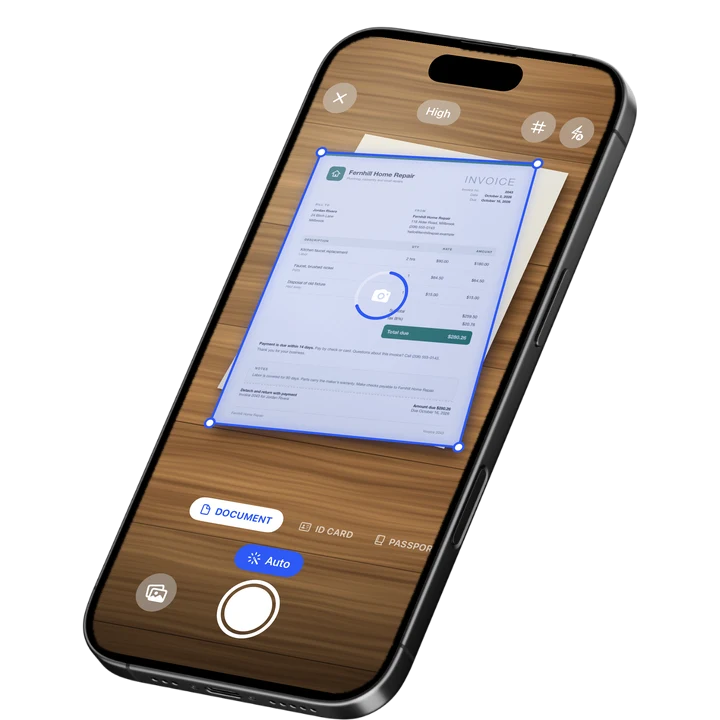
Filewise turns paper into a clean, professional PDF in one tap, with live edge detection squaring up the page and on-device text recognition making the words inside it something you can search. It covers the same everyday job as CamScanner: scan a document, get a usable PDF, and move on.
Get Filewise to turn your next document into a clean PDF you can sign and protect with a password, with text you can search in the app.
How Filewise Replaces CamScanner for Everyday Scanning
Point the camera at a page and Filewise squares it up automatically with live edge detection, auto-capture, and perspective correction. Keep scanning and every page joins the same document, with no limit on how many pages one scan can hold, then pick from seven filters and apply one to every page at once.
Text recognition runs on the iPhone itself in up to 25 languages, so you can search the text of a document you scanned last month instead of opening files one by one. Some languages need a newer version of iOS. From there you can add a signature, redact a sensitive line, set a password, or drop the file into a folder, covering the everyday scanning and organizing job in one app.
Key Features
- One-tap scan with auto-crop: Live edge detection and perspective correction turn a photo of a page into a straight, sharp scan.
- Multi-page batch scanning: Add page after page with no page limit, then reorder, delete, or add a blank page before you finish.
- On-device text recognition: Up to 25 languages, with the ability to search the text of any scanned document inside the app afterward.
- Signing and fill-in tools: Draw a signature with your finger, save it for reuse, add typed text or a date stamp, and copy a signature to every page.
- Redaction, watermark, and password: Blur or box out sensitive lines so they are burned into the exported file, and lock the finished PDF with a password.
- Modes for real documents: Document, ID Card (both sides on one page at real size), Passport, and Extract Text modes.
Pricing
See the App Store for current pricing and plans.
Best For
- People who want a clean, professional PDF from a focused scanning app
- Anyone who prefers text recognition to run on the device
- Freelancers and small-business owners scanning contracts, receipts, and invoices
- People who need an ID or passport scanned cleanly and locked behind Face ID
2. Adobe Scan - Best for Acrobat Integration and OCR Accuracy
Adobe Scan pairs accurate OCR with a direct line into the Adobe Acrobat ecosystem, rated 4.88 from about 1.59 million ratings on the US App Store (September 2026).
Key Features
- OCR that recognizes scanned text accurately for later search or copying
- ID card mode with automatic edge, glare, and shadow correction
- Direct export into Acrobat for further editing
- Syncs scans to Acrobat via an Adobe account
Pricing
Adobe Scan Plus runs $4.99 a month or $19.99 a year, with an Adobe Scan Premium Monthly tier at $9.99 (US App Store, September 2026).
Best For
- People who already use Adobe Acrobat and want scans flowing straight into it
3. iScanner - Best for In-App Editing Extras
iScanner adds document editing tools alongside scanning, such as annotation and area measurement, and is rated 4.76 from about 1.4 million ratings on the US App Store (September 2026).
Key Features
- Document scanning with automatic edge detection
- In-app editing, annotation, and area measurement tools
- Multiple export formats
- ID and document scanning modes
Pricing
iScanner in-app purchases run from $3.99 to $19.99 on the US App Store, with weekly storage add-ons also listed (September 2026).
Best For
- People who want scanning combined with extra editing and measurement tools
4. Genius Scan - Best for Fast, Simple Scanning
Genius Scan by The Grizzly Labs carries the highest average rating among major scanner apps, 4.9 from about 1.37 million ratings on the US App Store (September 2026), with a Basic plan that covers everyday scanning.
Key Features
- Automatic edge detection, distortion correction, and shadow removal
- Batch PDF creation and simple document organization
- Genius Scan Plus and Ultra tiers add automation and extra export options
- Unlimited scans on the Basic plan
Pricing
Genius Scan's Basic plan has no cost. In-app purchases for the Plus and Ultra tiers run from $0.99 to $49.99 on the US App Store (September 2026).
Best For
- People who want fast, simple everyday scans
5. Apple Notes and Files (Built-In) - Best for a Quick Scan With Nothing to Install
Apple's Notes and Files apps both include a document scanner already on every iPhone, with no download and no rating to check since it ships with iOS.
Key Features
- Automatic edge detection and perspective correction
- Saves directly as a PDF to Notes or Files
- Live Text lets you select and copy text from a scan you are viewing
- Nothing to install and nothing to configure
Pricing
Costs nothing and is built into iOS.
Best For
- A single, occasional scan when you do not want to open a separate app
How to Move from CamScanner to Filewise
Moving your files takes a few minutes: export what you want to keep from CamScanner as PDFs, bring them into Filewise, and organize them into folders from there.
- Open CamScanner and export the documents you want to keep as PDF or JPG files, saving them to Files or a cloud folder.
- Open Filewise and use the Import option to bring those files in from Files or Photos.
- Sort imported and newly scanned documents into folders, using star and rename to keep the ones you use often easy to find.
- Scan new documents directly in Filewise going forward, so everything from that point on already lives in one place.
Because the exported files are standard PDFs and JPGs, nothing about the format changes when you move them, and both apps can stay installed while you switch over at your own pace. Clean, structured scans also feed better into any automation you already use, a connection covered in our workflow automation statistics.
Frequently Asked Questions
What is the best CamScanner alternative for iPhone?
Filewise is the best overall alternative because it turns paper into a clean, professional multi-page PDF with on-device text recognition, signing, and a password, covering the same everyday job as CamScanner. Adobe Scan suits people already using Acrobat, and Genius Scan is a strong pick for fast, simple everyday scans. The right choice depends on whether scan quality, a specific feature like ID scanning, or a specific ecosystem matters most to you.
Are there apps like CamScanner that keep text recognition on the phone?
Yes. Filewise runs text recognition on the iPhone itself in up to 25 languages, so you can search for those words inside the app later without the document leaving the device to be processed. Some languages need a newer version of iOS. Genius Scan and the built-in Notes and Files scanner also keep capture on the device. If keeping documents on the phone during processing matters to you, check how each app describes its scanning before you switch.
How do I move my scanned documents from CamScanner to another app?
Export the documents you want to keep from CamScanner as PDF or JPG files, saving them to Files or a cloud folder. Then open your new scanner app and import those files from Files or Photos, sorting them into folders as you go. Because the exported files are standard PDFs and JPGs, the format does not change, and you can keep both apps installed while you move over at your own pace.
Is there a free CamScanner alternative for iPhone?
Yes. Genius Scan's Basic plan has no cost and allows unlimited scans, and the built-in Notes and Files scanner on iPhone costs nothing to use. Adobe Scan's core scanning also has no cost. If you want on-device text recognition, signing, and a password on the finished file, a dedicated app like Filewise is worth adding once a free tier starts to feel limited for regular use.
Can I use CamScanner and a new scanner app at the same time?
Yes. There is no lock-in between scanner apps, so you can keep CamScanner installed while you try an alternative. A common approach is to scan new documents in the new app going forward, while exporting anything important out of CamScanner as PDFs when you have time. Because scans are standard PDF files, they move cleanly between apps and into your existing folders or cloud storage.
What should I compare before switching away from CamScanner?
Compare scan quality and reliability first, since a sharp, straight page on the first try matters more than any single feature. Then check whether the app runs text recognition on the device, whether it has the modes you actually need, such as ID or passport scanning, and what the finished PDF can do, such as signing, redaction, or a password lock. Those job-based factors matter more than any single feature name on a list.
Our Pick for the Best CamScanner Alternative
For most people comparing CamScanner alternatives, Filewise is the clear pick: it turns paper into a clean, professional multi-page PDF, runs text recognition on the device so you can find it again by its text, and adds signing, redaction, and a password before you share it.
If you already pay for Adobe Acrobat, Adobe Scan keeps everything in one ecosystem. If you want fast, simple scans without extra editing tools, Genius Scan or the built-in Notes and Files scanner cover that job well.
Get Filewise and see how a clean, professional PDF, with text you can search in the app, compares to what you scan today.
🔒 Face ID lock | 📱 Built for iPhone