How to Scan Documents on iPhone (2026)
TL;DR
To scan documents on iPhone, open Notes or Files and tap Scan Documents, or use Filewise for sharper multi-page PDFs you can sign and lock with a password, with text you can search in the app. The built-in scanner needs no extra app. Filewise adds text recognition, page cleanup, and signing for a more polished result.
On-device OCR. Secure, built for iOS.
How to Scan Documents on iPhone: Quick Steps
You can scan documents on iPhone with the Notes or Files app already on your phone, no extra download needed. Open the app, tap Scan Documents, line up the page, and let the camera auto-capture it into a PDF. For sharper PDFs you can sign and password-protect, with text you can search in the app, use Filewise instead.
- Open the Notes app and tap the Attachment button, then tap Scan Documents.
- Hold your iPhone over the page and let Auto mode capture it, or tap the Shutter button.
- Drag the corners to fit the page, tap Keep Scan, and repeat for more pages.
- Tap Done to save the pages as one PDF inside the note.
- Prefer a dedicated app for sharper, organized results: Get Filewise and turn the same pages into a clean PDF you can sign and lock with a password, with text you can search in the app.
How to Scan Documents in the Notes App on iPhone
The Notes app has a document scanner built into every iPhone, and Apple Support confirms it costs nothing to use. Open a note, tap the Attachment button, and choose Scan Documents. The camera detects the page edges, straightens the angle, and saves a clean PDF.
Here is the full method, step by step:
- Open the Notes app and create or open a note.
- Tap the Attachment button (the camera or paperclip icon), then tap Scan Documents. You can also open a note, tap the More button, and tap Scan.
- Hold your iPhone above the page. In Auto mode it captures automatically once it sees the edges; to shoot manually, tap the Shutter button or press a Volume button.
- Drag the corners to fit the page exactly, then tap Keep Scan. Repeat for each additional page.
- Tap Done. The pages save into the note as one PDF you can share or move to Files.
This works fully offline. It is a genuinely good answer for a one-off form, receipt, or letter.
How to Scan Documents with iPhone Using the Files App
Scanning documents with your iPhone through the Files app saves the result straight into a folder instead of burying it inside a note, which makes it the better choice when you want the PDF filed right away. The scanner itself is the same engine Notes uses, just reached a different way.
- Open the Files app.
- Tap the More button (the three-dot circle), then tap Scan Documents.
- Place the document in view of the camera. Auto mode captures on its own; otherwise tap the Shutter button or a Volume button.
- Adjust the corners, keep the scan, and add any extra pages.
- Tap Done, choose a folder, and tap Save. The result is a multi-page PDF sitting exactly where you put it.
Because you pick the folder before saving, this method skips a step later: the document is already organized instead of waiting inside a note to be moved.
How to Scan Documents on iPhone with Filewise
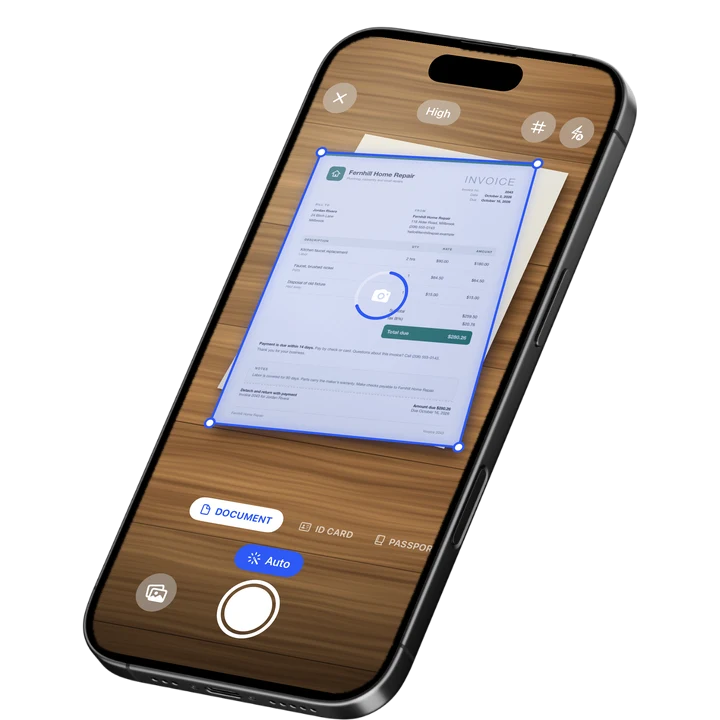
Filewise turns the same paper into a sharper, more useful file: a clean multi-page PDF with text you can search, a signature you can add, and a password you can set before you send it anywhere. It uses live edge detection and automatic crop so pages come out straight without you dragging corners.
- Open Filewise and choose the Document mode (or ID Card or Passport for identity documents, and Extract Text when you only need the words).
- Line up the page. Edge detection, auto-capture, and perspective correction square it up automatically; adjust the crop by hand if you want to.
- Keep scanning to add pages. There is no page limit, and you can reorder or delete a page before you finish.
- Pick a filter (Original, Auto, Magic Color, Lighten, B&W, Grayscale, or Photocopier) and apply it to every page at once.
- Run text recognition so you can search the text inside the document later, then add a signature, a redaction box, or a password before you export as PDF, JPG, TXT, or a Word file.
Text recognition runs on the iPhone itself in up to 25 languages, including English, Spanish, German and French. Some languages need a newer version of iOS. Once it finishes, you can copy the text out, export it as a .txt or .docx file, or just search for a word across the documents you have already scanned. That habit is worth building early, before paper piles up the way our paperless office statistics describe.
How to Scan Multiple Pages into One PDF on iPhone
Both the Notes and Files scanners combine pages into a single PDF automatically, and there is no practical page limit for a normal contract or report. After your first page is captured, keep going: position the next page, let it auto-capture or tap the Shutter, and repeat. Every page stacks into the same document, and tapping Done saves the whole set as one file.
For a longer or recurring stack, Filewise adds the parts the built-in scanner leaves out: reorder pages by dragging them, delete a page that came out blurry, add a blank page, and merge or split existing PDFs without starting over. When the whole set is ready, export it as one multi-page PDF, share it with a link that can expire, or print it with AirPrint. This matters most for paperwork you cannot afford to lose, like the records in our document management statistics.
Tips for a Clean Document Scan on iPhone
A few habits make the difference between a sharp scan and a redo.
- Use even, indirect light. A single overhead lamp or direct sun creates a glare spot on glossy paper; window light from the side is more even.
- Hold the phone flat and parallel to the page so the edges land square and the auto-crop has less work to do.
- Use a plain, dark background so the app can find the page edges instead of confusing them with a busy tablecloth or desk.
- Flatten folded or curled pages before you shoot, since a curled corner can throw off perspective correction.
- Pick Grayscale or B&W for text-only pages to keep the file smaller and the text sharper for scanning.
Frequently Asked Questions
How do I scan a document to PDF on iPhone?
Open the Files app, tap the More button (the three-dot circle), then tap Scan Documents. Place the page in view and let Auto mode capture it, or tap the Shutter button. Adjust the corners, tap Keep Scan, add any extra pages, then tap Done. Choose a folder and tap Save, and your iPhone writes a multi-page PDF. The Notes app works the same way using its Attachment button.
How do I save a scanned document as a PDF on iPhone?
Scanning with Notes or Files already saves the result as a PDF, so there is no separate export step. In Notes, tap Done after your last page and the scan sits in the note as a PDF you can share or move to Files. In Files, choose a folder and tap Save, and the PDF appears there directly. Filewise saves the same way, letting you export a scan as a PDF, JPG, TXT, or Word file once you are done editing it.
How do I scan in the Notes app on iPhone?
Open Notes, create or open a note, tap the Attachment button, and choose Scan Documents. Hold your iPhone over the page and let Auto mode capture it, or tap the Shutter button to shoot manually. Drag the corners to fit the page, tap Keep Scan, and repeat for each page you need. Tap Done, and the pages save into the note as one PDF you can share, print, or move into Files.
Can I scan multiple pages into one PDF on iPhone?
Yes. The Notes and Files scanners combine pages into a single PDF automatically, with no practical page limit for a normal contract or report. Capture your first page, then keep positioning each following page and letting it auto-capture or tapping the Shutter button. Every page joins the same document, and tapping Done saves the whole stack as one file. Filewise adds the ability to reorder pages and re-scan a single blurry one without starting over.
Is it safe to scan IDs and sensitive documents on iPhone?
Scanning with the built-in Notes or Files scanner happens on your device, since capture does not require an internet connection. Filewise keeps scanning and text recognition on the iPhone too, and adds a dedicated ID Card mode that fits both sides of an ID onto one page at real size, plus an App Lock with Face ID, Touch ID, or a PIN so sensitive files stay behind a lock on your phone.
What is the fastest way to scan a document on iPhone?
For a single page you need right now, the Notes app is the fastest route: tap the Attachment button, tap Scan Documents, and let Auto mode capture the page. For a stack of pages you will need to search, sign, or protect later, opening straight into Filewise and picking the Document mode saves a second step, since the page is cleaned up, recognized, and ready to export in one pass.
The Fastest Way to Scan Documents on iPhone
Most people asking how to scan a document on iPhone do not need a new app at all. The Notes and Files scanners are already installed, work offline, and turn a page into a clean PDF in a few taps. For a one-off receipt, form, or letter, that is the right answer.
The gap shows up once scanning becomes a habit: finding a word inside a pile of saved PDFs, signing a page (a shift our electronic signature statistics track), or locking a document behind more than the Files app itself. That is where Filewise fits, turning paper into a sharp PDF with on-device text recognition, a reusable signature, and a password.
Get Filewise and turn your next stack of paper into a clean, signed PDF with text you can search in a few taps.
🔒 Face ID lock | 📱 Built for iPhone