How to Scan in Notes App on iPhone
TL;DR
To scan in the Notes app on iPhone, open a note, tap the attachment icon, choose Scan Documents, and save each page as a PDF right in the note. That covers a quick single scan well. Filewise adds signing, redaction, and password protection when a document needs more before it goes out.
On-device OCR. Secure, built for iOS.
How to Scan in Notes App on iPhone: Quick Steps
Notes has a built-in scanner that turns your camera into a document scanner, correcting the perspective and saving the result as a PDF inside the note. It takes about five taps and needs no extra app, which makes it a fast way to scan a single page or a short document on iPhone.
- Open the Notes app and select an existing note, or start a new one.
- Tap the attachment button (the camera icon), then tap Scan Documents.
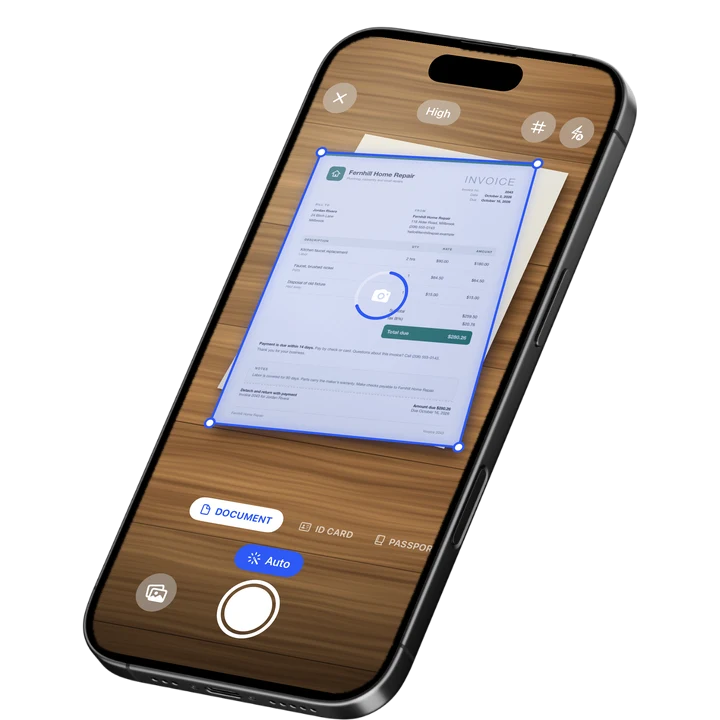
- Point your iPhone at the document. Notes detects the page edges and captures it automatically, or tap the shutter button to capture it yourself.
- Drag the corners to adjust the crop if the automatic edges are off, then tap Keep Scan.
- Scan any more pages the same way, then tap Save. All the pages are saved as one PDF inside the note.
Get Filewise when a scan needs to leave the note as a signed, organized PDF instead of staying inside a single note.
Getting More From a Notes Scan
A scan saved in Notes is not the end of the road. Notes can read text in the image with Live Text, and you can pull the PDF out of the note whenever you need to send it somewhere else, according to Apple's own guide to scanning in Notes.
- Copy text from the scan: Tap and hold on text inside the scanned image to select and copy it with Live Text, without retyping anything.
- Rename the note: Tap the note's title to rename it something you can find later, since Notes does not sort scans by document type on its own.
- Share the PDF: Tap the Share button in the note, then choose Mail, Messages, or Save to Files to send the scan or move it out of Notes.
- Reorder or delete a page: Tap the scan, then use the page thumbnails at the bottom to reorder pages or remove one you scanned by mistake.
For the full picture of what the built-in scanner can and cannot do compared with a dedicated app, see our guide on how to scan documents on iPhone.
When a Notes Scan Needs More: Scanning With Filewise
Filewise adds signing, redaction, a PDF password, and folders on top of a plain scan, which matters once a document needs to go somewhere official or stay organized with other files from the same job. Filewise scans a document with the same live edge detection and auto-capture as Notes, then adds the steps a lease, a form, or a client file often needs next.
- Open Filewise and choose Document mode, then point the camera at the page. Live edge detection and auto-capture work the same way as in Notes.
- Scan any additional pages in the same pass. There is no page limit, so a long lease or contract stays in one file.
- Apply a filter such as Magic Color or B&W, then rotate any page that is sideways.
- If the document needs a signature, draw one with your finger or reuse a saved signature, and drop it onto the signature line.
- Add a password to the PDF if you are about to send it somewhere, then export it as a PDF or share it with a link.
If you often need to sign a document once you have scanned it, our guide on how to sign a PDF on iPhone covers that step in detail.
How to Send a Scan After You Scan in Notes App
The fastest path out of Notes is the Share button inside the scan, which hands the PDF to Mail, Messages, AirDrop, or Files without leaving the note. From Files, you can attach the PDF to any app that accepts a file, including a portal upload or a cloud drive.
If the file needs a password before you send it, or needs a signature added first, export it from Notes with Save to Files, then open it in Filewise to add the password or signature and export the finished PDF from there.
Tips for a Clean Scan in the Notes App
A soft or crooked scan usually comes down to light and a steady hand, not the app. A few habits fix most problems before you even reach the crop screen.
- Scan in even light and avoid a single bright lamp or window that casts a hard shadow across the page.
- Flatten the page fully. A curled corner or a fold throws off the automatic edge detection.
- Hold the iPhone directly above the page rather than at an angle, so the text is not stretched on one side.
- If the automatic capture grabs the wrong edges, tap the shutter yourself once the whole page is in frame, then adjust the crop corners by hand.
- Rescan a page that comes out blurry rather than keeping it. A second attempt takes seconds.
Frequently Asked Questions
How do I scan a document in the Notes app on my iPhone?
Open Notes, select or create a note, tap the attachment button, and choose Scan Documents. Point your iPhone at the page and Notes will detect the edges and capture it automatically, or you can tap the shutter button yourself. Scan any extra pages, then tap Save to keep them as one PDF inside the note.
Can I edit a scan after saving it in Notes?
Yes. Tap the scan inside the note to open it, then use the page thumbnails at the bottom to reorder pages or delete one. You can also use Markup tools to draw or write on the page. For heavier editing like signing, redacting, or adding a password, export the PDF and open it in a dedicated scanner app.
Why does my Notes scan look blurry or crooked?
This is almost always about light and a steady hand rather than the app itself. Scan in even light without harsh shadows, flatten the page fully, and hold your iPhone directly above the document. If a scan still looks blurry, rescan it instead of keeping it, since a second attempt is quick.
Does the Notes app scanner work without an internet connection?
Yes. Scanning in Notes works fully offline, since the camera capture and edge detection happen on your iPhone. You only need a connection if you plan to share the finished PDF by email or upload it somewhere afterward.
When should I use a dedicated scanner app instead of Notes?
Reach for a dedicated scanner app once a document needs a signature, a password, redaction, or to be filed alongside other documents from the same client or project. Notes handles a quick, one-off scan well, but a scanner app like Filewise keeps that next step, signing, protecting, or organizing, in the same place as the scan.
The Fastest Way to Scan a Document in Notes on iPhone
For a single page you need to save or send right now, the Notes app scanner is the fastest option on iPhone. Five taps get you a clean PDF with no extra app to open, and Live Text lets you copy text straight out of the image afterward.
Once a scan needs to be signed, protected with a password, or kept with other files from the same client or trip, Filewise picks up from there with the same easy scanning plus the steps that come next.
Get Filewise and turn your next scan into a signed, organized PDF instead of a one-off note.
🔒 Face ID lock | 📱 Built for iPhone