How to Sign a PDF on iPhone (2026)
TL;DR
To sign a PDF on iPhone, open it in Files, tap the Markup tool, draw your signature, and save it. Filewise adds a saved signature you can reuse on every page, and its Document mode scans a paper page first if you are signing something on paper, then lets you add the same signature and share the file.
On-device OCR. Secure, built for iOS.
How to Sign a PDF on iPhone: Quick Steps
To sign a PDF on iPhone, open the file in the Files app, tap the Markup button, add your signature with your finger, and save the file. If you are signing a paper document instead of a PDF, scan it first, then add your signature the same way.
- Open the PDF in Files, or open a paper page in Filewise using Document mode.
- Tap Markup in Files, or tap Signature in Filewise.
- Draw your signature with your finger, or place a signature you already saved.
- Position the signature on the page and resize it if needed.
- Save the file, then share it, print it, or store it in Files.
Get Filewise to sign a scanned document and send it on in under a minute.
How to Sign a PDF with the Built-In iPhone Tools
Yes, you can sign a PDF on iPhone for free with no extra app, using the Markup tool built into Files, Mail, and Photos. Apple Support describes this as the standard way to fill out and sign PDF forms on iPhone.
- Open the PDF in the Files app (or open it as an attachment in Mail).
- Tap the Markup button, shown as a pen tip in a circle.
- In the Markup toolbar, tap the + button and choose Add Signature.
- Sign with your finger on the screen, then tap Done.
- Drag the signature onto the page, resize it to fit, then tap Done again to save the signed PDF.
This works well for a one-off form you already have as a PDF. Markup remembers a signature you have used before, so you can place it again without redrawing it every time.
How to Sign a PDF with Filewise
Filewise adds a signature to any PDF or scanned page and keeps it ready to reuse, which saves you from redrawing your signature on every new document. Open the document you want to sign, whether it is a PDF you imported from Files or a page you just scanned.
- Open the document in Filewise and tap Signature.
- Draw your signature with your finger, or turn a photo of your handwritten signature into a clean signature with the background removed.
- Save the signature so it is ready the next time you need it.
- Place the signature on the page, and copy it to every page if the document has more than one page to sign.
- Export the signed file as a PDF, then share it, print it with AirPrint, or save it to Files.
If the document needs a password before you send it, add one from the Password tool before exporting, so the signed file stays private in transit.
How to Sign a Paper Document on iPhone
If your document is still on paper, you can scan it and sign it on your iPhone in the same session, without printing anything or finding a scanner. This covers people searching for how to sign a document on iPhone rather than a PDF they already have.
- Open Filewise and choose Document mode.
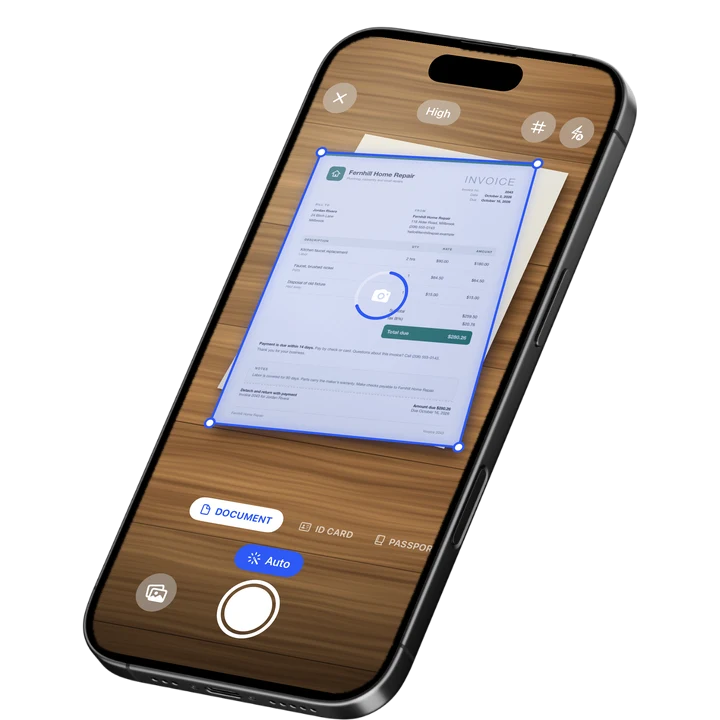
- Hold your iPhone over the page. Live edge detection finds the page and auto-captures it, then crops and straightens it.
- Add more pages the same way if the document runs longer than one page. For basic scanning steps, see our guide on how to scan documents on iPhone.
- Tap Signature, add your signature to the page, and copy it to any other page that needs it.
- Export the signed document as a PDF and share it.
This is the fastest route when someone hands you a lease, a form, or a delivery slip on paper and asks for your signature the same day.
How to Send a Signed PDF After You Sign It
Once your PDF is signed, you can send it the same way you would send any file on iPhone: through the share sheet, by email, or by printing it. The share sheet in Files and in Filewise lets you send the signed PDF as an email attachment, a message attachment, or a save to Files or Photos.
You can also print the signed PDF directly with AirPrint if the other side needs a paper copy. If you also handle paper receipts alongside signed contracts, our guide to the best receipt scanner apps for iPhone covers how to keep both kinds of paperwork organized.
Tips for a Clean Signature on iPhone
A signature that looks clean and consistent makes a signed PDF look more professional, whether it is a lease, an invoice, or a school form.
- Sign slowly with your finger on a flat surface for a smoother line than signing while holding the phone in the air.
- Turn a photo of your real ink signature into a clean signature with the background removed, so it looks like it was signed with a pen rather than a finger.
- Save your signature once and reuse it, instead of redrawing it on every new document.
- Copy your signature to every page at once on a multi-page document, rather than placing it one page at a time.
- Lock the app with Face ID, Touch ID, or a PIN so a saved signature and signed documents stay private on your phone.
Frequently Asked Questions
Can I sign a PDF on my iPhone without printing it?
Yes. You can sign a PDF entirely on your iPhone using Markup in the Files app or the Signature tool in Filewise, both of which let you draw a signature with your finger and save the signed file without printing anything. This works for leases, forms, invoices, and any other PDF you receive.
Is a signature I draw on my iPhone a legal e-signature?
A signature drawn on iPhone with Markup or Filewise is a hand-drawn signature image added to the document, not a certified or qualified electronic signature such as those some government or banking forms require. For most everyday paperwork, contracts, and forms, a hand-drawn signature is accepted, but check the specific form if you are unsure it is enough.
How do I sign a document that is not already a PDF?
If the document is on paper, scan it first with Filewise in Document mode, which captures and crops the page automatically, then add your signature the same way you would on any PDF. The result exports as a signed PDF you can share right away.
Can I use the same signature on more than one page?
Yes. Filewise lets you save a signature once and copy it to every page in a document, so you do not have to redraw or reposition it page by page. This is useful for longer contracts or forms with a signature line on each page.
Do I need an internet connection to sign a PDF on iPhone?
No. Scanning, adding a signature, and exporting the signed PDF all work offline in Filewise, so you can sign a document on a flight or anywhere without signal. An internet connection is only needed for optional features like backup or the AI assistant.
The Fastest Way to Sign a PDF on iPhone
For a PDF you already have, the built-in Markup tool in Files gets a signature onto the page in a few taps with no extra app. For a document that starts on paper, or one you will need to sign again later, Filewise scans the page, adds your signature, and keeps it saved for next time, all in one place.
Get Filewise and sign your next lease, form, or contract without printing a single page.
🔒 Face ID lock | 📱 Built for iPhone