Best Microsoft Lens Alternatives for iPhone (2026)
TL;DR
The best Microsoft Lens alternatives in 2026 are Filewise for scanning and signing documents on the phone, OneDrive for staying in the Microsoft ecosystem, and Adobe Scan for Acrobat users. Microsoft retired Lens from the App Store in February 2026 and pointed users to OneDrive's scanner, which saves scans to the cloud instead of the phone.
On-device OCR. Secure, built for iOS.
Best Microsoft Lens Alternatives in 2026
The best Microsoft Lens alternatives for iPhone in 2026 are:
- Filewise - Best overall Microsoft Lens alternative (scans, signs, and organizes documents on the phone)
- OneDrive - Best for staying in the Microsoft ecosystem
- Adobe Scan - Best for existing Acrobat users
- Genius Scan - Best for fast, simple scanning
- Apple Files and Notes - Best for zero extra apps
If Microsoft Lens was the app you used to scan receipts, forms, and whiteboards into a PDF or Word file, you now need something new, because the app itself stopped scanning in 2026. The five apps below cover the same job on iPhone, from Microsoft's own recommended replacement to a dedicated scanner built for everyday paperwork.
Why People Look for a Microsoft Lens Alternative
People are looking for a Microsoft Lens alternative because Microsoft retired the app itself, not because of anything a user did. According to Microsoft Support, Microsoft Lens left the App Store on February 9, 2026, and scanning inside the app stopped on March 9, 2026.
- Microsoft Lens is no longer available to download, and existing installs stopped scanning on the date above, according to Microsoft Support.
- Microsoft points former Lens users to the OneDrive app's built-in scanner as the replacement.
- OneDrive's scanner saves new scans to OneDrive in the cloud rather than to the phone itself, which is a real difference for anyone who wants a local file first.
- Anyone with older Lens scans stored in OneDrive or OneNote can still open those existing files; the change affects new scans going forward.
1. Filewise - Best Overall Microsoft Lens Alternative
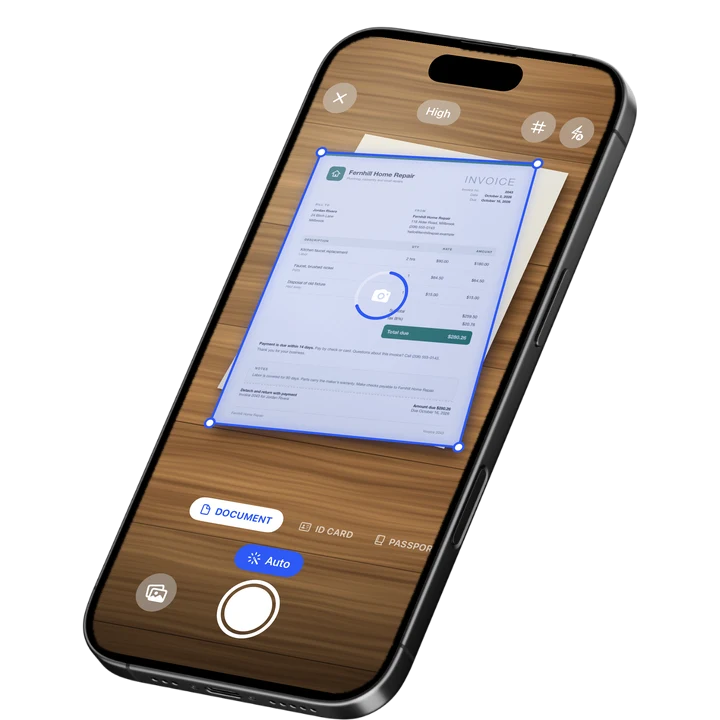
Filewise covers the core job Microsoft Lens did, turning a phone camera into a document scanner, and adds signing, redaction, and page tools that Lens did not have. Documents scan and save on the iPhone itself, so you have a file on your device from the moment you capture it.
Get Filewise to pick up scanning exactly where Microsoft Lens left off, with your files saved on your phone.
How Filewise Replaces Microsoft Lens for Everyday Scanning
Open Document mode and point the camera at a page. Live edge detection finds the page and auto-captures it, then corrects the perspective and crops it, the same basic job Lens did for receipts, whiteboards, and forms. You can batch through a multi-page document in one session, since there is no page limit, and add filters like Auto or Magic Color to clean up the scan.
Where Filewise goes further than Lens is after the scan: sign the document with a saved signature, redact sensitive lines before you share it, add a password, and file it into a folder you organize yourself. For office ID or membership cards, ID Card mode captures both sides on one page at real size.
Key Features
- Live edge detection and multi-page batch scanning: the same core job Lens did, with no page limit.
- On-device text recognition: search your scanned documents by text after OCR, right on the phone.
- Signature tool: draw a signature or turn a photo of one into a clean signature, then reuse it on every document.
- Redaction and watermark: blur or box out sensitive information, burned into the exported PDF.
- ID Card and Passport modes: capture both sides of a card on one page at real size, or a passport page.
- Export as PDF or DOCX, with a password: send a signed, redacted PDF, protected if it needs to be.
Pricing
See the App Store for current pricing and plans.
Best For
- Former Microsoft Lens users who want a scanner and its file saved on the phone.
- Anyone who also needs to sign or redact a document after scanning it.
- ID card and passport page scanning for forms and applications.
- Working offline, since scanning, OCR, and editing all run on the phone.
2. OneDrive - Best for Staying in the Microsoft Ecosystem
OneDrive is Microsoft's own pick for anyone leaving Microsoft Lens, and it makes sense for people who already store files in OneDrive or use Microsoft 365 day to day.
Key Features
- Built-in document scanner inside the OneDrive app.
- Scans save directly into your OneDrive folders.
- Works alongside Word, Excel, and PowerPoint files you already keep in Microsoft 365.
- Shares scans the same way you share any OneDrive file.
Pricing
OneDrive lists Microsoft 365 plans from $1.99 to $12.99 a month among its in-app purchases on the US App Store (September 2026).
Best For
- People who already run their work through Microsoft 365 and OneDrive.
- Teams that share files through OneDrive folders rather than by exporting PDFs.
3. Adobe Scan - Best for Existing Acrobat Users
Adobe Scan fits a workflow that already runs through Adobe Acrobat, since a scan lands in the same Adobe Document Cloud as everything else you send through Acrobat.
Key Features
- PDF export with a text layer you can search.
- ID card scan mode.
- Direct link to Adobe Acrobat and Adobe Document Cloud.
- Auto-crop and multi-page capture.
Pricing
Adobe Scan lists Adobe Scan Premium at $9.99 a month and Adobe Scan Plus from $4.99 a month on the US App Store (September 2026).
Best For
- People already paying for Adobe Acrobat or Creative Cloud.
- Scans that need to sit alongside other Acrobat documents.
4. Genius Scan - Best for Fast, Simple Scanning
Genius Scan, from The Grizzly Labs, is a straightforward scanner: point, capture, and export, without the extra editing tools some other apps bundle in.
Key Features
- Fast auto-capture with manual crop correction.
- Genius Scan Plus and Ultra tiers for extra export and cloud options.
- Multi-page PDF export.
- Batch scanning.
Pricing
Genius Scan lists Genius Scan Plus at $0.99 and Genius Scan Ultra from $4.99 to $49.99 on the US App Store (September 2026).
Best For
- Quick, no-frills scanning without a Microsoft or Adobe account.
5. Apple Files and Notes - Best for Zero Extra Apps
Every iPhone already has a scanner built into the Files and Notes apps, which is enough for someone who scans a page every so often and does not want to pick a replacement app at all. For a fuller comparison of dedicated apps, see our roundup of the best PDF scanner apps for iPhone.
Key Features
- Built into iOS, no download needed.
- Auto edge detection and perspective correction.
- Saves straight to a note or a Files folder.
- Works offline.
Pricing
Included with iOS, at no extra cost.
Best For
- Occasional scanning without adding an app.
How to Move from Microsoft Lens to Filewise
Moving over is mostly about where you scan next, since Microsoft Lens itself no longer captures new pages. If you have older Lens scans saved in OneDrive or OneNote, those files are still there and still open normally.
- Open OneDrive or OneNote and find your existing Lens scans (PDF, Word, or image files).
- Save or download those files to the Files app on your iPhone.
- Open Filewise and import them from Files, so old and new scans live in one place.
- Start scanning new pages in Filewise going forward, using Document, ID Card, or Passport mode as needed.
- Organize both old and new scans into folders you set up yourself. For the basics of getting a clean scan, see our guide on how to scan documents on iPhone.
If some of your old Lens scans need a signature added before you file them away, our guide on how to sign a PDF on iPhone covers that step too.
Frequently Asked Questions
What is the best Microsoft Lens alternative for iPhone?
Filewise is the best overall Microsoft Lens alternative for iPhone, because it covers the same core job of scanning a page into a clean PDF and saves the file on the phone, then adds signing, redaction, and ID card scanning that Lens did not have. OneDrive is Microsoft's own recommended replacement for people who want to stay inside the Microsoft ecosystem.
What happened to Microsoft Lens?
Microsoft retired the Lens app, which left the App Store on February 9, 2026, with scanning inside the app stopping on March 9, 2026, according to Microsoft Support. Microsoft now points former Lens users to the OneDrive app's built-in scanner as the replacement.
Does OneDrive fully replace what Microsoft Lens did?
OneDrive replaces the basic scanning function, but its scanner saves new scans to OneDrive in the cloud rather than to the phone itself, which is a real difference from how Lens worked. People who want a scanned file saved locally on their iPhone from the start may prefer a dedicated scanner app instead.
How do I get my old Microsoft Lens scans?
Your existing scans are not deleted. If you saved them to OneDrive or OneNote, as Lens did by default, those files are still there and open normally in the OneDrive or OneNote app. You can then move copies into a new scanner app on your iPhone to keep everything in one place going forward.
Can I still download Microsoft Lens from the App Store?
No. Microsoft Lens was removed from the App Store as part of its retirement, so it is no longer available to download on iPhone. Anyone who already had it installed found that scanning stopped working after March 9, 2026, according to Microsoft Support.
Our Pick for the Best Microsoft Lens Alternative
For most former Microsoft Lens users, Filewise is the best alternative because it covers the same everyday scanning job and saves the file on your iPhone from the first capture, then adds signing, redaction, and ID card scanning as your paperwork gets more involved.
If you are already deep in Microsoft 365 and want your scans to land in the same place as your other files, OneDrive is the natural pick. And if you only scan a page now and then, the scanner already built into Files and Notes on your iPhone is enough.
Get Filewise and keep scanning exactly where Microsoft Lens left off, with every file saved on your phone.
🔒 Face ID lock | 📱 Built for iPhone