Best Adobe Scan Alternatives for iPhone (2026)
TL;DR
The best Adobe Scan alternatives in 2026 are Filewise for scanning, signing, and redacting in one app, Genius Scan for fast, simple scanning, and Scanner Pro for fax and expense report add-ons. Many people look for an alternative because Adobe Scan asks for an account sign-in and keeps signing in a separate Acrobat app.
On-device OCR. Secure, built for iOS.
Best Adobe Scan Alternatives in 2026
The best Adobe Scan alternatives for iPhone in 2026 are:
- Filewise - Best overall Adobe Scan alternative (scan, sign, and redact in one app)
- Genius Scan - Best for fast, simple scanning
- Scanner Pro - Best for fax and expense report add-ons
- iScanner - Best for extra editing tools
- Apple Files and Notes - Best for zero extra apps
Adobe Scan is a capable scanner, but it is built around the wider Adobe ecosystem, from Document Cloud storage to Acrobat for editing and signing. If you want scanning, signing, and organizing in a single app, or you scan documents that never need to touch Adobe's tools at all, the five apps below cover that job.
Why People Look for an Adobe Scan Alternative
People look for an Adobe Scan alternative mainly because of how the app is built, not because of anything wrong with it. Adobe Scan asks you to sign in with an Adobe ID or another account to use it fully and to store scans in Adobe Document Cloud.
- Signing a document is not part of Adobe Scan itself; that feature lives in the separate Acrobat Reader app.
- Redacting sensitive information and adding an ID Card layout are not part of Adobe Scan's core scanning tools.
- Some people want one app that scans, signs, and organizes documents, instead of scanning in one app and finishing the job in another.
1. Filewise - Best Overall Adobe Scan Alternative
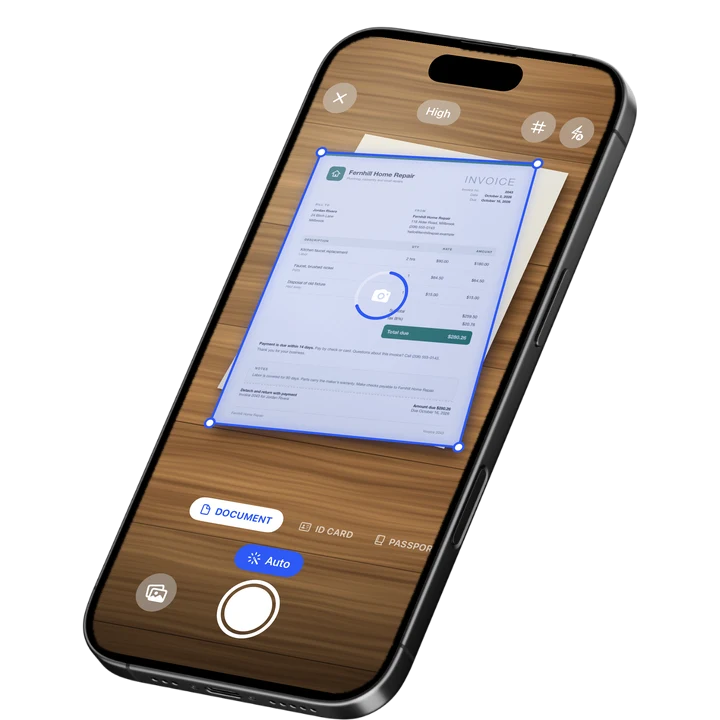
Filewise covers the same core scanning job as Adobe Scan, capturing and cropping a page automatically, and adds signing, redaction, and ID card scanning directly in the same app, so you are not switching between a scanner and a separate editor.
Get Filewise to scan, sign, and redact a document without leaving one app.
How Filewise Replaces Adobe Scan for Everyday Scanning
Open Document mode and point the camera at a page. Live edge detection finds the page and auto-captures it, corrects the perspective, and crops it, the same basic job Adobe Scan does. Multi-page batch scanning with no page limit means a full contract or report goes in one session, and you can pick a filter such as Auto or Magic Color to clean up the scan before you move on.
For a page size that matches what you are scanning, Filewise supports Original, A4, A5, Letter, Legal, and Business Card sizes, so a contract, a form, and a business card each come out sized the way they should be, rather than as one generic photo.
From there, Filewise adds what Adobe Scan hands off to other apps: sign the document with a saved signature, redact sensitive lines before you share it, add a password, and capture an ID card on one page at real size in ID Card mode. On-device text recognition reads the text so you can search your scans later, and folders let you organize everything the way you want.
Key Features
- Live edge detection and multi-page batch scanning: the same core scanning job, with no page limit.
- Signature tool: sign a document on the page and reuse the same signature on future documents.
- Redaction and watermark: hide sensitive information, burned into the exported PDF.
- ID Card and Passport modes: capture both sides of a card, or a passport page, at real size.
- On-device text recognition: search your scans by text after OCR, right on the phone.
- Export as PDF or DOCX, with a password: send a signed, redacted, protected file straight from the app.
Pricing
See the App Store for current pricing and plans.
Best For
- People who want scanning, signing, and redaction in a single app.
- ID card and passport page scanning at real size.
- Organizing scanned documents into folders without a separate editor.
- Working offline, since scanning, OCR, and editing all run on the phone.
2. Genius Scan - Best for Fast, Simple Scanning
Genius Scan, from The Grizzly Labs, keeps scanning fast and simple: point, capture, and export, without the wider ecosystem Adobe Scan connects to.
Key Features
- Fast auto-capture with manual crop correction.
- Genius Scan Plus and Ultra tiers for extra export and cloud options.
- Multi-page PDF export.
- Batch scanning.
Pricing
Genius Scan lists Genius Scan Plus at $0.99 and Genius Scan Ultra from $4.99 to $49.99 on the US App Store (September 2026).
Best For
- Quick, no-frills scanning for one-off, everyday captures.
3. Scanner Pro - Best for Fax and Expense Report Add-Ons
Scanner Pro, from Readdle, adds fax sending and an expense report add-on on top of standard scanning, which fits someone who occasionally needs either of those.
Key Features
- Fax Pack add-on for sending documents by fax.
- Expense Report add-on.
- Multi-page PDF export.
- Auto-crop and batch scanning.
Pricing
Scanner Pro lists Scanner Pro Plus from $3.99 to $59.99 and a Fax Pack at $0.99 on the US App Store (September 2026).
Best For
- People who occasionally need to fax a document or file an expense report.
4. iScanner - Best for Extra Editing Tools
iScanner, from BP Mobile, bundles a scanner with extra utilities like a ruler and a math solver, for anyone who wants one app for several small tasks.
Key Features
- Document scanning with auto-crop.
- Built-in measuring and math-solving tools.
- Multiple weekly and annual plans.
- PDF editing and merging.
Pricing
iScanner lists Premium plans from $3.99 to $19.99 across weekly and other terms on the US App Store (September 2026).
Best For
- People who want scanning bundled with other small utilities.
5. Apple Files and Notes - Best for Zero Extra Apps
Every iPhone already has a scanner built into the Files and Notes apps, which is enough for someone who scans a page every so often and does not want to sign into anything at all.
Key Features
- Built into iOS, no download needed.
- Auto edge detection and perspective correction.
- Saves straight to a note or a Files folder.
- Works offline.
Pricing
Included with iOS, at no extra cost.
Best For
- Occasional scanning without adding an app or an account.
How to Move from Adobe Scan to Filewise
Moving your existing scans over is mostly a matter of exporting what you already have and starting new scans in Filewise from there.
- Open Adobe Scan or Adobe Document Cloud and export the documents you want to keep as PDF or JPG files.
- Save those files to the Files app on your iPhone.
- Open Filewise and import them from Files, so your old and new scans live in one place.
- Start scanning new documents in Filewise, using Document, ID Card, or Passport mode as needed.
- Organize everything into folders you set up yourself. For the basics of a clean first scan, see our guide on how to scan documents on iPhone.
If some of those documents need a signature before you file them, our guide on how to sign a PDF on iPhone covers that step in Filewise.
Frequently Asked Questions
What is the best Adobe Scan alternative for iPhone?
Filewise is the best Adobe Scan alternative for iPhone, because it covers the same core scanning job and adds signing, redaction, and ID card scanning directly in the same app, instead of sending you to a separate app to finish the job. Genius Scan is a good pick for people who just want fast, simple scanning.
Why do people look for an Adobe Scan alternative?
Mainly because of how Adobe Scan is built, not because of a flaw in the app. It asks for an account sign-in to use fully, keeps signing inside the separate Acrobat Reader app, and does not include an ID card layout or redaction in its core scanning tools.
How do I move my scans from Adobe Scan to another app?
Export your documents from Adobe Scan or Adobe Document Cloud as PDF or JPG files, save them to the Files app on your iPhone, and import them into your new scanner app from there. Your original files are not affected by exporting a copy.
Can I sign documents without using Acrobat?
Yes. Filewise includes a signature tool directly in the app, so you can sign a scanned document or an imported PDF without opening Acrobat or any other app. You can save a signature once and reuse it on future documents.
Does Adobe Scan include an ID card scanning mode?
Adobe Scan is built around general document capture rather than a dedicated ID layout. Filewise has a purpose built ID Card mode that places both sides of an ID on one A4 page at real ID size, plus a separate Passport mode for travel documents.
Our Pick for the Best Adobe Scan Alternative
For most people who want scanning, signing, and redaction without switching between apps, Filewise is the best Adobe Scan alternative, because it covers the same core scanning job and finishes the rest of the work in the same place. For a broader comparison of scanner apps for a specific ID card layout, see our guide on the best ID card scanner apps for iPhone.
If you just need fast, simple scans with no extras, Genius Scan is a solid, straightforward pick. And if fax or an expense report add-on matters, Scanner Pro covers those specifically.
Get Filewise and scan, sign, and organize your documents in one app.
🔒 Face ID lock | 📱 Built for iPhone