Best App to Redact a PDF on iPhone (2026)
TL;DR
The best app to redact a PDF on iPhone in 2026 is Filewise, because its redaction boxes and blur are burned into the exported file, so the text underneath cannot be recovered. Adobe Acrobat and PDF Expert also redact well but need a subscription. This guide compares 5 apps.
 Filewise - PDF Scanner
Scan documents to PDF on iPhone
- Get a sharp, professional PDF in one tap.
- Find any word later with on-device text recognition.
- Sign and send polished documents.
- Confidential files stay locked behind Face ID.
- Reliable and native, built for iOS.
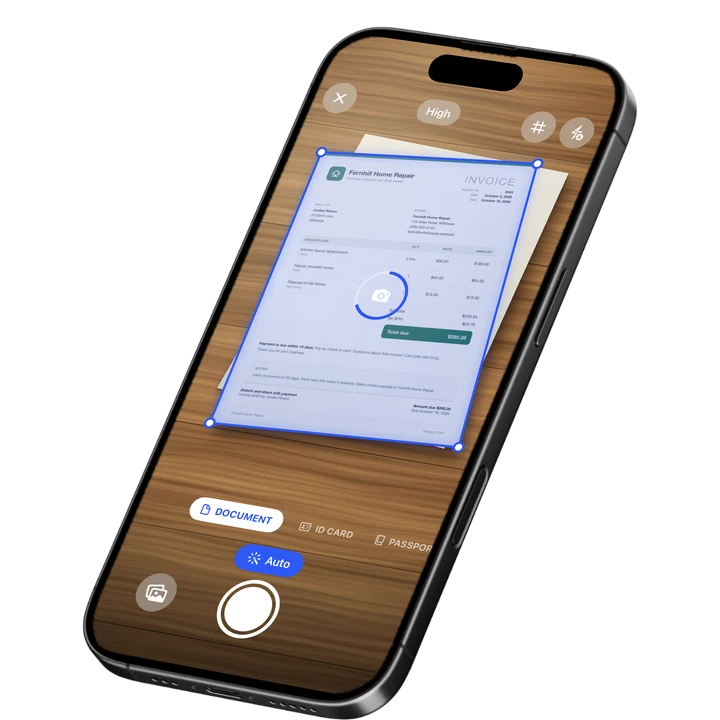
On-device text recognition. Secure, built for iOS.
Best App to Redact a PDF on iPhone in 2026
The best apps to redact a PDF on iPhone in 2026 are:
- Filewise - Best overall for redacting a PDF (redaction boxes and blur are burned into the exported file)
- Adobe Acrobat Reader - Best for search-based redaction across long documents
- PDF Expert - Best for redacting inside a full PDF editor
- iLovePDF - Best for a quick, one-off redaction from any device
- Docusign - Best for redacting a document that also needs a signature workflow
You are about to send a bank statement, a lease, or a school form to someone, and it has an account number, a social security number, or another person's name on it that should not be there. A screenshot with a black rectangle drawn on top is not enough, because the text is still sitting underneath the box. You need the sensitive part actually gone before you hand over the document, the same way client confidentiality matters in our best scanner app for lawyers guide.
1. Filewise - Best Overall App to Redact a PDF on iPhone
Filewise lets you draw a redaction box or a blur directly over any part of a scanned or imported PDF, and that change is burned into the file you export. There is no layer to peel back and no hidden text left underneath, which is what makes it the right tool for a document you are about to hand to someone else.
Get Filewise before you send that next bank statement or lease, and black out the account number or tenant's ID in a few taps.
How Filewise Handles Redaction
Open the document in Filewise, whether it was scanned with the camera or imported from Files or Photos, and switch to the redact tool. Drag a box over the text or photo you want to hide, or use the blur tool for a softer look, and repeat for every page that needs it. When you export the PDF, JPG, or Word file, the redacted area is part of the image, not a separate note that a reader can remove.
This matters most for documents you scan directly on your iPhone, such as a driver's license copy for a tenant application or a bank statement for a loan file. You redact the sensitive lines right after scanning, before the file ever leaves your phone as an export.
Key Features for Redaction
- Burned-in redaction boxes and blur: Cover account numbers, signatures, or names, and the cover becomes part of the exported PDF or JPG.
- Works on scans and imports: Redact a document you just scanned with the camera or a PDF you imported from Files or Photos.
- PDF password: Add a password to the finished file for an extra layer before you share it.
- Watermark and page numbers: Stamp a watermark or footer on a redacted document before you send it.
- Multi-page batch scanning: Scan a whole file, such as a multi-page lease or a benefits statement, as one PDF, then redact across every page.
- Folders and App Lock: Keep redacted originals and the redacted copy separate in folders, and lock the app with Face ID or a PIN.
Pricing
See the App Store for current pricing and plans.
Best For
- Landlords blacking out a tenant's ID number before filing an application
- Freelancers sending a bank statement to a client's finance team
- Anyone sharing a school, medical, or benefits form that lists another person's details
- Small business owners redacting pricing or client names before sharing a contract template
2. Adobe Acrobat Reader - Best for Search-Based Redaction
Adobe Acrobat Reader's Redact tool, part of an Acrobat Pro subscription, permanently removes the text or image you select instead of just covering it. It can also search a document for a word or a pattern such as an account number and mark every match for redaction at once, which is useful on longer documents.
Key Features
- Search-based redaction that finds every occurrence of a word or number across a document
- Manual redaction of selected text, images, or full pages
- A sanitize option that also strips hidden metadata, comments, and form data
- Built into the same app used for reading and marking up PDFs
Pricing
Acrobat Premium plans are listed from about $9.99 to $69.99 depending on the plan and term (September 2026).
Best For
- People who already use Acrobat for reading and marking up PDFs
- Long documents where the same sensitive term appears many times
3. PDF Expert - Best for Redacting Inside a Full PDF Editor
PDF Expert, from Readdle, includes a Redact tool with two modes: Blackout, which covers the selection with a solid box, and Erase, which removes the text and leaves blank space. It sits inside a full PDF editor, so you can redact, then annotate or fill in the same document.
Key Features
- Blackout and Erase redaction modes
- A find-and-redact search bar for repeated terms
- Annotation, form filling, and page editing in the same app
- iPad and iPhone support
Pricing
PDF Expert Premium is listed at $49.99, with other tiers and a trial option (September 2026).
Best For
- People who edit and redact PDFs in one app
- One-off redaction jobs on a document you already have open to review
4. iLovePDF - Best for a Quick, One-Off Redaction
iLovePDF has a dedicated Redact PDF tool that works from its app or a browser, so you can black out a line or two on a single document without setting up a full editor. It is a good fit for a single form or letter rather than an ongoing habit of redacting documents on your phone.
Key Features
- A dedicated Redact PDF tool, separate from its other PDF tools
- Works from the app or from a browser on any device
- Part of a wider set of PDF tools, including merge, split, and password protection
Pricing
iLovePDF Premium is listed from about $5.49 to $44.99 depending on the plan (September 2026).
Best For
- A single document that needs one quick redaction
- People who also want other PDF tools, like merging or password protection, in the same app
5. Docusign - Best for Redacting a Document Before Signing
Docusign is an e-signature platform built for sending a document to someone else to sign and track. It is not primarily a redaction tool, but when the document that needs redacting is also headed for a signature, doing both in the same workflow saves a step.
Key Features
- Send a document for one or more people to sign, with an audit trail
- Templates for repeat documents, such as leases or intake forms
- Status tracking so you know when a document has been signed
Pricing
Docusign plans are listed from about $14.99 to $59.99 depending on the plan (September 2026).
Best For
- Documents that need both a redaction and a signature from someone else
- Businesses that already send contracts out for signature
How to Choose an App to Redact a PDF on iPhone
The most important thing is that the redaction is permanent, not a shape drawn on top of the text. Beyond that, match the app to how often you redact and what else you need to do with the file.
- Permanence: Confirm the tool removes the underlying text or image, not just a box drawn over it. A drawing tool alone is not redaction.
- Where the document already lives: If you are scanning the document for the first time, a scanner app that also redacts saves you an export-and-reimport step.
- Batch size: A search-based tool saves time when the same sensitive term repeats across many pages.
- What happens after redaction: Decide if the file also needs a password, a signature, or just to be saved and shared as is. If the document also needs a signature, our guide to scanning and signing contracts on iPhone covers that step.
For a broader look at how the top scanner apps compare beyond redaction, see our best PDF scanner apps for iPhone guide.
Frequently Asked Questions
What is the best app to redact a PDF on iPhone?
Filewise is the best app to redact a PDF on iPhone because its redaction boxes and blur are burned into the file you export, so the covered text cannot be recovered from the finished PDF. Adobe Acrobat Reader and PDF Expert are also strong picks when you need search-based redaction across a long document.
Is drawing a black box over text in a PDF the same as redacting it?
No. A shape or highlight drawn on top of text usually sits on a separate layer, and the text underneath can often be selected, copied, or recovered by removing the shape. True redaction deletes the underlying text or image so nothing is left to recover.
Can I redact a photo or a signature, not just text?
Yes. Filewise's redaction tools work on any part of a page, including a photo, a signature, or a barcode, not only typed text. Draw the box or blur over the area you want removed and it becomes part of the exported file.
Do I need to redact a document before or after scanning it?
Either works, but redacting right after scanning is usually simpler, since the document is already open in the same app. Scan the pages, redact the sensitive lines, then export the finished PDF once, instead of exporting first and reimporting it into a separate redaction tool.
Is it safe to email a redacted PDF?
Redacting the sensitive text first is the safer starting point, since the information is removed from the file rather than hidden under a password alone. Adding a password on top of a properly redacted PDF, as Filewise lets you do on export, adds a second layer for anything still in the document.
Our Pick for the Best PDF Redaction App on iPhone
Filewise is the best choice for most people who scan a document and need to redact it on the spot, because the redaction is part of the scanning and export flow and the covered text cannot be recovered afterward. If you already live inside Acrobat or PDF Expert for other PDF work, their redaction tools are a capable second option, especially for finding a repeated term across a long document.
Get Filewise and turn any scan into a document you can safely hand over, with the sensitive parts truly gone.
🔒 Face ID lock | 📱 Built for iPhone