How to Compress a PDF on iPhone
TL;DR
To compress a PDF on iPhone, export it at a lower quality setting in the Preview app, or use a scanner app's Medium or High compression option when you export a scan. Filewise lets you pick the compression level when you export, which keeps file size down without leaving the app.
 Filewise - PDF Scanner
Scan documents to PDF on iPhone
- Get a sharp, professional PDF in one tap.
- Find any word later with on-device text recognition.
- Sign and send polished documents.
- Confidential files stay locked behind Face ID.
- Reliable and native, built for iOS.
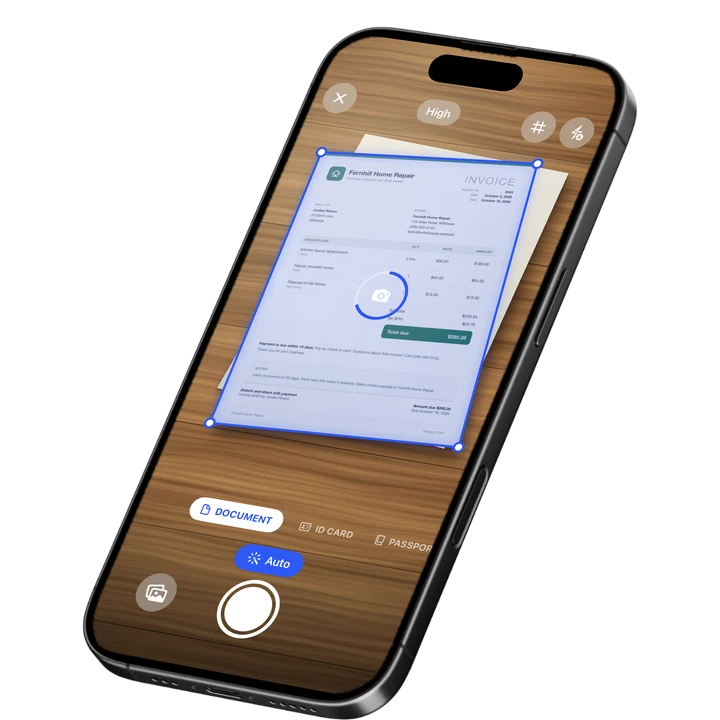
On-device text recognition. Secure, built for iOS.
How to Compress a PDF on iPhone: Quick Steps
To compress a PDF on iPhone, export it with a lower quality or compression setting instead of the original full-size version. Here is the fast path.
- Open the PDF in Filewise or the Preview app.
- Choose Export.
- Pick a smaller size, such as Medium or High compression.
- Confirm the export and check the new file size.
- Share or save the smaller file.
Get Filewise to export a scan at the compression level that fits your file size, right when you scan it.
How to Compress a PDF with the Built-In iPhone Tools
Yes, iPhone can shrink a PDF on its own, using the Preview app. This works well for a document you already have saved on your phone and want to make smaller before sending it.
- Open the PDF in the Preview app.
- Tap the Actions Menu button next to the file name.
- Tap Export.
- Turn on options like Optimize Images for Screen or Save Images as JPEG to reduce the file size.
- Save the exported copy, and compare its size to the original.
This built-in method works well for a PDF you already have. See Apple's guide to exporting or compressing PDFs on iPhone for the full steps.
How to Compress a PDF with Filewise
Filewise lets you choose a compression level right when you export a scan, so a long document does not turn into an oversized file before you even try to send it.
- Scan or open the document in Filewise.
- Go to Export and choose PDF.
- Pick a compression level, such as Medium or High, based on how small the file needs to be.
- Export the file at that setting.
- Share it by AirPrint, the share sheet, or save it to Files.
A higher compression level makes the file smaller but reduces image quality more, so it helps to match the setting to what the file is for. A quick email attachment can usually take more compression than a document you plan to print later.
Because the compression level is chosen at export time, you can keep the original scan at full quality inside Filewise and export a smaller copy only when you need one. That way a document you might print later is not permanently reduced just because one copy of it needed to be small enough to email.
How to Send a Compressed PDF After You Shrink It
Once a PDF is compressed, sending it works the same way as any other file. The smaller size just makes it more likely to go through without an error.
- Open the compressed PDF.
- Tap the share icon.
- Choose how to send it: email, a messaging app, AirDrop, or a cloud storage upload.
- If the file is still too large for the recipient's system, try a higher compression level and export again.
A share link is another option once a document is in Filewise. Instead of attaching the file directly, you send a link that opens the PDF, with an expiry date and the ability to revoke it later if you need to.
Tips for Keeping a Compressed PDF Readable
Shrinking a file too far can make text or fine details harder to read. A few habits help you compress without losing what matters.
- Start with Medium compression first, and only move to High if the file still needs to be smaller.
- Check a compressed page before sending it, especially one with small text, to make sure it is still easy to read.
- Compress photos more than text-heavy pages, since a photo tolerates more compression than a page you need to read closely.
- Keep an uncompressed copy of anything you might need to print later at full quality.
- Compress once you are done editing, so you are not repeatedly compressing an already compressed file.
- Name the file clearly once it is exported, so a Medium or High compressed copy is easy to tell apart from the original if you keep both.
Frequently Asked Questions
Why is my PDF too large to email?
Many email systems limit attachment size, often to around 25 megabytes, so a PDF with several high-resolution scanned pages can be too large to send as is. Compressing the file reduces the size of the images inside it, which usually brings a scanned document well under that limit.
Will compressing a PDF make the text blurry?
A moderate compression level, such as Medium, usually keeps text readable while still shrinking the file. Higher compression, such as High, reduces file size further but can soften fine detail, so it helps to check a compressed page before sending it if the text is small.
What is the difference between Medium and High compression?
Medium compression reduces file size while keeping more of the original image quality, which suits a document you may want to read closely or print. High compression shrinks the file further but reduces image quality more, which suits a quick attachment where file size matters more than fine detail.
Can I compress a PDF that I did not scan myself, like one someone emailed me?
Yes. You can import an existing PDF into Filewise or open it in the Preview app and export a compressed version, even if you did not create the original scan. The file does not need to have come from your own camera.
Does compressing a PDF remove any pages or content?
No. Compression reduces the file size of the images inside the PDF, but it does not remove pages or delete content. All the same pages are still there, just saved at a smaller file size.
Can I compress a PDF without losing the original full-size version?
Yes. Exporting a compressed copy does not have to replace the original. You can keep the first export or scan at full quality and export a separate, smaller version whenever you need one for sending.
The Fastest Way to Compress a PDF on iPhone
For a document you already have, the Preview app's export options handle basic compression without installing anything new. For a document you are scanning fresh, picking a compression level at export time in Filewise saves a step, since you get a right-sized file the first time.
Once your file is compressed, you may want to combine it with other pages first. See our guide to scanning multiple pages into one PDF on iPhone, or how to make a PDF on iPhone for other ways to build the file before you shrink it.
Get Filewise and export your next scan at the file size that fits where it is going.
🔒 Face ID lock | 📱 Built for iPhone