How to Scan Multiple Pages into One PDF on iPhone
TL;DR
To scan multiple pages into one PDF on iPhone, use a scanner app's batch mode to capture each page in a row and save them all as a single file. Filewise captures every page automatically with no limit on how many you add. The built-in Notes app scanner can do this too, for a simpler single document.
 Filewise - PDF Scanner
Scan documents to PDF on iPhone
- Get a sharp, professional PDF in one tap.
- Find any word later with on-device text recognition.
- Sign and send polished documents.
- Confidential files stay locked behind Face ID.
- Reliable and native, built for iOS.
On-device text recognition. Secure, built for iOS.
How to Scan Multiple Pages into One PDF on iPhone: Quick Steps
To scan multiple pages into one PDF on iPhone, open a scanner app's batch mode, capture each page one after another, and export the whole set as a single file. Here is the fast path.
- Open Filewise and start a new Document scan.
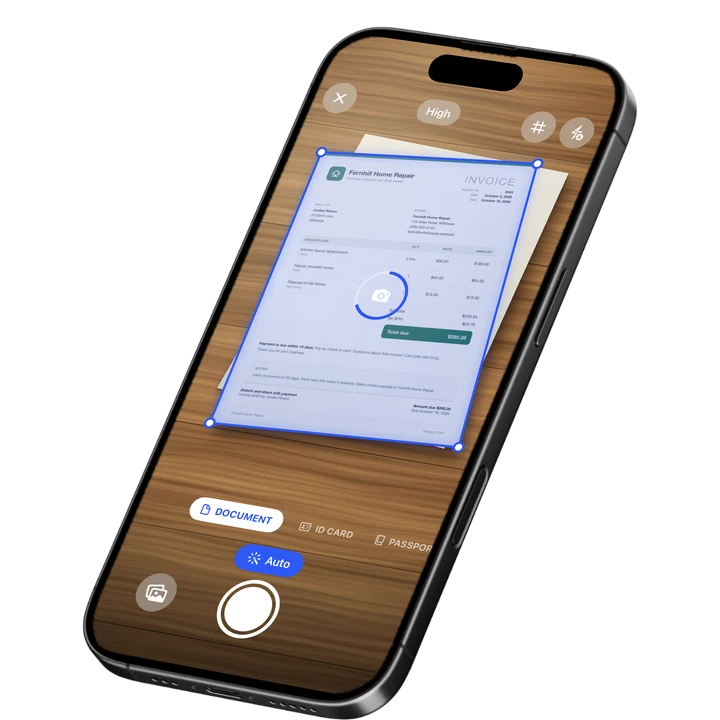
- Hold each page flat and let auto capture take the shot as soon as the edges line up.
- Move to the next page and repeat, without leaving the scan screen.
- Check the page order once every page is captured, and reorder if needed.
- Export the full set as one PDF.
Get Filewise to scan a whole stack of pages in one pass and export them as a single, organized PDF.
How to Scan Multiple Pages into One PDF with the Built-In iPhone Tools
Yes, iPhone can scan several pages into one PDF on its own, using the Notes app scanner. This works well for a short document without installing anything new.
- Open the Notes app and start a new note.
- Tap the camera icon and choose Scan Documents.
- Capture the first page, then keep going, capturing each additional page in order.
- Tap Save once every page is captured. All the pages join together as one PDF attached to the note.
- Share the PDF or save it to Files from the note.
This built-in method covers most short documents well. For a longer stack, or one that needs filters, page reordering, or a password before it goes out, a dedicated scanner app adds more control over the finished file.
How to Scan Multiple Pages into One PDF with Filewise
Filewise scans a full stack of pages in one session and combines them into a single PDF with no limit on how many pages you add. This suits a full contract, a report, or a stack of receipts just as well as a two-page form.
- Open Filewise and choose Document mode.
- Hold the first page flat under good light. Live edge detection finds the page automatically, and auto capture takes the shot the moment it is lined up.
- Move to the next page. Filewise keeps capturing in the same session, so you do not need to start over for each page.
- Once every page is scanned, open the page manager to check the order, rotate a page if needed, or delete one that came out wrong.
- Apply a filter, such as Magic Color or B&W, to all pages at once if the document needs it.
- Export the finished set as one PDF, and share it by AirPrint, the share sheet, or saving it to Files.
Because there is no page limit, a document that runs to dozens of pages scans the same way as a two-page form: one session, one finished PDF.
How to Reorder or Fix Pages After You Scan Multiple Pages into One PDF
Pages do not always end up in the right order on the first try, especially with a thick stack. Filewise's page manager fixes this after the fact, without rescanning anything.
- Open the scanned document and go to the page manager.
- Drag a page to move it into the correct position.
- Delete a page that came out blurry or duplicated.
- Add a blank page if the document needs one, such as a cover sheet.
- Rotate any page that was captured sideways.
Tips for Scanning Multiple Pages Cleanly into One PDF
A clean multi-page scan starts with a few habits before you even open the app.
- Use even, bright light so every page in the set looks consistent, not some pages bright and others shadowed.
- Keep each page flat on a table or clipboard rather than held in the air, so the edges are easier to detect.
- Scan pages in order when you can, so you do not need to reorder afterward.
- Pick one filter for the whole set, such as Magic Color for a photo or B&W for text, so the finished PDF looks consistent page to page.
- Check the page count before exporting, especially with a long document, to make sure none were skipped.
Frequently Asked Questions
Can I scan more than one page into a single PDF on my iPhone?
Yes. Both the built-in Notes app scanner and a dedicated scanner app like Filewise can capture several pages in one session and save them as a single PDF, instead of a separate file for each page.
Is there a limit to how many pages I can scan into one PDF?
With Filewise, there is no set limit on how many pages can go into one document, so a short form and a full report scan the same way. The practical limit is how long you want to spend scanning in one sitting.
Can I add more pages to a PDF after I have already scanned some?
Yes. You can return to a scanned document and add more pages to it, or scan the extra pages separately and combine them afterward. The page manager lets you arrange everything into the final order once all the pages are in.
Can I reorder the pages after scanning?
Yes. The page manager lets you drag pages into a new order, delete one that came out wrong, or add a blank page, all without rescanning the document from the start.
Does the Notes app scan multiple pages into one PDF too?
Yes. The Notes app scanner can capture several pages in one note and saves them together as one PDF. It works well for shorter documents, though it does not include filters, page reordering, or a password on the finished file the way a dedicated scanner app does.
What happens if I scan a page out of order by mistake?
Nothing is lost. Finish scanning the rest of the document, then use the page manager to drag the out-of-order page into the correct spot before you export the final PDF.
The Fastest Way to Scan Multiple Pages into One PDF on iPhone
For a quick, short document, the Notes app scanner gets the job done with no extra app needed. For anything longer, or a document that needs filters, reordering, or a password before it goes out, a scanner app built around batch capture is faster and gives you more control over the finished file.
Once your pages are scanned into one PDF, you may want to shrink the file before sending it. See our guide on how to make a PDF on iPhone for other ways to build a PDF, or browse our roundup of the best PDF scanner apps for iPhone for more options. For scanning inside Notes specifically, see how to scan in the Notes app on iPhone.
Get Filewise and turn your next stack of paper into one clean, organized PDF.
🔒 Face ID lock | 📱 Built for iPhone