How to Make a PDF on iPhone (2026)
TL;DR
To make a PDF on iPhone, scan a paper page or import a photo or file, then export it as a PDF using Files or Filewise. Filewise scans multi-page documents directly to PDF and merges several files into one. The Print trick in Photos or Files turns a single photo or document into a PDF with no extra app.
On-device OCR. Secure, built for iOS.
How to Make a PDF on iPhone: Quick Steps
To make a PDF on iPhone, you can scan a paper page directly to PDF in Filewise, turn a single photo or webpage into a PDF with the built-in Print trick, or import several files and merge them into one PDF.
- For a paper page, open Filewise and choose Document mode.
- For a photo, webpage, or document already on your phone, open its Share menu and tap Print, then pinch open the preview.
- Tap Share again from that preview and choose Save to Files.
- To combine more than one file into a single PDF, import them into Filewise and use Merge.
- Export the finished file as a PDF, then share it or save it to Files.
Get Filewise to scan a stack of paper straight into one multi-page PDF.
How to Make a PDF on iPhone with the Built-In Tools
Yes, you can make a PDF on iPhone for free with no extra app, using a trick that works from almost any app: the Print option in the Share menu.
- Open the photo, webpage, email, or document you want to turn into a PDF.
- Tap the Share button, then tap Print.
- On the print preview screen, pinch outward on the page thumbnail. This opens it as a full-screen PDF preview instead of sending it to a printer.
- Tap the Share button again from that preview.
- Choose Save to Files, and the page saves as a PDF.
This works for a webpage in Safari, an email in Mail, a photo in Photos, or almost anything else with a Print option. For a paper document, the Files and Notes apps have a built-in scanner: tap the More button in Files, then Scan Documents, and it saves straight to a PDF.
How to Make a PDF on iPhone with Filewise
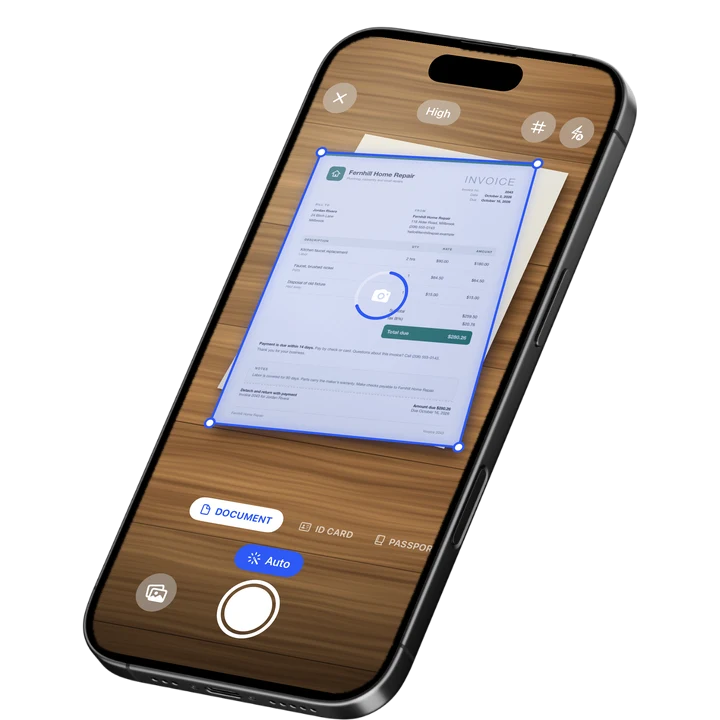
Filewise makes a PDF directly from a paper page, without the Print preview trick, and it is built for documents with more than one page. Open Document mode and point your iPhone at the page.
- In Document mode, hold your iPhone over the page. Live edge detection finds it and auto-captures it, then crops and straightens it.
- Add more pages the same way for a multi-page document, since there is no page limit.
- Apply a filter such as Auto or B&W if the text needs to read more clearly.
- Add a signature, redaction, or watermark if the document needs one before it goes out.
- Export the finished document as a PDF, then share it, print it with AirPrint, or save it to Files.
If you are turning existing photos into a PDF rather than scanning paper, our guide on how to convert a picture to a PDF on iPhone covers that case in more detail.
How to Combine Different Files Into One PDF
A common follow-up need is combining a few different things, like a scanned cover page, an existing PDF, and a photo, into a single file instead of sending three separate ones. Filewise's Merge tool in the page manager brings pages from different sources together into one document.
Import the PDF and photo you already have, alongside anything you just scanned, and merge them in the order you want. You can also split a long PDF back into separate files, reorder pages by dragging them, delete a page you do not need, or add a blank page where one is missing. This is useful for building a single, complete PDF out of paperwork that started in several different places.
Tips for a Clean PDF on iPhone
A few small choices make the finished PDF easier to read, smaller to send, and safer if it contains anything sensitive.
- Pick a consistent page size, like A4 or Letter, so every page in a multi-page PDF looks uniform.
- Use the Auto or Magic Color filter on a scanned page so text reads clearly against the background.
- Compress the file if you are combining many pages and the PDF needs to be smaller to email.
- Add a password before sending a PDF that contains anything sensitive, like a contract or a financial document.
- Reorder pages in the page manager before exporting, rather than fixing the order after you have already shared the file.
If you regularly turn business paperwork into PDFs, our roundup of the best scanner apps for small business covers signing, redaction, and organizing on top of the basics here.
Frequently Asked Questions
Can I make a PDF from a webpage on my iPhone?
Yes. Open the webpage in Safari, tap Share, then Print, and pinch open the print preview to view it as a full-screen PDF. Tap Share again from that preview and choose Save to Files, and the webpage saves as a PDF with no extra app needed.
Can I combine a scanned page and an existing PDF into one file?
Yes. Filewise lets you import an existing PDF alongside anything you scan, then merge them into a single document in the page manager, in whatever order you choose. This works for combining a cover page, a form, and a scanned signature page into one file.
How do I make a PDF smaller before I send it?
Filewise has a compress option in the page manager that reduces file size, which is useful when you are combining many pages or sending a PDF by email. Choosing a smaller page size and a simpler filter, like Grayscale instead of a full-color filter, can also keep the file size down.
Can I add a password to a PDF on iPhone?
Yes. Filewise lets you add a password to a PDF before you export it, so the file stays protected if it contains a contract, an ID, or any other sensitive information. The password is required to open the file, even after it has been shared or saved elsewhere.
Do I need an internet connection to make a PDF on iPhone?
No. Scanning a page, merging files, and exporting a PDF all work offline in Filewise, so you can make a PDF with no signal at all. An internet connection is only needed for optional features like backup or the AI assistant.
The Fastest Way to Make a PDF on iPhone
For a single photo, webpage, or document you already have, the Print trick in the Share menu makes a PDF in a few taps with nothing extra to install. For a paper page, a multi-page document, or several files that need to become one PDF, Filewise scans, merges, and exports them directly, ready to sign as covered in our guide on how to sign a PDF on iPhone.
Get Filewise and turn your next stack of paperwork into one clean PDF.
🔒 Face ID lock | 📱 Built for iPhone