How to Convert a Picture to a PDF on iPhone
TL;DR
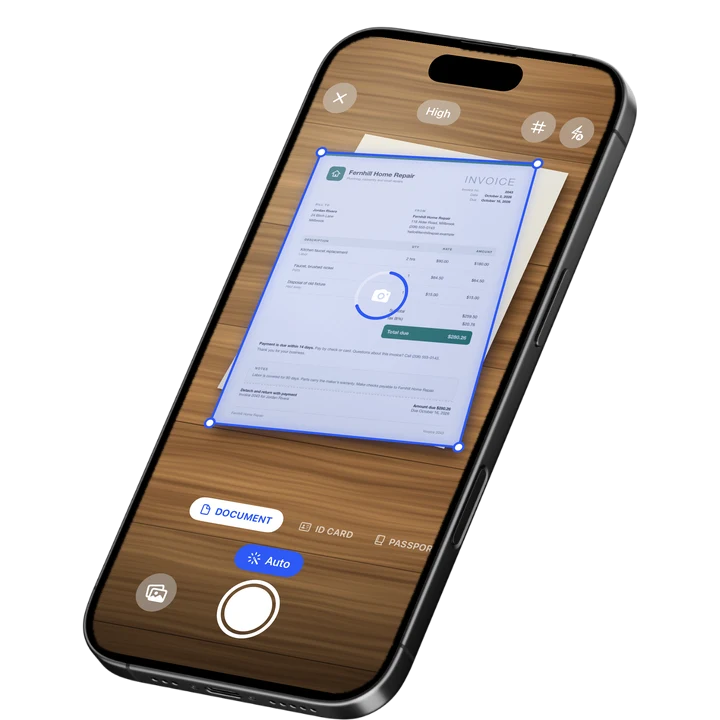
To convert a picture to a PDF on iPhone, open Files or Filewise, select one or more photos, and export them as a single PDF. Filewise imports straight from Photos, lets you multi-select several pictures at once, and keeps them in the order you picked, even for a large batch.
On-device OCR. Secure, built for iOS.
How to Convert a Picture to a PDF on iPhone: Quick Steps
To convert a picture to a PDF on iPhone, you can use the built-in Files app for a single photo, or Filewise to import several pictures at once and combine them into one PDF in the order you choose.
- Open Photos and pick the picture, or open Filewise to import several at once.
- In Filewise, tap Import and choose Photos.
- Multi-select the pictures you want, in the order you want them.
- Filewise builds them into one document, keeping that order.
- Export as a PDF, then share it or save it to Files.
Get Filewise to turn a whole camera roll of photos into one ordered PDF in a few taps.
How to Convert a Picture to a PDF with the Built-In iPhone Tools
Yes, you can convert a single picture to a PDF on iPhone for free with no extra app, using the Photos app and the Print option. This works well for one photo at a time.
- Open Photos and select the picture.
- Tap the Share button, then tap Print.
- On the print preview screen, pinch outward on the page thumbnail to open a larger preview.
- Tap the Share button again from that preview screen.
- Choose Save to Files, and the picture saves as a PDF.
For a picture you already saved in the Files app, long-press it, tap Quick Actions, then tap Create PDF. Both routes work offline and need nothing beyond what is already on your iPhone.
How to Convert Pictures to a PDF with Filewise
Filewise is built for turning more than one picture into a single, ordered PDF, which the Photos print trick does not do on its own. Open Filewise and tap Import, then choose Photos to bring pictures in straight from your camera roll or an album.
- Tap Import, then Photos.
- Multi-select every picture you want in the PDF. Filewise keeps them in the order you tapped them.
- Reorder any page afterward in the page manager if you picked something out of order.
- Apply a filter such as Auto or B&W if a picture needs the text or lines to read more clearly.
- Export the whole set as one PDF, or as separate JPGs if you need that instead.
This is the faster route once you have more than one or two pictures, since you are not repeating the Print trick for every single photo. If you are photographing paper pages rather than converting existing pictures, our guide on how to scan documents on iPhone covers the scanning steps instead.
How to Combine Multiple Pictures Into One PDF
The most common follow-up question is how to get several pictures into one PDF file instead of several separate ones, which matters for anything you need to send as a single document, like a set of receipt photos or pages of a form.
Filewise's Import screen supports multi-select, so you tap each picture you want in the order you want it to appear, and it builds them into one document that way. If you picked them in the wrong order, open the page manager afterward and drag pages into the right spot before you export. This is useful for combining a handful of receipt photos into one PDF, which our guide on the best receipt scanner apps for iPhone covers in more detail.
Tips for a Clean Picture-to-PDF Conversion
A few small habits make the resulting PDF easier to read and smaller to send.
- Crop out anything around the edges of a photo before converting it, so the PDF page is not mostly background.
- Use the Auto or Magic Color filter if the picture is of text or a printed page, to make the words easier to read.
- Pick a consistent page size, like A4 or Letter, so every page in a multi-picture PDF looks uniform.
- Multi-select pictures in the order you want them to appear, rather than fixing the order afterward.
- Compress the file if you are converting a large batch of pictures and the PDF needs to be a smaller size to send.
Frequently Asked Questions
How do I turn a photo into a PDF on my iPhone without an app?
Open the photo in the Photos app, tap Share, then Print, and pinch outward on the print preview to open a larger view of the page. Tap Share again from that preview and choose Save to Files, which saves the photo as a PDF. This works for one photo at a time using only apps already on your iPhone.
Can I combine several pictures into one PDF file?
Yes. Filewise lets you multi-select several pictures when you import from Photos, and it builds them into a single PDF in the order you picked them. You can reorder pages afterward in the page manager before you export the finished file.
Does converting a picture to PDF keep the original photo?
Yes. Converting a picture to a PDF makes a new file and does not remove or change the original photo in your camera roll. You end up with both the original picture and a separate PDF version.
Can I reorder pictures before they become one PDF?
Yes. In Filewise, pictures keep the order you selected them in during import, and you can still drag pages into a new order afterward in the page manager if you need to fix it. The order is set before you export the final PDF.
Do I need an internet connection to convert a picture to PDF on iPhone?
No. Importing pictures, combining them, and exporting a PDF all work offline in Filewise, so you can do this with no signal at all. An internet connection is only needed for optional features like backup or the AI assistant.
The Fastest Way to Turn a Picture Into a PDF on iPhone
For a single photo, the Photos app's Print trick gets you a PDF in a few taps with nothing extra to install. For more than one picture, or when the order matters, Filewise imports several photos at once, keeps them in the order you chose, and exports them as one PDF you can sign or share right away, as covered in our guide on how to sign a PDF on iPhone.
Get Filewise and turn any set of pictures into one clean, ordered PDF.
🔒 Face ID lock | 📱 Built for iPhone