How to Scan Both Sides of an ID on One Page
TL;DR
To scan both sides of an ID on one page on iPhone, use a scanning app with a dedicated ID Card mode, which places the front and back on a single A4 page at real ID size. The built-in Notes scanner can capture each side, but it saves them as two separate pages instead of one.
 Filewise - PDF Scanner
Scan documents to PDF on iPhone
- Get a sharp, professional PDF in one tap.
- Find any word later with on-device text recognition.
- Sign and send polished documents.
- Confidential files stay locked behind Face ID.
- Reliable and native, built for iOS.
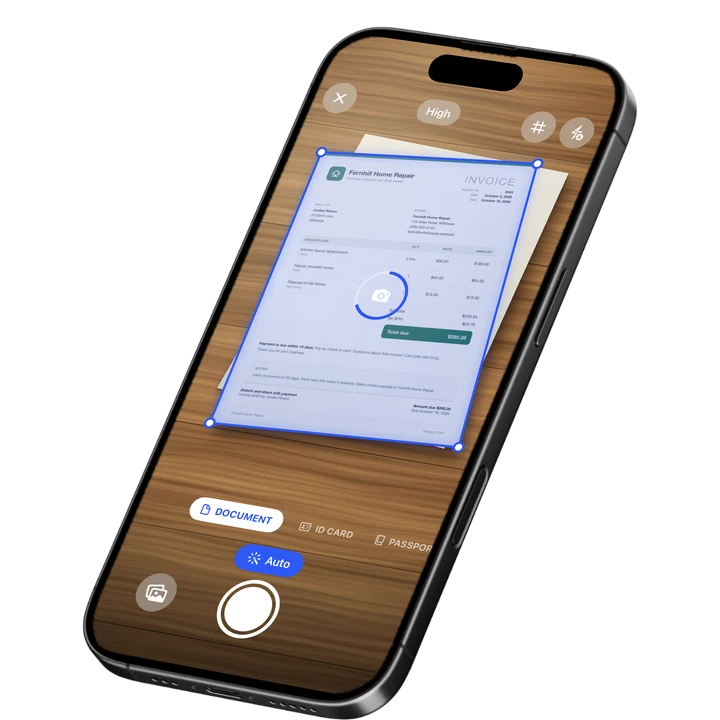
On-device text recognition. Secure, built for iOS.
How to Scan an ID Card Front and Back on iPhone: Quick Steps
To scan both sides of an ID card on one page on iPhone, you need an app with a mode built specifically for ID documents, since a regular document scan treats each side as a separate page. Filewise's ID Card mode scans the front, then the back, and places both on one A4 page at real ID size.
- Open Filewise and choose ID Card mode.
- Scan the front of the ID, letting edge detection square it up.
- Flip the card and scan the back the same way.
- Filewise places both sides on one A4 page at real ID size.
- Export as a PDF or JPG, or share it directly.
Get Filewise to scan the front and back of an ID onto a single page instead of juggling two separate photos.
How to Scan an ID Card with the Built-In iPhone Tools
Yes, you can scan an ID card with the Notes or Files app already on your iPhone, but each side saves as its own page rather than being placed together on one page automatically.
- Open Notes (under your iCloud account) or Files, and start a new scan (Attachment button in Notes, or More then Scan Documents in Files).
- Scan the front of the ID, adjusting the corners if edge detection does not catch them cleanly, given how small and reflective an ID card can be.
- Keep scanning and capture the back as a second page in the same document.
- Save the file. It is now a two-page PDF, front on page one and back on page two, rather than both sides on a single page.
This works fine when a form just needs proof that you scanned both sides, but it falls short when the destination wants one image showing the whole card, front and back together, at its real size (Apple Support). For everyday paperwork beyond an ID, see our broader guide to how to scan documents on iPhone.
How to Scan an ID Card Front and Back with Filewise
Filewise's ID Card mode is built for exactly this: it captures both sides of an ID and lays them out together on one A4 page at real ID size, instead of leaving you with two loose images or a two-page PDF.
- Open Filewise and tap to start a new scan, then choose ID Card mode instead of the regular Document mode.
- Place the ID card's front inside the on-screen guide and let live edge detection and auto-capture take the shot, or capture it manually if you prefer.
- Flip the card over and scan the back the same way, using the guide to line it up.
- Filewise places both sides on one A4 page at the ID's real size, so the finished scan looks like a single, correctly proportioned card rather than two mismatched photos.
- Apply a filter if you want (Original or Auto usually works best for an ID), then export as PDF or JPG.
- If you are keeping the scan on your phone rather than sending it right away, move it to the Safe Folder and lock the app with Face ID, Touch ID, or a PIN through App Lock.
Because ID Card mode understands the size and shape of a card, the result looks like a document someone can print or attach without it looking stretched, cropped, or oddly proportioned.
What to Do After You Scan an ID Card
Once you have a clean front-and-back scan, how you handle it next depends on why you scanned it in the first place. If it is going into a form or an application, export it as a PDF or JPG in the format the recipient asked for. If you are keeping a copy for your own records, for example alongside other important paperwork, a Safe Folder and App Lock keep it apart from your everyday scans and closed to anyone else who picks up your phone.
If you need to send the scan somewhere, a PDF password is worth adding before you email it, since an ID card is exactly the kind of document you do not want sitting unprotected in an inbox. See our comparison of the best ID card scanner apps for iPhone and the best passport scanner apps for iPhone if you regularly scan travel documents too.
Tips for a Clean ID Card Scan on iPhone
A few habits make an ID card scan come out sharp and readable on the first try.
- Avoid glare: Many ID cards have a glossy or holographic finish, so angle the card slightly away from direct light or a reflection can wash out part of the scan.
- Use a plain, contrasting background: A dark card on a dark table can confuse edge detection, so a plain, contrasting surface helps the app find the card's edges.
- Hold the phone steady and parallel: Keeping the camera flat and level over the card avoids the stretching that comes from an angled shot.
- Check both sides before saving: Zoom in on the text after scanning to confirm every number and name is sharp and readable before you export.
- Scan in good, even light: Natural daylight from the side works better than a single overhead light, which can create a hot spot on a glossy card.
Frequently Asked Questions
How do I scan both sides of my ID on one page?
Use a scanning app with a dedicated ID Card mode. Filewise's ID Card mode scans the front, then the back, and places both on a single A4 page at the ID's real size, instead of saving them as two separate pages.
Can the Notes app put both sides of an ID on one page?
No. The Notes app scans each side of an ID as its own page in the same PDF, front on one page and back on the next, rather than placing them together on a single page. An app with a dedicated ID Card mode is needed for that layout.
Why does my ID scan look stretched or cropped wrong?
This usually happens when a regular document scan is used on a small card, since the app is not accounting for the card's real size and shape. A dedicated ID Card mode captures the card at its correct proportions instead of stretching it to fill a full page.
Is it safe to keep a scanned ID on my phone?
Keeping a scanned ID in a locked, separate space is safer than leaving it in your regular camera roll. A Safe Folder combined with App Lock using Face ID, Touch ID, or a PIN keeps it apart from everyday scans and closed to anyone else using your phone.
Can I scan a passport the same way as an ID card?
Not with the same mode. A passport has a different shape and layout than a card, so a dedicated Passport mode is built to capture the photo page correctly, while ID Card mode is built specifically for the size and shape of a standard ID card.
The Fastest Way to Scan an ID Card Front and Back on iPhone
For a quick proof-of-scan, the built-in Notes or Files scanner gets both sides captured in under a minute, just as two separate pages rather than one. When you need the front and back together on a single, correctly sized page, Filewise's ID Card mode is built for exactly that job.
Get Filewise and scan an ID card's front and back onto one clean page in the time it takes to flip the card over.
🔒 Face ID lock | 📱 Built for iPhone