How to Scan and Email a Document on iPhone
TL;DR
To scan and email documents on iPhone, scan the page with your camera, save it as a PDF, then use the share sheet to open it in Mail. The built-in Notes app scans and shares in a few taps, while Filewise adds sharper edge detection, multi-page batches, and a password before you send it.
 Filewise - PDF Scanner
Scan documents to PDF on iPhone
- Get a sharp, professional PDF in one tap.
- Find any word later with on-device text recognition.
- Sign and send polished documents.
- Confidential files stay locked behind Face ID.
- Reliable and native, built for iOS.
On-device text recognition. Secure, built for iOS.
How to Scan and Email Documents on iPhone: Quick Steps
To scan and email a document on iPhone, you turn the paper into a PDF first, then use the share sheet to send it through Mail. The whole process takes under a minute for a single page.
- Open a scanning app (Notes, Files, or Filewise) and capture the document.
- Let edge detection crop the page, or adjust the corners yourself.
- Save the scan as a PDF.
- Tap the Share button on the saved file.
- Choose Mail, add a recipient, and send.
Get Filewise to scan a sharp, multi-page PDF and send it straight from the share sheet without a second attempt.
How to Scan and Email a Document with the Built-In iPhone Tools
Yes, you can scan and email a document on iPhone with no extra app, using either Notes or Files. Both apps include a scanner built into iOS, and both hand off to Mail through the same share sheet.
Using Notes:
- Open Notes and create a new note (it must be under your iCloud account, not Gmail or Outlook, for the scanner to appear).
- Tap the camera or attachment button and choose Scan Documents.
- Point the camera at the page. In Auto mode it captures on its own, or tap the shutter button or a volume button to capture manually.
- Drag the corners to fit the page if needed, then tap Keep Scan.
- Tap Save when you have all the pages you need.
- Tap the scanned document, tap the share arrow, then choose Mail.
Using Files:
- Open the Files app and tap the More button (the three dots).
- Tap Scan Documents and capture the page the same way as in Notes.
- Choose a location and tap Save. Files stores the scan as a PDF.
- Open the file, tap the share icon in the bottom corner, and choose Mail, or AirDrop or Messages instead if that suits the recipient better.
This built-in method is genuinely enough for a single page you need to send quickly, like a signed form or a receipt (Apple Support).
How to Scan and Email a Document with Filewise
Filewise adds sharper edge detection, real multi-page batching, and a few extra steps that matter once a document is more than one page or needs to look professional in someone's inbox.
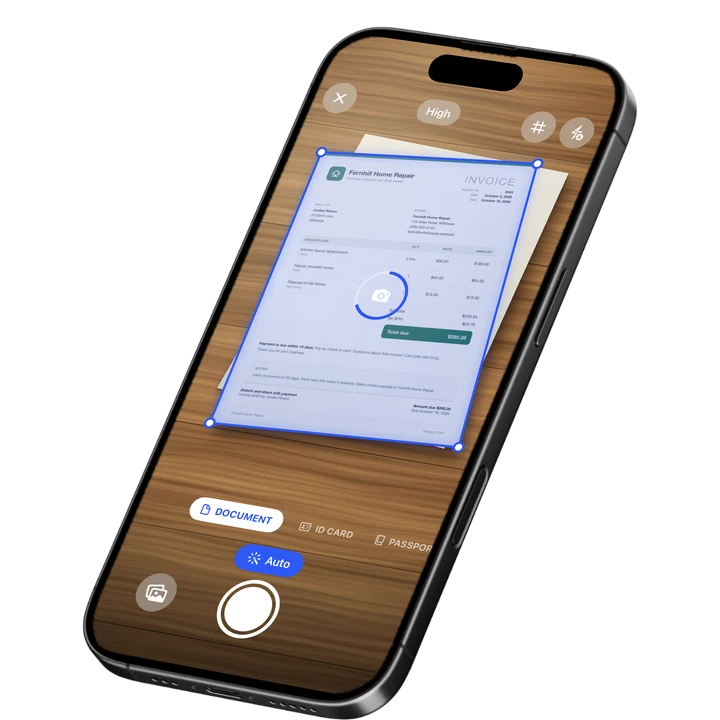
- Open Filewise and choose Document mode (or ID Card or Passport mode if that fits what you are scanning).
- Scan each page. Live edge detection and auto-capture square up the page as you go, and you can keep scanning pages into the same document with no page limit.
- Pick a filter if you want (Auto, Magic Color, B&W, or Photocopier work well for text pages) and choose a page size that matches the original, such as A4 or Letter.
- Rename the document and, if it contains anything sensitive, set a PDF password.
- Tap Export, choose PDF, and use the share sheet to send it through Mail, or generate a share link with an expiry date if you would rather send a link than an attachment.
The result is a document that looks like one clean file instead of several loose photos, which matters when you are emailing a landlord, a client, or an office that will judge the paperwork on how it looks.
What to Do Before You Send a Scanned Document by Email
Before you hit send, check that the file is complete, readable, and appropriately protected, since a bad scan or a missing page means a second email and a delay on the other end.
Open the PDF once before sending and page through it. A crooked page, a cut-off corner, or a page out of order is much easier to fix before the email goes out than after. If the document contains financial details, an ID, or anything else sensitive, add a PDF password and share the password separately, by text rather than in the same email. If you are sending several pages, confirm they saved as one PDF rather than several attachments, since one file is easier for the recipient to open, save, and forward.
Tips for a Clean Scan Before You Email It
A few small habits make the difference between a scan someone opens right away and one they have to squint at.
- Use even light: Natural daylight from a window works better than a single overhead bulb, which can cast a shadow across the page.
- Keep the page flat: A curled corner or a fold shows up in the scan and can throw off edge detection.
- Match the filter to the document: A B&W or Photocopier filter often makes typed text crisper than a plain color photo.
- Check page order before sending: Reorder pages in the app if you scanned them out of sequence, rather than leaving it to the recipient to figure out.
- Rename the file: "Lease_signed.pdf" gets opened faster than "Scan001.pdf" once it lands in someone's inbox.
Frequently Asked Questions
How do I scan a document on my iPhone and email it?
Scan the page with Notes, Files, or a dedicated scanning app so it saves as a PDF, then tap the share icon on the file and choose Mail. The whole process takes under a minute once you know where the Scan Documents option is.
Why can't I see the option to scan documents in Notes?
The scanner only appears in a note created under your iCloud account. If your default account is Gmail, Outlook, or another provider, switch to an iCloud note or use the Files app instead, which scans the same way.
Can I combine several scanned pages into one email attachment?
Yes. Keep adding pages to the same scan session before you save, so they become one multi-page PDF, then attach that single file to your email instead of several separate images.
Is it safe to email a scanned ID or bank statement?
Adding a PDF password before you email anything sensitive is a sensible precaution, and sharing that password through a different channel, like a text message, keeps it separate from the email itself.
What if the scanned PDF is too large to attach in Mail?
Compress the PDF before attaching it, or use a share link instead of an attachment if your scanning app supports one, so the recipient gets a link rather than a large file bouncing off a size limit.
Can I email a scan directly from the scanning app instead of opening Mail first?
Yes, in most scanning apps, including Notes, Files, and Filewise, the share sheet lets you send a file straight to Mail without leaving the app, so you never have to save it and search for it afterward.
The Fastest Way to Scan and Email a Document on iPhone
For a single page you need to send right now, the built-in Notes or Files scanner and the share sheet to Mail is genuinely fast enough. For anything longer, more official, or more sensitive, like a lease, a contract, or a form with financial details, scanning it in Filewise first gives you a sharper, properly sized, multi-page PDF you can password-protect before it leaves your phone. If you often send multi-page documents, it is also worth learning how to scan multiple pages into one PDF and how to compress a PDF on iPhone so large attachments never get stuck.
Get Filewise and turn any paper document into a clean PDF you can email in the same minute you scan it.
🔒 Face ID lock | 📱 Built for iPhone