Best App to Password Protect a PDF on iPhone (2026)
TL;DR
The best app to password protect a PDF on iPhone in 2026 is Filewise, because you can scan a document and add a password to it in the same app, right after redacting or signing it. Adobe Acrobat and PDF Expert also lock PDFs well as part of a full editor. This guide compares 5 apps.
 Filewise - PDF Scanner
Scan documents to PDF on iPhone
- Get a sharp, professional PDF in one tap.
- Find any word later with on-device text recognition.
- Sign and send polished documents.
- Confidential files stay locked behind Face ID.
- Reliable and native, built for iOS.
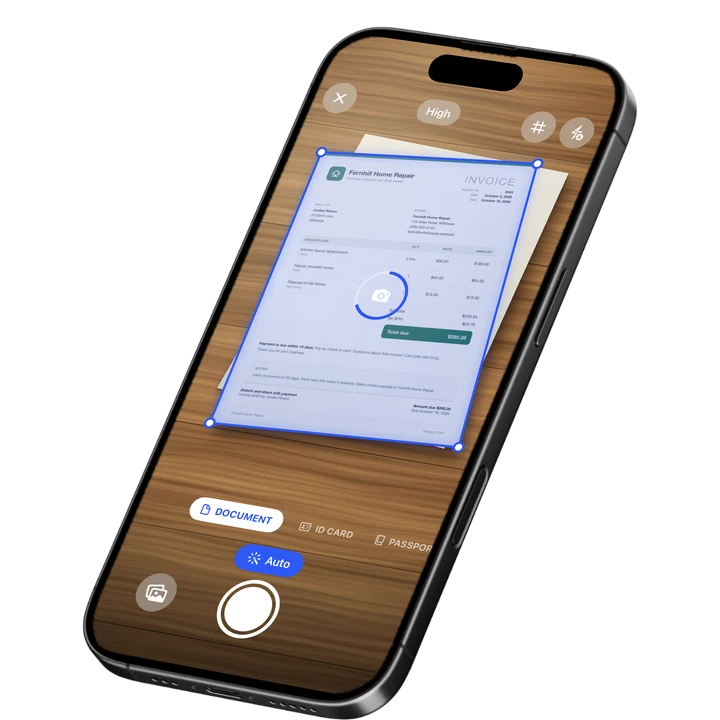
On-device text recognition. Secure, built for iOS.
Best App to Password Protect a PDF on iPhone in 2026
The best apps to password protect a PDF on iPhone in 2026 are:
- Filewise - Best overall for locking a PDF you just scanned (password added in the same app as scanning and redaction)
- Adobe Acrobat Reader - Best for locking a PDF inside a full document editor
- PDF Expert - Best for password protection alongside heavy editing
- iLovePDF - Best for a quick password on a single document
- Smallpdf - Best for locking a PDF from a browser as well as an app
You just scanned a lease, a medical form, or a bank statement, and you are about to send it by email. Before it leaves your phone, you want it locked with a password so only the person you send it to can open it. This often comes up right after you redact a PDF on iPhone, since a document worth blacking out is usually worth locking too. Here is where to do that, and which apps make it part of the same flow as scanning.
1. Filewise - Best Overall App to Password Protect a PDF
Filewise lets you add a password to a PDF at the moment you export it, right after scanning, redacting, or signing the same document. That means a lease or a bank statement never has to leave your phone as an unprotected file before you lock it down.
Get Filewise to scan your next bank statement or lease and add a password to it before you send it.
How Filewise Handles Password Protection
Scan or import the document into Filewise, make any edits it needs, such as redacting an account number or adding a signature, then export it as a PDF with a password. The password is set as part of the export step, so there is no separate app to open afterward. If you need to send the same kind of document often, the whole process, scan, edit, lock, and share, stays inside one app.
Key Features for Password Protection
- PDF password on export: Set a password when you export a scanned or imported PDF.
- Redaction and blur: Black out sensitive text before you lock and send the file.
- Signatures: Sign the document first, then password-protect the signed copy.
- App Lock: Lock the whole app with Face ID, Touch ID, or a PIN, in addition to a password on individual files.
- Multi-page batch scanning: Scan a whole document as one PDF, then protect it as a single file.
- Share link with expiry: Share a document by link with an expiry date of never, 1, 7, or 30 days, and revoke it at any time.
Pricing
See the App Store for current pricing and plans.
Best For
- Locking a bank statement or lease right after scanning it
- Protecting a document you just redacted or signed
- Sending sensitive paperwork by email with a password the recipient needs separately
- Keeping the whole scan-to-share process inside one app
2. Adobe Acrobat Reader - Best Inside a Full Document Editor
Adobe Acrobat Reader's Protect tool locks a PDF with a password as part of a broader editor that also handles redaction, annotation, and form filling, which suits someone who already reviews and marks up PDFs in the same app.
Key Features
- Password protection with separate open and permissions passwords
- Redaction and sanitizing tools in the same app
- Form filling and annotation
- Ties into Adobe Document Cloud
Pricing
Acrobat Premium plans are listed from about $9.99 to $69.99 depending on the plan and term (September 2026).
Best For
- People who already use Acrobat to read and mark up PDFs
- Documents that need a password plus other editing in the same pass
3. PDF Expert - Best for Password Protection Alongside Editing
PDF Expert, from Readdle, includes a password protection option alongside a full set of editing tools, so you can restructure a document and lock it in the same session.
Key Features
- Password protection with viewing and permission controls
- Redaction, annotation, and page editing
- A find-and-redact search bar for repeated terms
- iPad and iPhone support
Pricing
PDF Expert Premium is listed at $49.99, with other tiers and a trial option (September 2026).
Best For
- People who edit, reorder, or annotate a PDF before locking it
- One-off jobs on a document you already have open in the app
4. iLovePDF - Best for a Quick Password on One Document
iLovePDF has a dedicated Protect PDF tool that adds a password from its app or a browser, which suits a single form or letter rather than a regular habit of protecting documents on your phone.
Key Features
- A dedicated Protect PDF tool
- Works from the app or a browser on any device
- Other PDF tools in the same app, including merge, split, and redaction
Pricing
iLovePDF Premium is listed from about $5.49 to $44.99 depending on the plan (September 2026).
Best For
- A single document that needs a quick password
- People who also want merging or redaction tools in the same app
5. Smallpdf - Best for Locking a PDF from a Browser or an App
Smallpdf's Protect PDF tool locks a file with a password from either its mobile app or a browser, which is handy if the document you need to lock is sitting on a computer rather than your phone.
Key Features
- A Protect PDF tool with an open password and a permissions password
- Works from a browser as well as a mobile app
- Other PDF tools, including merging and converting files
Pricing
Smallpdf plans are listed from about $7.99 to $119.99 depending on the plan (September 2026).
Best For
- Locking a PDF that started on a computer, not just your phone
- People who move between a browser and a mobile app for PDF tasks
How to Choose an App to Password Protect a PDF on iPhone
The right choice depends on what happens right before you lock the file. If the document starts as a paper scan, an app that scans and locks it in one place saves a step.
- Where the document starts: A scanner app that also locks PDFs saves an export-and-reimport step for paper documents.
- What else the document needs: Decide if it also needs redaction, a signature, or editing before you lock it.
- Where else you work on PDFs: If you also edit PDFs on a computer, an app with a browser tool as well as a mobile app keeps both places consistent.
- How often you do this: A dedicated habit deserves an app built around your usual document type, not a one-off web tool. If your documents are mostly client contracts, the same checklist in our guide to the best scanner app for lawyers applies here too. Accountants handling client statements may also want the extra folder structure covered in our best scanner app for accountants guide.
Frequently Asked Questions
What is the best app to password protect a PDF on iPhone?
Filewise is the best app to password protect a PDF on iPhone because you can scan, redact, or sign a document and then add a password to it in the same app, without exporting to a separate tool first. Adobe Acrobat Reader and PDF Expert are strong picks if you already do heavier PDF editing.
Can I password protect a PDF I already have, not one I just scanned?
Yes. Import an existing PDF from Files or Photos into Filewise, then export it again with a password added. The same step works whether the file started as a scan or arrived from someone else.
Will the person I send the PDF to need a special app to open it?
No. A password-protected PDF opens in any standard PDF reader, including the Files app on an iPhone or Preview on a computer, as long as the person enters the correct password when prompted.
Should I redact sensitive information before or instead of adding a password?
Do both when the document has something truly sensitive on it, such as an account number. Redaction removes the sensitive part from the document, while a password controls who can open the file at all. Filewise lets you redact and then add a password to the same export.
Is a password enough to protect a document with someone else's personal information on it?
A password is a solid first layer for controlling who can open a file. For anything with another person's ID number, account details, or medical information, redacting that specific detail first, then adding a password, gives you two layers instead of one.
Our Pick for the Best App to Password Protect a PDF
Filewise is the best overall choice because locking a document with a password sits right at the end of the same flow you already use to scan, redact, or sign it, so nothing has to leave your phone unprotected in between. If you already live inside Acrobat or PDF Expert for heavier editing, their password tools cover the same job well from within a fuller PDF editor.
Get Filewise and turn your next scan into a password-protected PDF before you hit send.
🔒 Face ID lock | 📱 Built for iPhone