Best App to Store Important Documents on iPhone
TL;DR
The best app to store important documents on iPhone in 2026 is Filewise, because a Safe Folder and App Lock with Face ID keep sensitive scans separate and locked. Apple Files suits documents already on the device, Google Drive suits shared access, and Dropbox suits large archives. This guide compares 6 apps.
 Filewise - PDF Scanner
Scan documents to PDF on iPhone
- Get a sharp, professional PDF in one tap.
- Find any word later with on-device text recognition.
- Sign and send polished documents.
- Confidential files stay locked behind Face ID.
- Reliable and native, built for iOS.
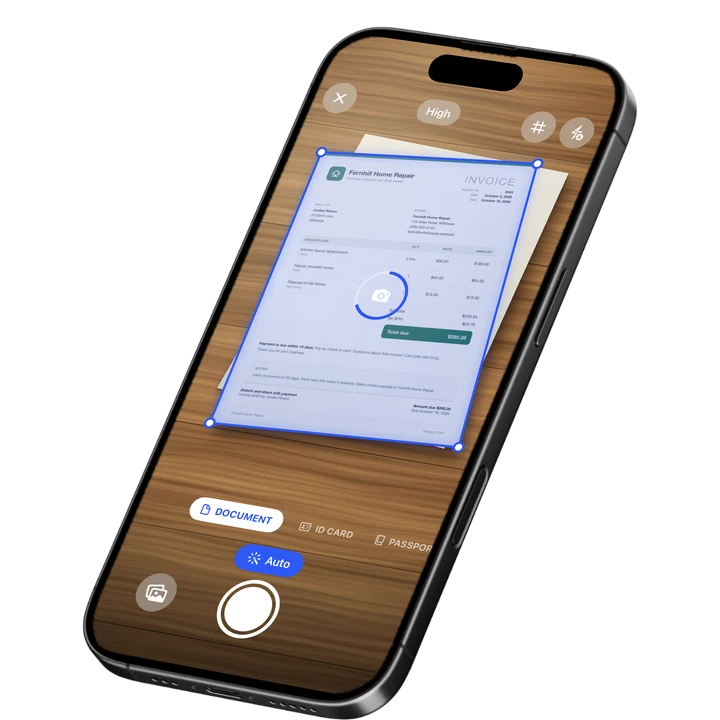
On-device text recognition. Secure, built for iOS.
Best App to Store Important Documents on iPhone in 2026
The best apps to store important documents on iPhone in 2026 are:
- Filewise - Best overall for a locked Safe Folder plus organized scans, searchable in the app
- Apple Files and iCloud Drive - Best for documents already saved on your iPhone
- Google Drive - Best for sharing a document with someone else quickly
- Dropbox - Best for a large personal archive
- Microsoft OneDrive - Best for Microsoft 365 households
- Genius Scan - Best for a fast, simple scan library
A passport, a lease, an insurance policy, a child's birth certificate: the documents that matter most are usually the ones you need in a hurry and cannot afford to lose. Storing them as a photo in your camera roll, mixed in with everything else, makes them hard to find and easy to see by accident when someone is scrolling through your phone. The best app to store important documents on iPhone keeps them scanned, organized, and locked behind something more than your phone's own lock screen, much like the extra step landlords take with tenant paperwork in our guide to the best scanner app for landlords.
1. Filewise - Best Overall App to Store Important Documents
Filewise gives your most sensitive documents a Safe Folder, separate from your regular scans, locked behind Face ID, Touch ID, or a PIN through App Lock. That means a passport scan or a signed contract sits apart from everyday paperwork and is not visible to anyone who happens to pick up your unlocked phone.
Get Filewise to scan your important documents once and keep them organized and locked in a Safe Folder from that point on.
How Filewise Handles Important Documents
Start by scanning the document, a passport, an ID, a policy, a certificate, using Document, ID Card, or Passport mode depending on what it is. Live edge detection and auto-capture keep the scan sharp, and on-device text recognition means you can find it again later by name or keyword.
From there, you organize documents the way that makes sense to you: folders inside folders, so a "Family Documents" folder can hold sub-folders for each person, star the ones you reach for most, rename files so "Passport_Anna.pdf" is easy to find months later, and sort or filter the list when it grows. Anything you want kept apart from your everyday scans goes in the Safe Folder, and App Lock keeps the whole app closed to Face ID, Touch ID, or a PIN.
When you are signed in, your documents back up to the Filewise cloud, and ID and passport scans stay out of that backup by default, so the documents you are most protective of stay put on your device unless you choose otherwise. A 30-day trash means a document you delete by mistake is not gone for good right away.
Key Features for Storing Important Documents
- Safe Folder: Keep your most sensitive documents separate from everyday scans, in a folder of their own.
- App Lock: Face ID, Touch ID, or a PIN lock the whole app, so opening it takes more than unlocking your phone.
- Folders inside folders: Build a structure that matches how you actually think about your documents, by person, by year, or by type.
- Star, rename, sort: Mark the documents you reach for often and give every file a name you will recognize later.
- On-device OCR search: Find a document by searching for a name, a number, or a keyword instead of scrolling through a long list.
- 30-day trash: A deleted document has a 30-day window before it is gone for good.
Pricing
See the App Store for current pricing and plans.
Best For
- Anyone who wants a passport, ID, or contract kept apart from everyday scans and locked behind Face ID
- Families organizing each member's documents into their own folder
- Anyone who has struggled to find one document buried in a long camera roll
- Readers who want a document restored easily if it is deleted by mistake
2. Apple Files and iCloud Drive - Best for Documents Already on Your iPhone
Apple's built-in Files app and iCloud Drive are already on every iPhone, with no extra download needed. It suits documents you have already saved or scanned through Files and just want kept where the rest of your files live.
Key Features
- Built into iOS, with Face ID or Touch ID protecting the device itself
- Folders and tags for organizing files
- Syncs across your own Apple devices through iCloud Drive
Pricing
Free with iCloud storage limits; additional iCloud storage is billed through Apple.
Best For
- Documents you already keep in Files alongside everything else on your iPhone
3. Google Drive - Best for Sharing a Document
Google Drive is rated 4.78 from 7,825,341 ratings, the largest rating count of any app in this comparison (September 2026). It suits a document you need to hand off to someone else, like a shared lease or a group project file.
Key Features
- Built-in scanner that saves directly to Drive
- Easy link sharing with another Google account
- Storage tiers from 100 GB upward
Pricing
Google Drive lists 100 GB at $1.99 and other storage tiers up to $19.99 on the US App Store (September 2026).
Best For
- Sharing a document quickly with someone else's Google account
4. Dropbox - Best for a Large Personal Archive
Dropbox is rated 4.8 from 908,664 ratings (September 2026) and is built around large personal and family file archives. It suits someone who already stores photos and other files in Dropbox and wants documents in the same place.
Key Features
- Built-in document scanner
- One-tap sharing of files and folders
- Storage plans built for large archives
Pricing
Dropbox lists Plus at $11.99 monthly and other plans up to $19.99 monthly on the US App Store (September 2026).
Best For
- A large, long-running personal or family archive already living in Dropbox
5. Microsoft OneDrive - Best for Microsoft 365 Households
Microsoft OneDrive is rated 4.7 from 487,543 ratings (September 2026) and fits naturally into a household already using Microsoft 365. It suits families who share a Microsoft 365 Family plan across several people.
Key Features
- Built-in scanner for receipts, whiteboards, and documents
- Bundled with Microsoft 365 storage plans
- Shares easily with other Microsoft 365 members on the same plan
Pricing
Microsoft OneDrive lists Microsoft 365 Family at $12.99 monthly and other tiers on the US App Store (September 2026).
Best For
- Households already paying for Microsoft 365 who want documents in the same account
6. Genius Scan - Best for a Fast, Simple Scan Library
Genius Scan is rated 4.9 from 1,365,119 ratings, the highest average among the major scanner apps (September 2026), and keeps its scan library simple from the first launch. It suits someone who wants a simple scan library on the device without setting anything up first.
Key Features
- Scans and stores documents locally on the device
- Custom folders for organizing scans
- Touch ID protection available on the device
Pricing
Genius Scan lists Plus at $0.99 to $11.99 and Ultra at $4.99 to $49.99 on the US App Store (September 2026).
Best For
- A simple, private scan library with nothing to set up first
How to Choose an App to Store Important Documents on iPhone
The factor that matters most is whether your most sensitive documents are separated and locked, not just saved somewhere on your phone. A few other factors follow.
- A lock beyond your phone's own screen: App Lock with Face ID, Touch ID, or a PIN means opening the app itself takes an extra step, which matters if someone else ever picks up your unlocked phone.
- Somewhere sensitive scans do not mix with everyday ones: A Safe Folder keeps a passport or an ID apart from receipts and notes.
- A structure you control: Folders inside folders, star, and rename let you build the system that matches how you think about your documents.
- Finding a document later: Text recognition means you can search by name or keyword instead of scrolling through months of scans.
If a document needs a section blacked out before you share it, see our guide to the best PDF redaction app for iPhone, and for locking a single sensitive file, see how to password protect a PDF on iPhone.
Frequently Asked Questions
What is the best app to store important documents on iPhone?
Filewise is the best app to store important documents on iPhone because a Safe Folder keeps sensitive scans separate from everyday ones, and App Lock with Face ID keeps the whole app closed to anyone else who picks up your phone.
Is it safe to keep a passport scan in my regular camera roll?
Keeping a passport scan mixed into your everyday camera roll makes it easy to find by accident and hard to find on purpose. A dedicated app with a separate locked folder keeps it apart from photos you might casually share or show someone.
Can I lock just one document instead of the whole app?
Yes, in Filewise you can set a PIN on a single document in addition to locking the whole app with Face ID, Touch ID, or a PIN, so an extra layer is available for the documents that need it most.
What happens if I delete an important document by mistake?
A 30-day trash gives you a window to restore a document you deleted by accident before it is gone for good, rather than losing it the moment you tap delete.
Should I organize documents by person or by document type?
Either works, and the right answer depends on how you search for things later. Folders inside folders let you build either structure, for example a family folder with a sub-folder for each person, or a documents folder with sub-folders for IDs, contracts, and certificates.
Are my ID and passport scans backed up automatically?
Filewise backs up your documents to the Filewise cloud when you are signed in, and ID and passport scans stay out of that backup by default, so the documents people are usually most careful with stay on your device unless you choose otherwise.
Our Pick for Storing Important Documents on iPhone
Filewise is the best pick for most people because the documents that matter most, a passport, a lease, a policy, deserve more than sitting in a camera roll with everything else. A Safe Folder and App Lock with Face ID give them a place of their own. If you already keep files in Google Drive, Dropbox, or OneDrive for other reasons, those apps are solid for sharing and general storage, and Apple's own Files app works fine for documents you have already saved on your iPhone.
Scan your most important documents once, put them in a Safe Folder, and stop worrying about where they are. Get Filewise and give your passport, contracts, and certificates a locked place of their own.
🔒 Face ID lock | 📱 Built for iPhone