Best App to Scan and Translate Documents on iPhone
TL;DR
The best scan and translate app for iPhone in 2026 is Filewise, because you can scan a document, run text recognition, and translate it into any of 25 languages with Ask AI in the same app. Apple Translate and Google Translate are best for quick, on-the-spot camera translation. This guide compares 4 apps.
 Filewise - PDF Scanner
Scan documents to PDF on iPhone
- Get a sharp, professional PDF in one tap.
- Find any word later with on-device text recognition.
- Sign and send polished documents.
- Confidential files stay locked behind Face ID.
- Reliable and native, built for iOS.
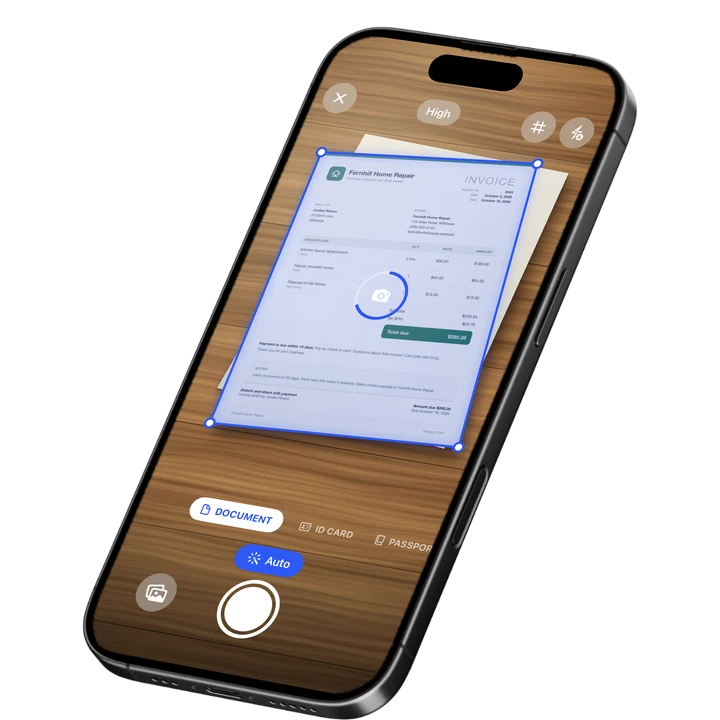
On-device text recognition. Secure, built for iOS.
Best App to Scan and Translate Documents on iPhone in 2026
The best apps to scan and translate documents on iPhone in 2026 are:
- Filewise - Best overall for scanning a document and translating the full text afterward
- Apple Translate - Best for a quick, on-the-spot camera translation of a sign or short note
- Google Translate - Best for translating a photo of text into many languages
- iScanner - Best for AI chat that can translate scanned text
A lease in another language, a foreign instruction sheet, or a form from a government office abroad is hard to act on if you cannot read it. Scanning it first, then translating the text, gets you a document you can actually understand and keep. This builds on the same on-device text recognition covered in our best OCR app for iPhone guide, since translation starts with a good scan and accurate text recognition.
1. Filewise - Best Overall App to Scan and Translate Documents
Filewise scans a document into a sharp PDF, recognizes the text on the device, and then Ask AI can translate that text into any of 25 languages, all from the same scanned file. That means you get a clean copy of the original document and a translated version of its text, without switching apps between scanning and translating.
Get Filewise to scan a foreign-language document and read a translation of it in a few taps.
How Filewise Handles Translation
Scan the document in Document mode, and text recognition runs on the device in up to 25 languages, including English, Spanish, German, French, Chinese, Japanese, Korean and Arabic. Some languages need a newer version of iOS. Once the text is recognized, open Ask AI, which needs sign-in and a connection, and ask it to translate the document into another language. You can also ask it to summarize the document or answer a question about what it says, which is useful when you only need the gist rather than a full translation.
The original scan stays intact as a PDF, so you keep a faithful copy of the source document alongside the translated text, which matters if you ever need to show the original later. This matters for a lease you plan to sign, a school enrollment form, or a medical intake sheet, where you want to understand every line before you act on it, but you still need the original document to hand over or file later.
Key Features for Translation
- On-device text recognition: Reads text in up to 25 languages directly from a scan, on the iPhone.
- Ask AI translation: Translate the recognized text into any of 25 languages, with sign-in and a connection.
- Ask AI summaries: Get a short summary or ask a question about a document instead of reading the whole translation.
- Sharp, multi-page scans: Scan a multi-page document, such as a lease or a form, as one PDF before translating it.
- Search your scans: Find a specific scanned document later by its recognized text.
- Export as PDF or DOCX: Keep the original scan and export the recognized text as a Word file.
Pricing
See the App Store for current pricing and plans.
Best For
- Travelers who need to understand a foreign-language form or menu
- Immigrants and students reading a document in a new country's language
- Anyone who wants a translated copy alongside the original scan
- Getting a quick summary of a long document in another language
2. Apple Translate - Best for On-the-Spot Camera Translation
Apple's Translate app is built into iOS and includes a camera view that translates text in real time as you point your iPhone at it, which suits a sign, a menu, or a short label more than a full document you want to keep.
Key Features
- Live camera translation as you point at text
- Translation of text in an existing photo
- Works across the languages supported by the Translate app
- No extra app to download, since it ships with iOS
Pricing
Apple's Translate app is included with iOS at no extra cost.
Best For
- Quick, real-time translation of a sign or a short label
- Travelers who do not want to scan and save a full document
3. Google Translate - Best for Translating a Photo Into Many Languages
Google Translate can translate text from a photo you take or one already in your library, covering a wide range of languages, which makes it a common choice for a quick look at what a foreign document says.
Key Features
- Camera and photo translation
- A large number of supported languages
- Text and conversation translation modes
- Works on iPhone as a standalone app
Pricing
Google Translate is available on the App Store at no extra cost.
Best For
- Translating a photo of text into a wide range of languages
- A quick check of what a document says before deciding whether to keep it
4. iScanner - Best for AI Chat That Can Translate
iScanner, from BP Mobile, holds a 4.76 rating from 1.4 million reviews (September 2026) and includes an AI chat tool that can translate, summarize, or rewrite text pulled from a scanned document.
Key Features
- AI chat that can translate scanned text
- OCR across a wide range of languages
- Standard scanning with edge detection and cropping
- Document management tools inside the app
Pricing
iScanner plans are listed from about $3.99 to $19.99, with a 1-week trial option (September 2026).
Best For
- People who want AI chat features alongside scanning and translation
- Scanning documents in languages beyond the major ones
How to Choose an App to Scan and Translate Documents
The right choice depends on whether you need a quick read of a sign or a proper translated copy of a document you plan to keep and refer back to.
- A sign or a menu: Apple Translate or Google Translate's camera mode is fast and needs no scanning step first.
- A document you need to keep: Scan it first so you have a clean PDF, then translate the recognized text, which is what Filewise does in one app.
- Language coverage: Check that your language is supported before you rely on any app's translation for something important.
- A quick summary versus a full translation: Decide if you need every word translated or just the gist of a long document. Students juggling reading lists in a new language may also want the wider AI features covered in our best AI document scanner app and best scanner app for students guides.
Frequently Asked Questions
What is the best app to scan and translate a document on iPhone?
Filewise is the best app to scan and translate a document on iPhone because it scans the document into a clean PDF, recognizes the text on the device, and then translates it into any of 25 languages with Ask AI, all in one app. Apple Translate and Google Translate are better suited to a quick, on-the-spot look at a sign or a short note.
Which languages can Filewise translate?
Ask AI translates a document into any of 25 languages: English, Spanish, French, German, Italian, Portuguese, Dutch, Swedish, Danish, Norwegian, Polish, Czech, Romanian, Turkish, Russian, Ukrainian, Arabic, Chinese (Simplified and Traditional), Cantonese, Japanese, Korean, Thai, Vietnamese, Indonesian and Malay. Text recognition, the step before translation, reads up to 25 languages. Some languages need a newer version of iOS. For a quick look at a sign or a menu, a general camera translation app is a handy companion.
Do I need an internet connection to translate a scanned document?
Text recognition itself works offline once a document is scanned, but Ask AI, which handles the translation, needs sign-in and a connection to work.
Can I keep the original document alongside the translation?
Yes. Filewise keeps the original scan as a PDF, so you have a faithful copy of the source document available even after you translate its text.
Is it better to translate a whole document or just get a summary?
That depends on what you need it for. A full translation is worth it for something you need to act on line by line, such as a lease or a form, since a missed clause can matter later. A summary is faster when you only need the general meaning of a longer document, such as deciding whether a letter needs your attention at all, and Ask AI can do either from the same scan.
Our Pick for the Best App to Scan and Translate Documents
Filewise is the strongest overall pick when you need a real translated copy of a document you plan to keep, since scanning and translating happen in the same app and the original stays available alongside the translation. For a quick, in-the-moment read of a sign or a menu, Apple Translate's camera mode is faster and needs no scanning step at all.
Get Filewise and turn your next foreign-language document into a scan you can read and keep.
🔒 Face ID lock | 📱 Built for iPhone