Best OCR App for iPhone (2026)
TL;DR
The best OCR app for iPhone in 2026 is Filewise, because it reads text in up to 25 languages, lets you copy it, and exports it as a TXT or DOCX file. Adobe Scan is best for Acrobat-integrated text recognition, CamScanner for the widest feature set, and Genius Scan for simple fast scanning. This guide compares 6 apps.
 Filewise - PDF Scanner
Scan documents to PDF on iPhone
- Get a sharp, professional PDF in one tap.
- Find any word later with on-device text recognition.
- Sign and send polished documents.
- Confidential files stay locked behind Face ID.
- Reliable and native, built for iOS.
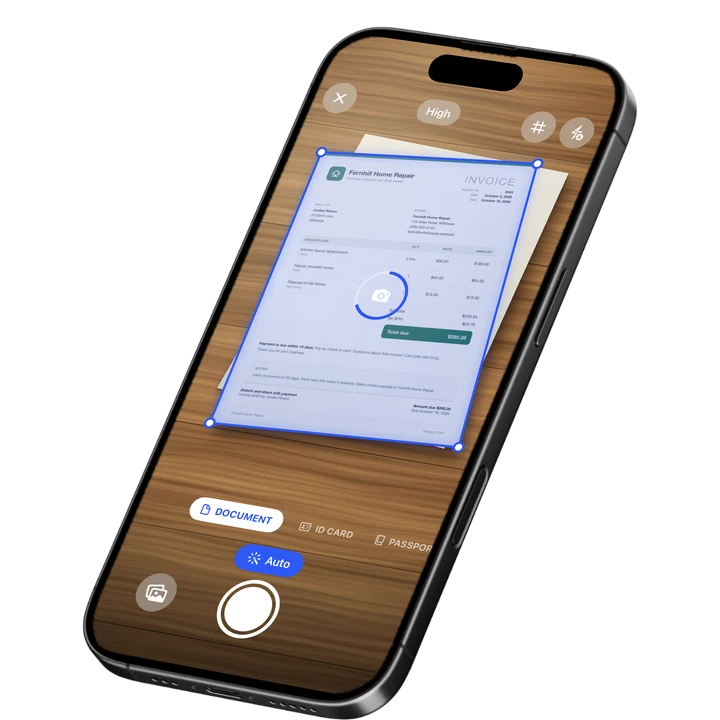
On-device text recognition. Secure, built for iOS.
Best OCR App for iPhone in 2026
An OCR app for iPhone reads the text inside a photo or a scanned page, so you can copy it, search it, or turn it into a text file instead of retyping it by hand. Filewise ranks first because it recognizes text in up to 25 languages on the device and lets you export what it finds as a TXT or DOCX file. Some languages need a newer version of iOS.
The best OCR apps for iPhone in 2026 are:
- Filewise - Best overall for on-device text recognition in up to 25 languages
- Adobe Scan - Best for Acrobat-integrated text recognition
- CamScanner - Best for the widest feature set
- Scanner Pro - Best for reliable text recognition and in-app search
- Genius Scan - Best for simple, fast scanning
- iScanner - Best for in-app document editing
OCR stands for optical character recognition, the technology that turns the letters in a photo into text a computer understands. On iPhone, that means you can point your camera at a printed page, a handout, or a business letter and get back real, selectable text instead of a picture of text. If you already use an app to scan the page itself, our roundup of the best AI document scanner apps looks at the wider field of smart scanning tools.
1. Filewise - Best Overall OCR App for iPhone
Filewise reads text out of a scanned document directly on your iPhone, in up to 25 languages: English, Spanish, French, German, Italian, Portuguese, Dutch, Swedish, Danish, Norwegian, Polish, Czech, Romanian, Turkish, Russian, Ukrainian, Arabic, Chinese (Simplified and Traditional), Cantonese, Japanese, Korean, Thai, Vietnamese, Indonesian and Malay. Once the text is recognized, you can copy it, export it as a TXT file, or export it as a Word (.docx) file with the text included.
Get Filewise to turn a scanned page into text you can copy, search, or drop straight into a document.
How Filewise Handles Text Recognition
Scan a document with Filewise, or choose Extract Text mode to focus on getting the words out of a page rather than a clean visual copy. Text recognition runs on your iPhone, so it works even without a connection, and there is no upload step before you get your result.
Once a page has been through OCR, you can search the text of your scanned documents right inside the app, so finding a specific line in a stack of handouts means typing a word instead of scrolling through every page. You can also copy the recognized text to paste elsewhere, or export it as a .txt file or a Word (.docx) file that keeps the text.
Key Features for Text Recognition
- Up to 25 supported languages: Including English, Spanish, German, French, Chinese, Japanese, Korean and Arabic.
- On-device processing: Text recognition runs on your iPhone and works offline.
- Copy recognized text: Select and copy the text Filewise finds in a scan, ready to paste anywhere.
- Export as TXT or DOCX: Save the recognized text as a plain text file or a Word document.
- Search your scans: Search the text of scanned documents inside the app after OCR runs.
- Extract Text mode: A scan mode built specifically for getting text out of a page.
Pricing
See the App Store for current pricing and plans.
Best For
- Students who want to search their scanned notes and handouts by keyword
- Anyone who needs to copy text out of a printed page instead of retyping it
- People who want a text file or Word document from a scanned page
- Readers of documents in up to 25 languages, including English, Spanish, German and French
2. Adobe Scan - Best for Acrobat-Integrated Text Recognition
Adobe Scan holds a 4.88 rating from about 1.59 million ratings on the US App Store (September 2026) and reads text in a scanned page as part of the Acrobat ecosystem. That makes it convenient for anyone who already edits PDFs in Acrobat and wants the recognized text to flow into the same tools. For a broader look at switching away from it, see our Adobe Scan alternatives guide.
Key Features
- Text recognition tied into Acrobat
- Automatic edge and perspective correction
- Direct export into Acrobat and Adobe's other PDF tools
- Fill and sign tools inside the same ecosystem
Pricing
In-app purchases on the US App Store range from about $3.99 to $69.99, including an Adobe Scan Premium monthly plan at $9.99 (September 2026).
Best For
- People who already use Adobe Acrobat for other PDF work
3. CamScanner - Best for the Widest Feature Set
CamScanner from INTSIG is the most reviewed scanner on the US App Store, with a 4.84 rating from about 1.92 million ratings (September 2026). It bundles text recognition with cloud storage and a large template library, which suits someone who wants one app for scanning and reading text across many kinds of documents.
Key Features
- Text recognition across a wide range of document types
- Cloud storage and sync across devices
- Large template library
- Batch scanning tools
Pricing
In-app purchases on the US App Store range from $0.99 to $69.99, including a Premium Account yearly plan at $59.99 (September 2026).
Best For
- Users who want text recognition alongside a wide general feature set
4. Scanner Pro - Best for Reliable Text Recognition and In-App Search
Scanner Pro by Readdle has a 4.87 rating from about 336,000 ratings on the US App Store (September 2026) and includes text recognition with in-app search across your scans. It is a dependable choice for someone who wants to find a specific document by the words inside it.
Key Features
- Text recognition with in-app search
- Reliable automatic edge detection
- Several export formats
- Native iOS design
Pricing
In-app purchases on the US App Store range from $0.99 to $59.99, including Scanner Pro Plus at $29.99 (September 2026).
Best For
- People who want to search their scans by the text inside them
5. Genius Scan - Best for Simple, Fast Scanning
Genius Scan by The Grizzly Labs holds a 4.9 rating from about 1.37 million ratings on the US App Store (September 2026), the highest average among the major scanner apps. Its simple interface suits someone who scans often and wants text recognition as part of a clean, minimal app, and our Genius Scan alternatives guide covers other options for that same job.
Key Features
- Fast automatic edge detection and cropping
- Text recognition
- Batch scanning into one PDF
- Biometric app lock
Pricing
In-app purchases on the US App Store range from $0.99 to $49.99, including Genius Scan Ultra at $39.99 a year (September 2026).
Best For
- People who want the fastest possible scan with minimal setup
6. iScanner - Best for In-App Document Editing
iScanner holds a 4.76 rating from about 1.4 million ratings on the US App Store (September 2026) and pairs text recognition with document editing tools. That combination suits someone who wants to mark up a scan right after the text is recognized.
Key Features
- Text recognition
- Document editing and annotation
- Automatic edge detection and enhancement
- PDF export
Pricing
In-app purchases on the US App Store range from $3.99 to $19.99, plus weekly plans (September 2026).
Best For
- People who want to edit or annotate a scan alongside text recognition
How to Choose an OCR App for iPhone
The most important factor is whether the app recognizes text in the language you actually need, since OCR accuracy drops fast on a language the app was not built to read. After that, look at whether recognition runs on the device and what you can do with the text once it is found.
- Language support: Confirm the app reads the specific language your documents are in. Filewise reads up to 25 languages, including English, Spanish, German, French, Chinese, Japanese, Korean and Arabic.
- On-device or cloud processing: On-device recognition works offline and keeps the page on your phone until you choose to export it.
- What you can do with the text: Look for the ability to copy the recognized text and export it as a plain text or Word file, not just view it.
- Searching your scans: A useful OCR app lets you search inside your past scans by keyword, so you can find a document without remembering its file name.
Frequently Asked Questions
What is the best OCR app for iPhone in 2026?
Filewise is the best OCR app for iPhone in 2026 because it recognizes text in up to 25 languages directly on the device, then lets you copy that text, export it as a TXT or DOCX file, or search your scanned documents by keyword inside the app. Some languages need a newer version of iOS.
What languages does Filewise recognize with OCR?
Filewise recognizes up to 25 languages: English, Spanish, French, German, Italian, Portuguese, Dutch, Swedish, Danish, Norwegian, Polish, Czech, Romanian, Turkish, Russian, Ukrainian, Arabic, Chinese (Simplified and Traditional), Cantonese, Japanese, Korean, Thai, Vietnamese, Indonesian and Malay. Some languages need a newer version of iOS. Text in these languages can be copied, exported as a plain text file, or exported as a Word document with the recognized text.
Can I export the text an OCR app finds in a scan?
Yes, with an app that supports it. Filewise lets you export recognized text as a .txt file or as a Word (.docx) file, so you can keep working with the words in another app instead of retyping them from the original page.
Does OCR on iPhone work without an internet connection?
It depends on the app. Filewise runs text recognition on the device, so it works offline and does not need to upload the page before recognizing the text. Some other apps process recognition in the cloud, which needs a connection.
Can I search inside my scanned documents after OCR runs?
Yes. Once Filewise recognizes the text in a scan, you can search the text of your scanned documents inside the app, which makes it much faster to find a specific handout, letter, or note by typing a word from it instead of scrolling through every page.
Our Pick for the Best OCR App for iPhone
Filewise is the strongest overall pick because it reads text in up to 25 languages right on your iPhone, then gives you real options for what to do with it: copy it, export it as a text or Word file, or search for it later inside your scans. That is a complete loop from a photo of a page to usable text.
If you already work inside Adobe Acrobat, Adobe Scan's text recognition fits naturally into that workflow, and if you want the widest general feature set alongside OCR, CamScanner covers the most ground.
Get Filewise and turn your next scanned page into text you can copy, search, and reuse.
🔒 Face ID lock | 📱 Built for iPhone