Genius Scan vs Adobe Scan: Which Wins? (2026)
TL;DR
Genius Scan vs Adobe Scan: pick Genius Scan if you want a fast, simple app with a clean interface. Pick Adobe Scan if you want built-in OCR and ties to the Adobe Acrobat ecosystem. The main difference is focus, a lean scanner versus a broader PDF tool, and Filewise fits in for redaction, passwords, and signing on the same scans.
 Filewise - PDF Scanner
Scan documents to PDF on iPhone
- Get a sharp, professional PDF in one tap.
- Find any word later with on-device text recognition.
- Sign and send polished documents.
- Confidential files stay locked behind Face ID.
- Reliable and native, built for iOS.
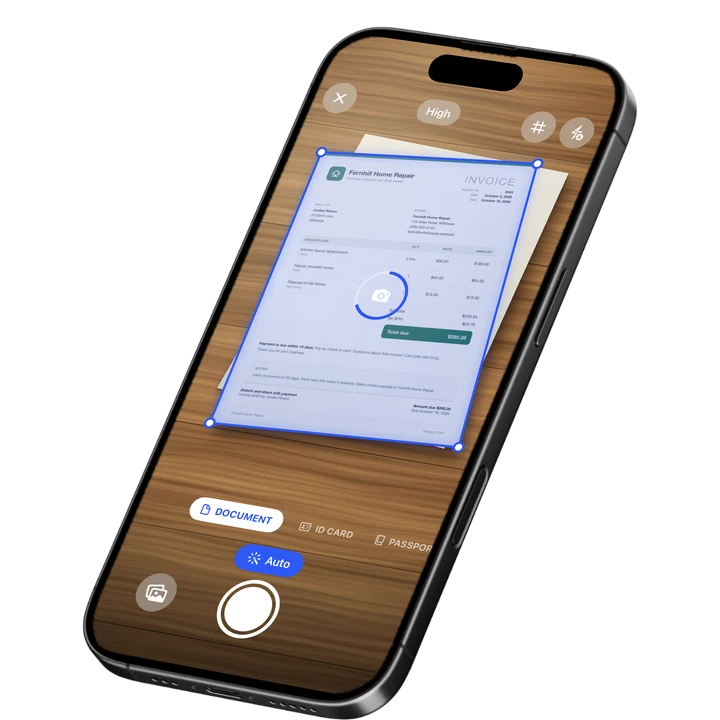
On-device text recognition. Secure, built for iOS.
Genius Scan vs Adobe Scan: The Short Answer
Pick Genius Scan if you want a fast, uncluttered app that scans and exports a PDF with as few taps as possible. Pick Adobe Scan if you want automatic text recognition on every scan and a closer tie to Adobe's other PDF tools.
Both apps are among the most reviewed document scanners on the App Store, and both do a solid job of turning a photo of a paper page into a cropped, corrected PDF. The real difference is what happens around that core task: how many extra modes you get, how the app expects you to organize scans over time, and how far the export options go once the page is captured. If you came here from our Genius Scan alternatives or Adobe Scan alternatives guides, this is the direct head-to-head version of that same question.
| Genius Scan | Adobe Scan | |
|---|---|---|
| Best for | A fast, minimal scanning workflow | OCR and the Adobe Acrobat ecosystem |
| Rating (September 2026) | 4.9 from 1.37M reviews | 4.88 from 1.59M reviews |
| Interface | Simple, few settings | More screens and options |
| Extra tools | Batch scanning, PDF export | Business card scan, ID capture, Acrobat links |
Genius Scan vs Adobe Scan: Scan Speed and Interface
Genius Scan wins on speed for a simple reason: it has fewer screens between opening the app and getting a finished PDF. You point the camera, it crops the page, and you are done in a couple of taps.
Genius Scan, from The Grizzly Labs, holds the highest average rating of the major scanner apps at 4.9 from 1.37 million reviews (September 2026). Its interface stays close to just the camera and the page list, with perspective correction and cropping handled automatically. Adobe Scan adds more structure around the same core task, with separate modes for documents, business cards, and IDs, plus prompts to sign in to an Adobe account. That extra structure is useful once you need it, but it means more taps for a quick, single-page scan.
Genius Scan vs Adobe Scan: Text Recognition (OCR)
Adobe Scan wins on text recognition, since OCR runs automatically on every scan and the recognized text becomes part of how you search and reuse the file, including exporting it into an editable format.
Adobe Scan, from Adobe, holds a 4.88 rating from 1.59 million reviews (September 2026) and is built around Adobe's Document Cloud, so a scan you take on your phone can be recognized and reused inside Acrobat on a computer too. Genius Scan focuses on the image side of scanning first: sharp, corrected pages you export as a PDF, with less emphasis on turning the page into fully editable text inside the app itself.
Genius Scan vs Adobe Scan: Extra Tools
Adobe Scan wins on the breadth of extra modes, since it adds a business card scan mode that reads contact details and an ID capture mode alongside the standard document scan.
Genius Scan keeps its extra tools focused on the scanning workflow itself: batch scanning multiple pages into one PDF, quick perspective correction, and straightforward export. Adobe Scan layers on business card scanning and ID capture, plus a closer connection to Acrobat's broader PDF editing tools once a scan leaves the app.
Genius Scan vs Adobe Scan: Price
Genius Scan's paid tiers are Genius Scan Plus, listed from $0.99 to $11.99, and Genius Scan Ultra, listed from $39.99 to $49.99 (September 2026). Adobe Scan Premium is listed from $3.99 to $69.99, with a separate Adobe Scan Plus tier from $4.99 to $19.99 (September 2026). Both apps offer a free way to scan and export a basic PDF, with the paid tiers adding OCR limits, cloud storage, or extra export formats depending on the app.
Genius Scan vs Adobe Scan: Organizing Your Scans
Adobe Scan wins on organizing scans over time, since its tie to Adobe Document Cloud means a folder structure you set up carries over between your phone and a computer.
Genius Scan keeps organizing simple: scans land in a list you can rename and sort inside the app, with an emphasis on getting a finished PDF out quickly rather than building a filing system inside the scanner. Adobe Scan leans on the same folder structure you may already use in Acrobat or Document Cloud, so a scan taken on your iPhone can land in a folder you already use for other documents on a computer. Neither app is difficult to use once you settle on a habit, but Adobe Scan's ecosystem tie matters more if you already store other PDFs in Adobe's system.
Genius Scan vs Adobe Scan: Sharing and Export Formats
Both apps export to PDF and JPG, and the difference shows up in how many extra formats and destinations you get once the scan is finished.
Genius Scan exports cleanly to PDF or JPG and shares through the standard iPhone share sheet, keeping the export step short. Adobe Scan adds the option to send a scan into other Adobe apps and services directly from the share screen, along with converting a scan into an editable Word or Excel file as part of its paid tiers. If you mainly need a clean PDF to attach to an email or upload to a portal, either app covers that. If you need the scanned text back out as an editable Word or Excel file on a regular basis, Adobe Scan's conversion tools go further.
Where Filewise Fits: Redacting, Signing, and Protecting the Same Scans
Once a document is scanned, whether with Genius Scan, Adobe Scan, or Filewise itself, the next job is often making it safe to send: blacking out a number, adding a password, or getting a signature on it. That is where Filewise's scanning and editing tools work together in one app.
Get Filewise to scan a document, redact the sensitive part, and add a password before you send it, without switching between apps.
- Redaction and blur: Cover an account number or a name and have it burned into the exported file.
- PDF password: Lock a finished PDF with a password before you share it.
- Signatures: Draw a signature with a finger, save it, and reuse it on future documents.
- ID Card mode: Capture both sides of an ID on one page at real ID size.
- Multi-page batch scanning: Scan a long document as one PDF with no page limit.
Choose Genius Scan If...
- You want the fastest path from camera to finished PDF
- You prefer a simple interface with few settings
- You mostly need clean, corrected pages rather than heavy text recognition
Choose Adobe Scan If...
- You want OCR on every scan by default
- You already use Adobe Acrobat or Document Cloud
- You scan business cards or IDs often and want a dedicated mode for each
Choose Filewise If...
- You need to redact, password-protect, or sign a document after scanning it
- You scan IDs regularly and want a dedicated two-sided ID mode
- You want scanning, text recognition, and document protection in one app
Frequently Asked Questions
Is Genius Scan better than Adobe Scan?
Genius Scan is better for a fast, simple scanning workflow with a clean interface and the highest average rating of the major scanner apps. Adobe Scan is better if automatic OCR on every scan and a connection to Adobe's broader PDF tools matter more to you than speed.
Do Genius Scan and Adobe Scan have free versions?
Both apps let you scan and export a basic PDF for free, with paid tiers adding features like extra OCR, cloud storage, or additional export formats. Genius Scan's paid tiers are Genius Scan Plus and Genius Scan Ultra, while Adobe Scan's are Adobe Scan Plus and Adobe Scan Premium (September 2026).
Which app is better for scanning IDs or business cards?
Adobe Scan has a dedicated business card scan mode and an ID capture mode built in, which Genius Scan does not focus on in the same way. If you scan IDs specifically and want both sides on one page, Filewise's ID Card mode is built for that exact job.
Is there a good alternative to Genius Scan and Adobe Scan?
Filewise is a strong alternative when the job goes beyond scanning into protecting or signing a document, since it combines scanning, redaction, a PDF password, and signatures in one app. It is a good fit for anyone who needs to hand a document to someone else and wants it clean, correct, and safe to send.
Our Verdict on Genius Scan vs Adobe Scan
Genius Scan is the better pick if speed and simplicity matter most to you, and Adobe Scan is the better pick if you want OCR by default and ties to the wider Adobe ecosystem. Neither is wrong, since they are built around slightly different priorities on the same basic task.
Filewise's strength shows up right after the scan, when a document needs to be redacted, password-protected, or signed before it goes anywhere else, the same comparison covered from a different angle in our Adobe Scan vs CamScanner guide. Get Filewise and handle the whole job, from a raw page to a finished, protected PDF, in one app.
🔒 Face ID lock | 📱 Built for iPhone