How to Create a Digital Signature on iPhone
TL;DR
To create a digital signature on iPhone, draw it with your finger or turn a photo of your handwritten signature into a clean image with the background removed, then save it to reuse on any PDF. The Files app can save a drawn signature too. Add the saved signature to a page whenever you need to sign a document.
 Filewise - PDF Scanner
Scan documents to PDF on iPhone
- Get a sharp, professional PDF in one tap.
- Find any word later with on-device text recognition.
- Sign and send polished documents.
- Confidential files stay locked behind Face ID.
- Reliable and native, built for iOS.
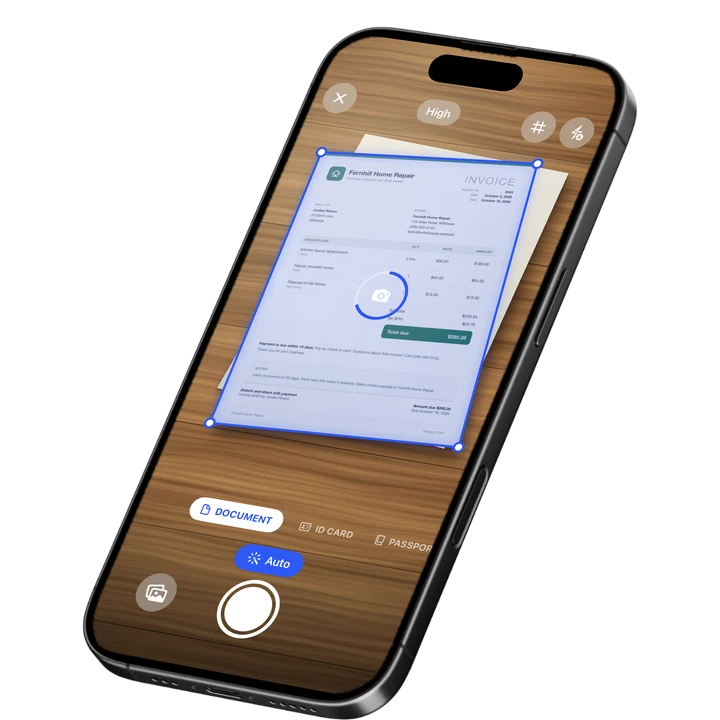
On-device text recognition. Secure, built for iOS.
How to Create a Digital Signature on iPhone: Quick Steps
To create a digital signature on iPhone, you draw it once with your finger, or turn a photo of your handwritten signature into a clean image, then save it so you can reuse it on any PDF. Here is the fast path.
- Open a scanner or PDF app that has a signature tool, such as Filewise.
- Choose to draw your signature with a finger, or import a photo of a signature on paper.
- If you used a photo, let the app remove the background so only the signature shows.
- Save the signature so it stays ready in the app.
- Place it on any PDF page whenever you need to sign a document.
Get Filewise to draw or photograph your signature once and use it on every document you sign afterward.
How to Create a Digital Signature with the Built-In iPhone Tools
Yes, iPhone can create and save a signature on its own, using Markup in the Files app or the Preview app. This works well for signing a single PDF without installing anything new.
- Open the PDF in the Files app or the Preview app.
- Tap the markup (pencil) icon to open the markup tools.
- Tap the add button and choose Signature.
- Draw your signature with your finger on the screen, then tap Done.
- Drag the signature to the right spot on the page and tap Done again to save the signed PDF.
Once you have created a signature this way, it is saved in the app and shows up as an option the next time you sign a document, so you do not have to draw it again every time. See Apple's guide to signing documents on iPhone for the full walkthrough.
How to Create a Digital Signature with Filewise
Filewise adds two ways to create a signature: drawing it with a finger, or turning a photo of your real signature into a clean image with the background removed. Both are saved so you can reuse them without redrawing anything.
- In Filewise, open a scanned or imported PDF and go to the signature tool.
- To draw one, sign with your finger directly on the screen.
- To use a photo instead, take a picture of your signature on a plain sheet of paper and let Filewise clean it up and remove the background.
- Save the signature to your library so it is ready the next time you need it.
- Place the signature on the current page, or copy it to every page of a multi-page document such as a lease or contract.
A photo-based signature looks closer to your real handwriting, while a finger-drawn one is faster when you are signing something on the spot. Either way, the signature is saved once and ready the next time a document needs it.
How to Add Your Digital Signature to a PDF After You Create It
Once a signature is created and saved, adding it to a new document takes only a few taps. Open the PDF, choose the signature from your saved library, and place it where it belongs.
- Open the PDF you need to sign.
- Tap the signature tool and pick your saved signature instead of drawing a new one.
- Drag it into place on the page, and resize it if needed.
- For a multi-page document, copy the same signature to every page that needs it.
- Export the signed file as a PDF and share it by AirPrint, the share sheet, or saving it to Files.
Tips for a Clean Digital Signature on iPhone
A signature that looks sharp on screen also looks sharp when the recipient opens the file. A few habits make the difference.
- Sign on plain white paper if you are using the photo method, with dark ink so the background removal has a clear edge to work with.
- Hold your phone steady when photographing a paper signature, directly above the page in good light.
- Draw bigger, then resize: a finger-drawn signature is easier to get right at a larger size, which you can shrink after saving.
- Keep more than one version if you sometimes sign with a full name and sometimes with initials, so both are ready in your library.
- Check the placement before exporting on a multi-page contract, since a signature copied to every page should still land in the same spot on each one.
Frequently Asked Questions
Can I sign a PDF on my iPhone without printing it?
Yes. You can create a signature by drawing it with your finger or using a photo of your handwritten signature, then place it directly on a PDF page. This works whether you use the built-in Files app or a scanner app like Filewise, and the finished file exports as a normal PDF.
What is the difference between a digital signature and an electronic signature?
In everyday use, both terms usually mean the same thing: an image of your signature added to a document instead of signing it on paper. This is different from a certified or qualified digital signature used by some banks and government systems, which relies on a separate verification method. For most contracts, leases, and forms, a drawn or photo signature is what people mean by either term.
Can I reuse the same signature on multiple documents?
Yes. Once you draw a signature or clean up a photo of one, you can save it and place it on any future PDF without drawing it again. This is especially useful for a multi-page contract, where the same saved signature can be copied to every page that needs it.
Is a photo of my signature as good as a drawn one?
Both work well for everyday paperwork. A photo of your real signature on paper, with the background removed, tends to look closer to your normal handwriting. A finger-drawn signature is quicker to create on the spot and still looks clean once it is placed on a page.
Do I need special training to create a digital signature this way?
No. Drawing a signature with your finger or photographing one you already use on paper takes a minute, and most people get a clean result on the first try. The signature tool in a scanner app or the Files app walks you through each step.
Will a signature I create on my iPhone work in a document I email to someone?
Yes. Once the signature is placed on the page and the file is exported as a PDF, it looks the same to anyone who opens it, whether you send it by email, a messaging app, or a share link. The recipient does not need any special software to view a signed PDF.
The Fastest Way to Create a Digital Signature on iPhone
For most people, the fastest path is to draw a signature once with a finger, or photograph a real signature and let an app clean it up, then save it for future documents. That saves you from drawing a new signature every time a contract or form needs one.
If you already need to scan and sign a full contract rather than a single form, see our guide to the best app to scan and sign contracts on iPhone. For a signature on a PDF you already have saved, our guide on how to sign a PDF on iPhone covers that path, and for forms with blank fields to fill first, see how to fill out a PDF form on iPhone.
Get Filewise and keep a signature ready for the next lease, form, or contract that needs one.
🔒 Face ID lock | 📱 Built for iPhone