How to Fill Out a PDF Form on iPhone
TL;DR
To fill out a PDF form on iPhone, open the file in Files or Filewise and add text, checkmarks, and a date stamp directly onto the form before signing it. The built-in Files app handles a simple form with text boxes, while Filewise adds checkmarks, a date stamp, and a reusable signature for forms that need more.
On-device OCR. Secure, built for iOS.
How to Fill Out a PDF Form on iPhone: Quick Steps
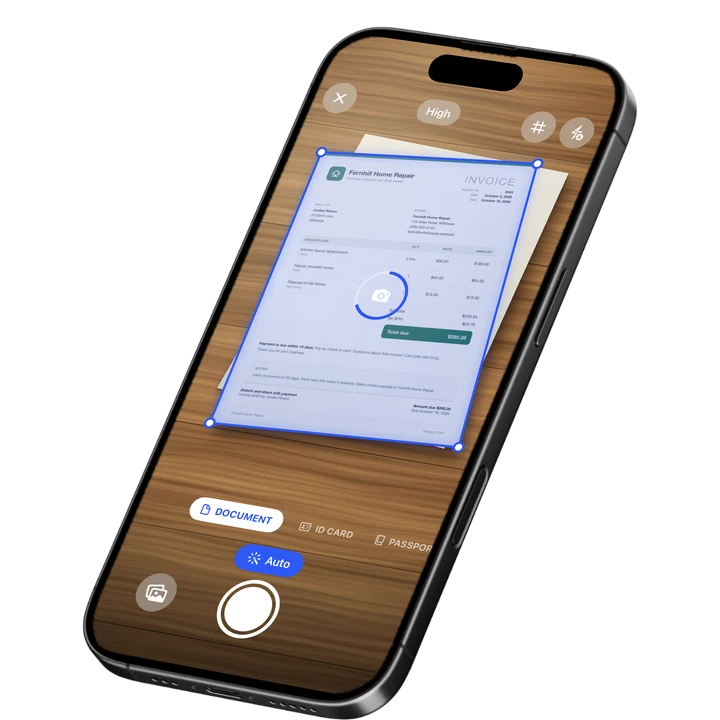
You can fill out a PDF form on iPhone without printing it, by adding text, checkmarks, and a signature directly onto the page and exporting the finished file. If the form only exists on paper, our guide on how to make a PDF on iPhone covers turning it into a file first. The built-in Files app handles a simple form, and Filewise adds more form tools for anything that needs a date stamp or a signature you can reuse.
- Open the PDF in Files or import it into Filewise.
- Add text into each blank line using the text tool.
- Mark any checkboxes with a checkmark, cross, or dot.
- Add a date stamp where the form asks for a date.
- Sign the form, then export or share the finished PDF.
Get Filewise to fill in a form with text, checkmarks, and a date stamp, then sign it in the same app.
How to Fill Out a PDF Form With the Built-In iPhone Tools
iPhone can fill out a PDF form with no extra app, using either Preview's form fields or Markup's text tool, according to Apple's guide to filling out and signing PDF forms on iPhone. Which one you use depends on whether the PDF has real fillable fields or is a flat, scanned form.
- Open the PDF in the Files app and tap it to preview it.
- If the form has real fillable fields, tap a field and type your answer, or tap the AutoFill suggestion above the keyboard to fill in a saved detail.
- If the form is a flat or scanned document with no tappable fields, tap the Markup button (the pencil icon), then tap the plus button and choose Text to add a text box.
- Drag the text box onto each blank line and type your answer.
- To sign, tap the plus button again, choose Signature, and either draw your signature or use one you saved before.
- Tap Done to save your changes to the PDF.
This covers most single-page forms well. For forms that need a checkmark instead of typed text, or a date stamp you can reuse on future forms, a dedicated app like Filewise adds those tools directly.
How to Fill Out a PDF Form With Filewise
Filewise adds the specific tools a form usually asks for, text in a font that matches the document, a checkmark or a cross for checkboxes, a date stamp, and a signature you can save and reuse, all without leaving the app.
- Import the PDF into Filewise from Files or Photos, or scan a paper form with the camera.
- Tap the Text tool to add text anywhere on the page, and choose from 10 fonts to match the form.
- Use the checkmark, cross, or dot tool to mark a checkbox instead of typing an X into it.
- Add a date stamp where the form asks for today's date.
- Use the pen or highlighter tool if you need to draw a line through something or highlight a section.
- Add your signature by drawing it with your finger, reusing a signature you saved earlier, or turning a photo of your signature into a clean signature you can drop onto the page.
- Export the finished form as a PDF, or share it directly from the app.
If you fill out a lot of forms that need a photo or a logo added, Filewise can also insert an image directly onto the page before you export it. A financial aid form is a common example, covered in our guide to scanning documents for college applications.
How to Sign a PDF Form After You Fill It Out on iPhone
Once every field is filled in, the last step is usually a signature next to today's date. Draw your signature with your finger, or reuse a signature you saved from an earlier form, then drop it onto the signature line and add a date stamp beside it.
For the full walkthrough of drawing, saving, and reusing a signature, including turning a photo of your signature into a clean digital one, see our guide on how to sign a PDF on iPhone.
Tips for Filling Out a PDF Form Cleanly on iPhone
A form that looks rushed can slow down whoever processes it next. A few small habits keep a filled-out PDF looking clean and easy to read.
- Zoom in on the page before you place text, so it lands exactly on the line instead of slightly above or below it.
- Match your font size to the printed text around it, so your answers do not stand out as too big or too small.
- Use a checkmark or cross for checkboxes instead of typing an X, since it sits inside the box more cleanly.
- Save your signature once so you can reuse it on every future form without redrawing it each time.
- Check every page before exporting, since a missed field is the most common reason a form gets sent back.
Frequently Asked Questions
Can I fill out a PDF form on my iPhone without printing it?
Yes. You can fill out a PDF form directly on your iPhone using the Files app's Markup tools or Preview's form fields, or with a dedicated app like Filewise that adds text, checkmarks, a date stamp, and a signature. None of these require printing the form first.
How do I add a checkmark to a PDF form on iPhone?
In Filewise, use the checkmark, cross, or dot tool and tap it directly onto the checkbox on the form. This places a clean mark inside the box instead of typing a letter like X, which can land outside the lines on a small screen.
How do I add today's date to a PDF form?
Filewise includes a date stamp tool that adds the current date to the page wherever you place it, which is useful next to a signature line or anywhere else a form asks for a date. You can also type a date manually using the text tool if you need a specific date instead of today's.
What if the PDF form does not have fillable fields?
A flat or scanned form with no tappable fields still works. Use the text tool to place a text box wherever the form needs an answer, then move and resize it to sit on the right line. This is exactly how Filewise and the Files app's Markup tool both handle a scanned form.
Can I save my signature to reuse on future PDF forms?
Yes. Filewise lets you draw a signature once and save it for reuse, or turn a photo of your handwritten signature into a clean signature with the background removed. From then on, you can drop that saved signature onto any document instead of drawing it again.
The Fastest Way to Fill Out a PDF Form on iPhone
For a quick form with a couple of blank lines, the Files app's built-in tools get the job done without installing anything extra. For a form that needs checkboxes marked, a date stamped, and a signature you want to reuse next time, Filewise brings all three into one place.
Either way, you can go from a blank PDF form to a finished, signed document without printing a single page.
Get Filewise and fill out your next PDF form with text, checkmarks, and a signature in one app.
🔒 Face ID lock | 📱 Built for iPhone