How to Combine PDFs on iPhone
TL;DR
To combine PDFs on iPhone, select the files in the Files app, open the share sheet, and choose Merge PDFs, or scan and merge pages directly inside Filewise. Both put multiple files into one document in the order you choose. Filewise also lets you reorder, redact, or password-protect the merged file before you send it.
 Filewise - PDF Scanner
Scan documents to PDF on iPhone
- Get a sharp, professional PDF in one tap.
- Find any word later with on-device text recognition.
- Sign and send polished documents.
- Confidential files stay locked behind Face ID.
- Reliable and native, built for iOS.
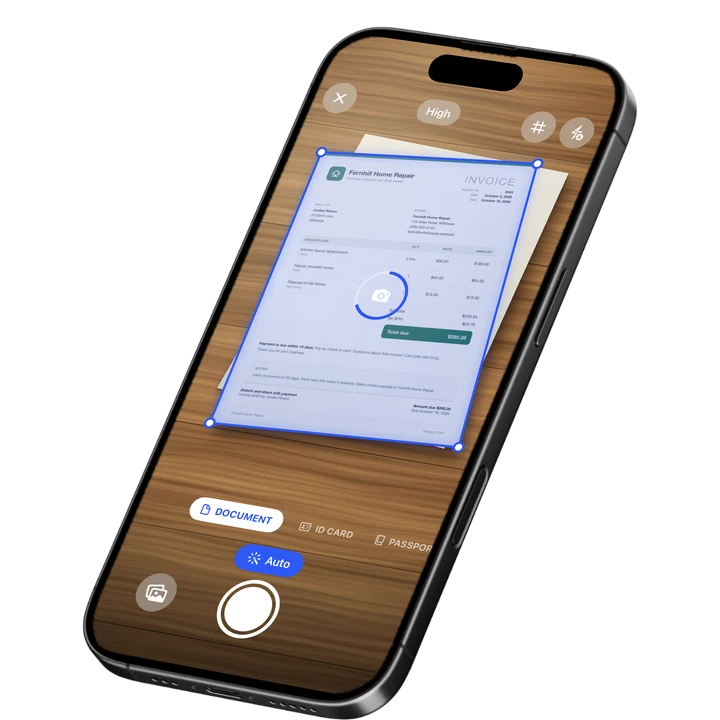
On-device text recognition. Secure, built for iOS.
How to Combine PDFs on iPhone: Quick Steps
To combine PDFs on iPhone, select the files you want to merge in the Files app, open the share sheet, and choose Merge PDFs, which joins them into a single document in the order you selected them.
- Open the Files app and find the PDFs you want to combine
- Tap Select, then tap each PDF in the order you want them to appear
- Tap the Share icon
- Choose Merge PDFs from the share sheet
- Save the combined file to Files or share it right away
Get Filewise to scan new pages straight into an existing PDF and merge everything into one file without leaving the app.
How to Combine PDFs with the Built-In iPhone Tools
The Files app can combine PDFs on its own, with no extra app to download, which covers most one-off jobs like joining a signed contract to a cover letter.
- Open the Files app and locate the PDFs you want to combine
- Tap Select in the top corner, then tap each file in the order you want them merged
- Tap the Share icon at the bottom of the screen
- Tap Merge PDFs from the list of options
- Review the order shown, then tap to confirm and save the new file
The pages appear in the order you selected the files, not necessarily alphabetical order, so tap them in sequence if the order matters. For more on managing files this way, see Apple's guide to organizing files and folders in the Files app.
How to Combine PDFs with Filewise
Filewise merges PDFs as part of its page tools, so you can combine files you already have, or scan new pages straight into an existing document, and reorder everything before you export.
- Open Filewise and go to the document you want to add pages to, or start a new one
- Import the PDFs you want to combine from Files or Photos
- Open the page manager and use merge to bring the pages into one document
- Drag pages into the order you want, rotating or deleting any that need it
- Export the finished file as a single PDF
If one of the files needs a page removed, a page added, or the pages in a different order before you combine it with the others, the page manager handles all three in the same place, so you are not fixing the file in one app and merging it in another. This pairs well with the batch scanning covered in our guide to scanning multiple pages into one PDF on iPhone.
Tips for a Clean Merged PDF
- Check the page order in the page manager before you export, since files can land in the order you imported them rather than the order you want
- Merge PDFs before you redact or password-protect the file, so the protection covers the whole combined document
- Keep file names clear before importing, so you can tell them apart while reordering
- Use the same filter, such as B&W or Auto, across scanned pages you are about to merge, so the combined file looks consistent
How to Send the PDF After You Combine It
Once the pages are in one file, export it and send it the way the recipient needs. Filewise exports to PDF, JPG, or a Word file with the text, and you can share it through the share sheet, AirPrint, Save to Files, or a share link with an expiry date.
If the combined document has sensitive information on one of its pages, such as an account number carried over from one of the source files, our guide to the best app to redact a PDF on iPhone covers blacking that out before you send the merged version. Add a password on export if the whole file needs to be locked down before it leaves your phone, and if the merged file is now too large to email, see our guide on how to compress a PDF on iPhone.
Frequently Asked Questions
How do I combine multiple PDFs into one file on iPhone?
Select the PDFs in the Files app in the order you want them, tap the Share icon, and choose Merge PDFs to join them into a single document. In Filewise, import the files and use the merge tool in the page manager to combine them, with the option to reorder pages first.
Can I merge a PDF with photos or scanned pages?
Yes, if the photos or pages are scanned or converted into a PDF first. Filewise lets you scan new pages directly and merge them with an existing PDF in the same session, so you do not need to convert anything separately beforehand.
Will merging PDFs change the order of the pages inside each file?
No. Each source file keeps its own internal page order when merged, and the files are placed one after another based on the order you selected them. Use the page manager afterward if you need to reorder individual pages within the combined file.
Can I remove a page from the combined PDF afterward?
Yes. Filewise's page manager lets you delete, reorder, or rotate any page in a document after merging, so you can clean up the final file before you export it.
Is there a limit to how many PDFs I can combine at once?
Filewise supports multi-page batch scanning and merging with no set page limit, which covers combining several documents or a long multi-page file without splitting the job into smaller batches.
The Fastest Way to Combine PDFs on iPhone
For a quick, one-off merge of files you already have, the Files app share sheet does the job with no extra download. For anything you do regularly, especially when new scans need to join an existing document, Filewise's merge tool and page manager keep scanning, reordering, and combining in one place.
Get Filewise and turn a stack of separate pages into one clean, correctly ordered PDF.
🔒 Face ID lock | 📱 Built for iPhone