How to Scan Double-Sided Documents on iPhone
TL;DR
To scan double sided documents on iPhone, scan the front, flip the page, scan the back, and keep both captures in the same batch so they save as one PDF. The Notes app and Filewise both support continuous multi-page scanning. Filewise adds sharper edge detection, page reordering, and a dedicated mode for two-sided ID cards.
 Filewise - PDF Scanner
Scan documents to PDF on iPhone
- Get a sharp, professional PDF in one tap.
- Find any word later with on-device text recognition.
- Sign and send polished documents.
- Confidential files stay locked behind Face ID.
- Reliable and native, built for iOS.
On-device text recognition. Secure, built for iOS.
How to Scan Double-Sided Documents on iPhone: Quick Steps
To scan a double-sided document on iPhone, scan the front side first, flip the page over, then scan the back side as the next page in the same session, so both sides land in one PDF instead of two separate files.
- Open your scanner app and start a new scan
- Capture the front of the page and let it crop automatically
- Flip the physical page over
- Capture the back and keep scanning in the same session
- Save both sides as one multi-page PDF, reordering pages if needed
Get Filewise to scan both sides of a lease, a worksheet, or a membership card and keep them in the right order in one PDF.
How to Scan Double-Sided Documents with the Built-In iPhone Tools
The Notes app on your iPhone can scan a document without installing anything else, and it keeps adding pages to the same file until you tell it you are done, which is exactly what a two-sided page needs.
- Open Notes and create a new note, or open an existing one
- Tap the camera icon, then choose "Scan Documents"
- Frame the front of the page. The app detects the edges and captures it automatically
- Without closing the scanner, flip the page over and frame the back. It captures as the next page in the same scan
- Tap "Save" once you have both sides, then tap "Save" again in the note to keep it as a multi-page file
This works well for a single two-sided page you need saved quickly. For more on the built-in scanner, Apple's guide covers the Notes app scanner in full.
How to Scan Double-Sided Documents with Filewise
Filewise scans the front and back of a page as two pages of the same batch, then lets you check, reorder, and clean up both pages before you export, which matters when a page comes out slightly out of order or a filter needs adjusting.
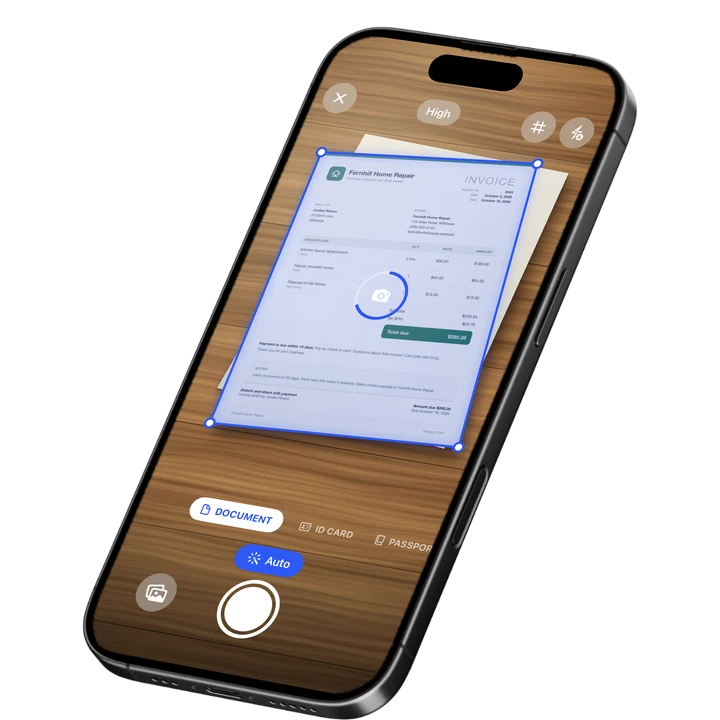
- Open Filewise and start a new scan in Document mode
- Capture the front side. Live edge detection squares up the page as you shoot
- Flip the page and capture the back side. It is added to the same batch, with no page limit
- Open the page manager if you need to reorder, rotate, or delete a page before you export
- Apply a filter, such as Auto or B&W, to both pages at once, then export as a PDF
If the two-sided item is small, such as a driver's license, an insurance card, or a library card, Filewise's ID Card mode is a faster route: it scans both sides at once and places them on a single page at real ID size, so you do not need to flip and rescan at all. This is the same mode covered in our best ID card scanner app for iPhone guide.
Tips for a Clean Double-Sided Scan
- Scan the front and back under the same lighting so the two pages look consistent
- Use B&W or Grayscale for text-only pages to keep the file size down
- Check the page order in the page manager before you export, since a flipped page can land out of sequence
- For ID-sized cards, use ID Card mode instead of scanning each side as a separate page
How to Send the PDF After You Scan Both Sides
Once both sides are saved as one PDF, export it and share it the way the recipient needs it. Filewise exports to PDF, JPG, or a Word file with the text, and you can share it through the share sheet, AirPrint, or a share link with an expiry date.
If the document has an account number or another person's details on it, redact that part before you send it. Filewise's redaction and blur tools burn the change into the exported file, which is worth doing before a document with two sides of information leaves your phone, as covered in our best app to redact a PDF on iPhone guide. For documents that also need a password, add one on export.
For scanning several separate pages in one sitting, not just the two sides of one document, see our guide to scanning multiple pages into one PDF on iPhone.
Frequently Asked Questions
How do I scan both sides of a document into one PDF on iPhone?
Scan the front of the page, then without closing the scanner, flip the page and scan the back as the next page in the same session. Both the Notes app and Filewise keep adding captures to one file until you save, so the front and back end up as sequential pages of a single PDF.
Can I scan a two-sided ID card as one page instead of two?
Yes. Filewise's ID Card mode captures both sides of a card and places them together on a single A4-sized page at real ID size, so you get one image with both sides instead of two separate pages to reorder later.
What if the pages come out in the wrong order?
Open the page manager after scanning and drag the pages into the order you want. This is useful for a double-sided document, since flipping the page mid-scan can occasionally add a page out of sequence.
Does the built-in Notes scanner support double-sided documents?
Yes. The Notes app scanner keeps capturing pages into the same document until you tap Save, so you can scan the front, flip the page, and scan the back as the second page of the same file. It does not offer page reordering or a dedicated two-sided ID mode.
Can I combine the front and back if I already scanned them as two separate files?
Yes. Import both files into Filewise from Files or Photos, then use the merge tool to combine them into one PDF in the order you choose.
The Fastest Way to Scan Double-Sided Documents on iPhone
For a one-off two-sided page, the Notes app scanner gets the job done with no extra download. For anything you scan regularly, such as leases, worksheets, or ID cards, Filewise's batch scanning, page manager, and dedicated ID Card mode save the extra flipping and reordering.
Get Filewise and turn both sides of your next document into one clean, correctly ordered PDF.
🔒 Face ID lock | 📱 Built for iPhone