Watermark PDF: Add a Watermark to a PDF
Put DRAFT, CONFIDENTIAL or your own words on every page of a PDF. Free, and it runs in your browser, so your file is not uploaded.
TL;DR
Watermark PDF means putting a line of text, such as CONFIDENTIAL or DRAFT, on the pages of a PDF. This free tool adds a text watermark in your browser. Pick the words, the layout, the size, the opacity, the color and the pages, check the live preview, then download the result. Your file is not uploaded.
Drop your PDF hereChoose your PDF
Your file is processed in your browser. It is not uploaded.
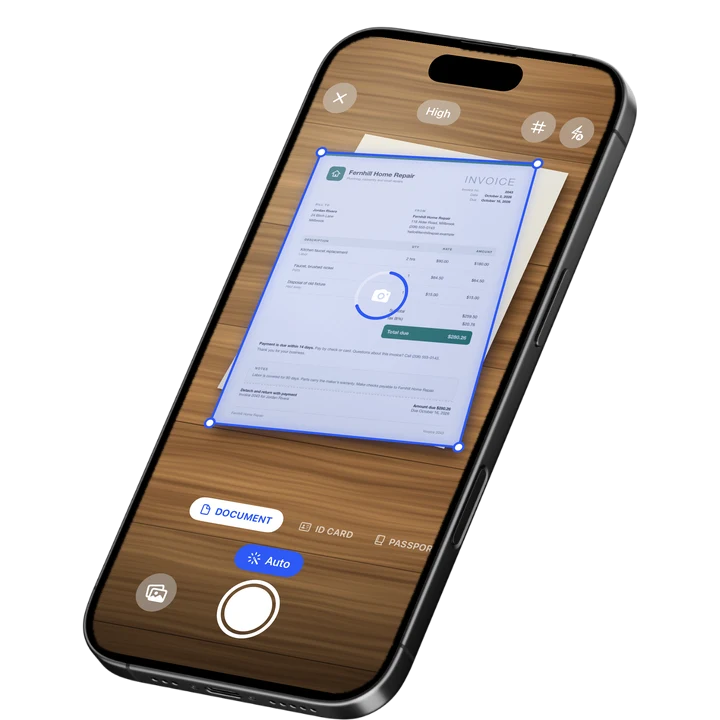
How to Add a Watermark to a PDF
1
Choose a PDF
Drop one PDF on the tool, choose it from your files or paste it.
2
Set the watermark
Type your words or tap CONFIDENTIAL, DRAFT or COPY, then pick the layout, size, opacity and color.
3
Download
Press the button and save the watermarked PDF, or use the link under it to change the watermark.
Watermark PDF in Your Browser
This tool adds a line of text on top of the pages of one PDF, in a bold sans-serif font. You see a live preview on a real page of your file before you press the button. It runs in your browser, so your file is not uploaded.
The tool adds the watermark on top of each page you choose and changes nothing else. Text stays selectable and searchable, scans are not compressed again, and links and form fields stay. The file grows only slightly. Your original is not changed. The result is a new file with -watermark added to its name.
Draft Watermark and Confidential Watermark
A draft watermark tells readers a document is not final. A confidential watermark tells them it is meant for a limited group. A COPY mark shows that a page is a copy, not the original. The tool has one tap for each of these three words, and you can type your own text of up to 60 characters.
Get the pages ready first. Crop the PDF if a margin is in the way, and use Bates numbering to stamp a unique, sequential number, with an optional prefix, on every page. Use the metadata remover afterward if the file should not carry hidden author details.
PDF Watermark Layouts and Options
Pick one of three layouts. Diagonal runs once across the page, from the bottom left to the top right. Tiled repeats the text over the whole page at an angle. Corner puts a small mark in one corner, and you tap a corner on the preview to move it.
- Size: a slider from 10% to 100%. At 100% a diagonal watermark is as large as fits on the page. It starts at 70%.
- Opacity: from 5% to 100%. It starts at 30%, so the page stays easy to read.
- Color: gray, red, blue or black. Gray is the default.
- Pages: leave it empty to mark every page. Type 2-5 for a range, 1, 3, 8 for single pages, or 4- for page 4 to the end.
The diagonal always runs from the bottom left to the top right of the page as you see it. That holds on landscape pages, rotated pages and pages of unusual sizes.
Limits of a PDF Watermark
A watermark added with this tool marks a document. It does not lock it. Someone with a PDF editor can remove it, so it is not security. Use it to show that a file is a draft, a copy or confidential, not to stop anyone from using the file.
- Text watermarks only. There is no logo or image watermark.
- One PDF at a time. Up to 100 MB and 1,000 pages on a computer. Up to 30 MB and 300 pages on a phone.
- A password-protected PDF has to be unlocked first. Save a copy without the password, then add the watermark.
- The tool does not remove a watermark that is already in a PDF.
- The watermark can use Latin letters with accents (the languages of Western, Central and Eastern Europe, Turkish and Vietnamese), Greek and Cyrillic, plus common signs such as check marks and arrows.
- Chinese, Japanese, Korean, Arabic, Hebrew, Thai, Indic scripts and emoji cannot be drawn. Such characters are left out, and the tool tells you so above the button before you press it.
- The watermark becomes part of the new PDF. Keep your original.
On-device OCR. Secure, built for iOS.
Frequently Asked Questions
How do I watermark PDF files for free?
Drop your PDF on this page, type your words or tap CONFIDENTIAL, DRAFT or COPY, and press Add watermark. Then download the new PDF. The tool is free and runs in your browser, so your file is not uploaded. It needs no installation.
How do I add a watermark to a PDF?
Choose your PDF, then set the text, the layout, the size, the opacity, the color and the pages. The live preview shows a real page of your file with the watermark where it will land. Press Add watermark and save the result. Your original file is not changed.
How do I add a draft watermark to a PDF?
Tap DRAFT under the text field and pick Diagonal for a mark across the page. Lower the opacity if the page needs to stay easy to read. To mark only some pages, type a range such as 2-5 in the Pages field. Then press Add watermark and download.
Can I add a confidential watermark to a PDF?
Yes. Tap CONFIDENTIAL, which is filled in when you start, or type your own words. Choose Diagonal, Tiled or Corner, then press Add watermark. The mark shows readers how you want the file treated. It does not stop anyone from copying it or taking the mark off.
Can someone remove a PDF watermark?
Yes. A watermark added this way can be removed by someone with a PDF editor. It marks a document as a draft, a copy or confidential. It does not lock the file and it is not security. The tool does not remove existing watermarks. Keep your original, because the mark becomes part of the new PDF.
Does a watermark change my PDF?
The tool only adds text on top of the pages you choose. Existing text stays selectable and searchable, scans are not compressed again, and links and form fields stay. The file grows only slightly. The result is a new file with -watermark in its name.
How big can the PDF be?
On a computer, a PDF can be up to 100 MB and 1,000 pages. On a phone, the limit is 30 MB and 300 pages, because a phone browser has less memory. A password-protected PDF has to be unlocked first, by saving a copy without the password.
More Free Tools
Signature Maker
Draw or type your signature and download it as a transparent PNG.
Signature to PNG
Turn a photo of your signature on paper into a clean PNG with a transparent background.
Redact Image
Cover private details in a photo or screenshot with a black box, blur or pixelation.
Metadata Remover
Strip hidden details such as author, device and location from PDFs and photos.
Online Document Scanner
Scan paper with your camera or a photo, fix the corners, pick a look and save a multi-page PDF.
ID Card to PDF
Put the front and back of an ID card on one A4 or Letter page at true size and save it as a PDF.