Online Document Scanner: Photo to Scanned PDF
Turn photos of paper into one straight, clean PDF. Free, and it runs in your browser, so your photos are not uploaded.
TL;DR
An online document scanner turns photos of paper into one clean PDF. This free tool finds each page in your photo, straightens it and saves all pages as one PDF. Pick a look, reorder the pages and save. Everything runs in your browser, and your photos are not uploaded.
Add photos of your pagesAdd photos of your pages
One photo per page.
Your files are processed in your browser. They are not uploaded.
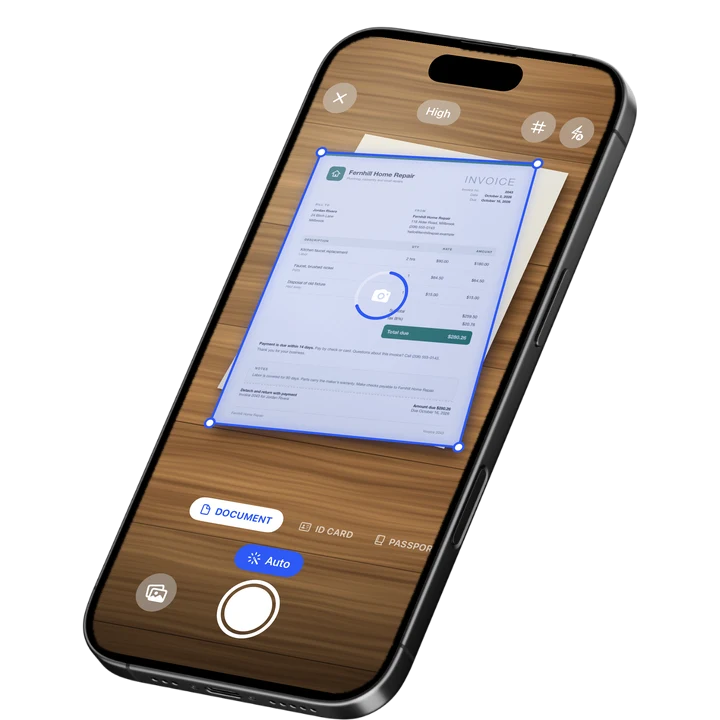
How to Scan Documents Online
1
Add photos
Take a photo on your phone, or drop, choose or paste photos on a computer.
2
Check the corners
Drag the four handles onto the corners of each page, then pick a look.
3
Save the PDF
Reorder or rotate pages if you need to, then press Save PDF.
Online Document Scanner for Photos
This online document scanner turns a photo of paper into a flat, straight PDF page. You add photos, check the four corners on each one, pick a look and save. Take the photos with your phone camera or pick ones you already have. Each photo becomes one page.
On a phone, Take a photo opens the camera, or you can choose photos from your library. On a computer, drop photos on the tool, choose them or paste one. It takes JPG, PNG, HEIC and WebP. For tips on taking the photo, see how to scan documents on iPhone.
Photo to Scan: Corners and Looks
To turn a photo to scan quality, the tool first finds the sheet and puts four corner handles on it. Drag any handle to fix it. A magnifier shows the spot under your finger. Then the page is straightened, so it becomes a flat rectangle with its real proportions.
A corner can go right to the edge of the photo. If the picture already is the page, such as a screenshot, press Whole photo. When the tool cannot find the page with confidence, it shows a neutral frame and asks you to place the corners. A wrong outline would be worse.
A page shaped like Letter (8.5 by 11 inches) or A4 (210 by 297 mm) is saved at exactly that paper size. Any other shape, such as a receipt or a card, keeps its own shape. One look applies to the whole PDF:
- Original keeps the colors as they are.
- Enhanced is the default. Paper turns white, shadows and color casts go, and ink gets darker.
- Gray is the same clean page without color.
- B&W is pure black and white, and the smallest file. To change a PDF you already have, use PDF to black and white.
Image to Scanned PDF Limits
An image to scanned PDF job has limits, and here they are. You can add up to 50 photos on a computer and up to 20 on a phone. Each photo can be up to 100 MB on a computer and 30 MB on a phone. A browser tab has less memory than an app.
- Each page is saved up to 2,400 pixels on its long side. That is about 215 dpi on a Letter page, sharp enough to read and print, and small enough to email. Black and white pages are much smaller than color pages.
- A photo with more than 9 megapixels is reduced to 9 megapixels before the page is cut out.
- The PDF holds pictures of your pages. The text in it cannot be selected or searched.
- The tool removes perspective. It does not flatten a curled or folded page, and glare or blur in the photo stays in the scan.
Scan Documents Online With Better Photos
Finding the page works best when the whole sheet is in the photo and all four corners are visible. Put the paper on a surface that is darker or a different color. White paper on a white table, a patterned tablecloth or two sheets on top of each other can fool it. Then drag the corners yourself.
Need both sides of an ID on one page? Try ID card to PDF. Need the words out of a photo? Use image to text.
On-device OCR. Secure, built for iOS.
Frequently Asked Questions
Is this online document scanner free?
Yes, the tool is free. Add your photos, check the corners and save the PDF. It runs in your browser, so your photos are processed on your own device and are not uploaded. There is nothing to install.
How do I scan documents online?
Add a photo of each page, drag the four corner handles onto the paper, choose a look and press Save PDF. The tool straightens every page and puts them in one PDF. On a phone, Take a photo opens the camera.
How do I turn a photo into a scanned PDF?
Add the photo, check that the four handles sit on the corners of the page, and press Save PDF. The tool removes the perspective, so the page becomes flat. If a picture already is the page, press Whole photo first.
Can I use this PDF scanner online on my phone?
Yes. On a phone, Take a photo opens the camera, or you can choose photos from your library. You can add up to 20 photos, each up to 30 MB. The result screen offers Share or save for the finished PDF.
Can I search the text in the scanned PDF?
No. The PDF holds pictures of your pages, so the text in it cannot be selected or searched. If you need the words from a photo, run it through an image to text tool and copy the result.
What if the corners are in the wrong place?
Drag each handle to the right corner of the paper. A magnifier shows the spot under your finger. Detection works best when the whole sheet is visible on a darker or differently colored surface. When it is unsure, the tool shows a neutral frame.
How do I turn a picture into a sharp scan?
Start with a sharp photo, because the scan can only be as sharp as the picture. Use good light, hold the phone steady and keep the page flat. Glare and blur stay in the result, and a curled page stays curled. Each page is saved up to 2,400 pixels on its long side.
More Free Tools
ID Card to PDF
Put the front and back of an ID card on one A4 or Letter page at true size and save it as a PDF.
Make a PDF Look Scanned
Give a PDF the look of a paper scan, with a slight tilt, grain and soft edges.
Image to Text
Extract the text from a photo or screenshot with text recognition, then copy it or save it.
PDF to Text
Pull the text out of a PDF. Scanned pages are read with text recognition.
PDF Word Counter
Count the words, characters and pages in a PDF, with a count for every page.
Signature Maker
Draw or type your signature and download it as a transparent PNG.