Convert PDF to Black and White
Make a PDF black and white, gray or dark. Free, and it runs in your browser, so your file is not uploaded.
TL;DR
Convert PDF to black and white with this free tool, in three modes: grayscale, pure black and white, or inverted for dark reading. Drop one PDF, pick a mode, check the live preview and download the new file. Your PDF is processed in your browser and is not uploaded.
Drop your PDF hereChoose your PDF
Your file is processed in your browser. It is not uploaded.
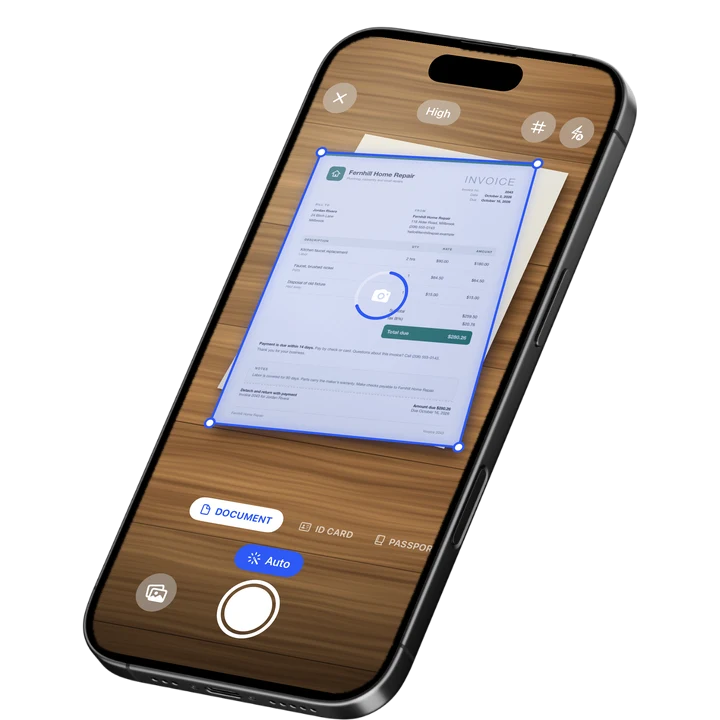
How to Convert PDF to Black and White
1
Choose a PDF
Drop one PDF on the tool, choose it from your files or paste it.
2
Pick a mode
Choose grayscale, black and white or inverted, and check the live preview of page 1.
3
Convert and download
Press the button and save the new PDF, which has the mode added to its name.
Make PDF Black and White in Three Modes
The tool has three modes. Grayscale keeps every page in smooth shades of gray. Black and white uses only black and white, with nothing in between. Inverted swaps every color for its opposite, so a white page turns black. Pick one mode, watch the live preview of page 1, then convert the whole PDF.
- Grayscale: photos and shading stay smooth, and no color is left in the file. This is the way to convert a PDF to grayscale.
- Black and white: crisp text and the smallest file. Best for text, forms and line drawings.
- Inverted: light text on a dark page, for reading in the dark.
The mode applies to every page of one PDF. Page size, page order and the title and author stored in the PDF stay the same. The result is a new file, so your original is not changed.
Pure Black and White Mode
In black and white mode, each pixel becomes black or white. Nothing in between is kept, so text is crisp and the file is by far the smallest. Photos and light gray shading turn into solid black or white. Use this mode for text, forms and line drawings, and grayscale for pages with pictures.
The tool finds the cut between black and white for each page itself, using a standard method called Otsu's method. A slider, shown only in this mode, moves the cut. The middle is automatic. Right gives bolder text, good for faint print. Left gives thinner text, good for a gray background. It runs from 60 lighter to 60 darker in steps of 5.
PDF Dark Mode: Invert PDF Colors
Inverted mode turns a PDF into a dark mode PDF. Every color is replaced by its opposite, so white paper becomes black and black text becomes white. That means less glare when you read in the dark. Photos are inverted too and look like negatives, so it suits pages of text best.
The result is a new PDF that is dark in every viewer. It is not a viewer setting, and your original stays as it is. To give a PDF the look of a paper scan instead, make the PDF look scanned.
File Size and Limits
Every page of the result is drawn as an image and placed on a page of the original size. Its text cannot be selected, searched or copied, and links, form fields and bookmarks are gone. Keep the original. If you need the words, get the text out of the PDF first. For the same reason, crop the PDF or watermark it before you convert, while it still holds real text.
A PDF made of real text gets larger, because real text is tiny and images are not. A 12-page PDF of 11 KB became about 560 KB in grayscale and about 170 KB in black and white. A 9-page scan of 841 KB became 747 KB in grayscale, 99 KB in black and white and 874 KB inverted.
On letter-size pages, a black and white page takes about 10 to 40 KB, and a grayscale page about 50 to 130 KB. At the limit of 150 pages full of text, that is about 6 MB in black and white against about 19 MB in grayscale.
- Up to 100 MB and 150 pages on a computer. Up to 30 MB and 40 pages on a phone, because a phone browser has less memory.
- Grayscale and inverted pages are drawn at 200 dpi on a computer and 150 dpi on a phone. Black and white pages use 300 dpi and 225 dpi, to keep letter edges smooth.
- Very large pages, such as posters and plans, are drawn at a lower resolution, because one page image is capped at 16 megapixels.
- A password-protected PDF has to be unlocked first. Save a copy without the password.
- One PDF at a time, with the same mode for all its pages. PDF only.
On-device OCR. Secure, built for iOS.
Frequently Asked Questions
How do I convert PDF to black and white?
Drop your PDF on the tool. It starts in Grayscale, the everyday meaning of black and white: a color PDF loses all color and photos stay smooth. Choose B&W for text and the smallest file. Press Convert PDF, then download the result.
What is the difference between grayscale and black and white?
Grayscale keeps shades of gray, so photos and shading stay smooth. Black and white keeps only black and white pixels, which gives crisp text and a much smaller file. Photos and light gray text turn harsh in black and white, so use grayscale for pages with pictures.
How do I convert PDF to grayscale?
Drop your PDF on the tool and keep the Grayscale mode, which is the default. Press Convert PDF, then download the new file. It has -grayscale added to its name, and no color is left in it. Page size and order stay the same.
How do I invert PDF colors for dark mode?
Choose Inverted and press Convert PDF. Every color is replaced by its opposite, so white paper becomes black and black text becomes white. The result is a new PDF that is dark in every viewer. Photos look like negatives, so it works best for text.
Can I still select the text afterward?
No. Every page of the result is an image, so its text cannot be selected, searched or copied, and links, form fields and bookmarks are gone. Keep your original file. If you need the text, get it out of the PDF before you convert.
Why did my PDF get bigger?
A PDF made of real text is tiny, and the result stores every page as an image. A 12-page PDF of 11 KB became about 560 KB in grayscale. Black and white mode keeps it smaller, at about 170 KB. Scanned PDFs stay about the same in grayscale.
How big can the PDF be?
On a computer, a PDF can be up to 100 MB and 150 pages. On a phone, the limit is 30 MB and 40 pages, because a phone browser has less memory. A password-protected PDF has to be unlocked first, by saving a copy without the password.
More Free Tools
Bates Numbering
Stamp sequential Bates numbers on every page of a PDF, with your prefix, padding and position.
Crop PDF
Trim the margins of a PDF by dragging a box, on one page or all pages.
Online Document Scanner
Scan paper with your camera or a photo, fix the corners, pick a look and save a multi-page PDF.
ID Card to PDF
Put the front and back of an ID card on one A4 or Letter page at true size and save it as a PDF.
Make a PDF Look Scanned
Give a PDF the look of a paper scan, with a slight tilt, grain and soft edges.
Image to Text
Extract the text from a photo or screenshot with text recognition, then copy it or save it.