PDF to Text
Get the text out of any PDF, typed or scanned. Free, and it runs in your browser, so your file is not uploaded.
TL;DR
PDF to text pulls the words out of a PDF so you can copy them or save them as a .txt file. This free tool runs in your browser and does not upload your file. Typed pages are read directly. Scanned pages are recognized. You get plain text, and the PDF itself is not changed.
Drop your PDF hereChoose your PDF
Your file is processed in your browser. It is not uploaded.
How to Convert PDF to Text
1
Add a PDF
Drop one PDF on the tool, choose it from your files or paste it.
2
Wait a moment
Typed pages are read at once, and each scanned page takes a few seconds.
3
Copy or download
Copy the text, or download it as a .txt file.
PDF to Text for Typed and Scanned Pages
The tool checks every page on its own. A typed page has real text inside the PDF, so the tool reads it directly. That is exact and fast. A scanned page is only a picture, so the tool draws it and recognizes the text. That takes a few seconds per page and can hold mistakes. A mixed PDF works.
The result shows which page was read which way. Above the text, up to three short lines list the pages read directly, the pages recognized from scans and the pages without text. In the text, every page starts with a marker line such as --- Page 3 ---. A recognized page says so, as in --- Page 3 (recognized) ---. A one-page PDF has no marker.
PDF OCR for Scanned PDFs
PDF OCR means reading the text from a picture of a page. To turn a scanned PDF to text, this tool draws each scanned page and runs text recognition on it in your browser. Sharp, straight, evenly lit pages of printed text read best. Handwriting, blurry pages and very small print read poorly.
A language picker appears only when pages were recognized. English is the default. The tool's list is English, Arabic, Chinese (Simplified), Chinese (Traditional), Czech, Danish, Dutch, French, German, Indonesian, Italian, Japanese, Korean, Malay, Norwegian, Polish, Portuguese, Romanian, Russian, Spanish, Swedish, Thai, Turkish, Ukrainian and Vietnamese. Pick one and the PDF is read again.
The first scanned page downloads about 4 MB, which is the recognition engine and English. Other languages are 1 to 3 MB each. Your browser keeps them, so later runs start right away. The download brings the reading software to your browser. Your PDF is not sent anywhere. A typed PDF skips the download.
PDF to TXT File
PDF to TXT gives you one plain text file. Copy the text with Copy text, or press Download to save a .txt file named after your PDF, so lease.pdf gives lease.txt. The text sits in a box you can edit first, and the file holds your edits.
You get the text. The PDF itself is not changed. To count the words of a PDF, use the PDF word counter. To turn text back into a PDF, use text to PDF. To read a photo or a screenshot, use image to text.
PDF Text Extractor Limits
This PDF text extractor gives plain text and nothing else. Fonts, bold, tables and pictures are not kept, and the PDF itself is not changed. Text comes out in the order the PDF stores it. The tool reads one PDF at a time.
- Up to 100 MB and 1,000 pages on a computer. Up to 30 MB and 300 pages on a phone.
- Scanned pages: up to 150 per PDF on a computer, up to 40 on a phone. Split a longer scan first.
- A password-protected PDF has to be unlocked first. Save a copy without the password, then read it.
- On pages with columns or tables, the order can differ from what you see. Headers, footers and page numbers are part of the text.
- Line breaks follow the lines of the page, so a paragraph arrives as several short lines.
- A scanned page with a typed stamp or page number on top is recognized. A scanned page that already carries more than a few lines of typed text is taken as typed, and its picture is not recognized.
- Recognized pages can hold mistakes. Check names, numbers and dates against the page.
- Chinese, Japanese and Korean are read left to right as one column, with more mistakes than Latin scripts. Vertical text is not read.
Scan to Text on iPhone
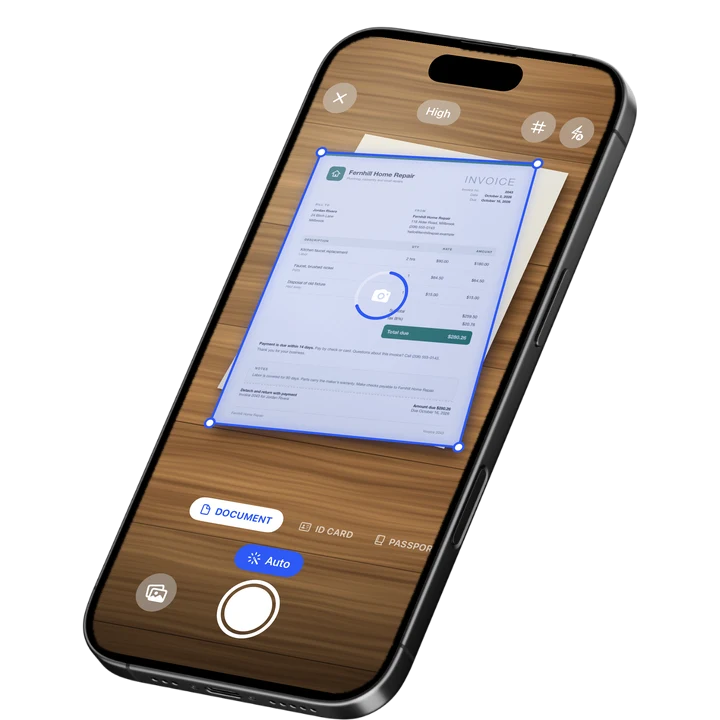
On your iPhone, Filewise scans paper to a sharp PDF with live edge detection and automatic crop. It reads the text on your scans, so you can copy it, export it as .txt or Word, and search your scans in the app. Filewise reads text in up to 25 languages. Some languages need a newer version of iOS.
On-device OCR. Secure, built for iOS.
Frequently Asked Questions
How do I convert PDF to text?
Drop your PDF on the tool, choose it from your files or paste it. The tool reads every page on its own, with no options to set. When it is done, copy the text or press Download to save a .txt file. The tool runs in your browser, so your file is not uploaded.
Can I extract text from a scanned PDF?
Yes. A scanned page is a picture, so the tool draws it and recognizes the text with OCR. This takes a few seconds per scanned page, and phones take longer. Recognized text can hold mistakes, so check names, numbers and dates. Sharp, straight pages of printed text read best.
How do I know which pages were recognized?
Above the text, short lines list the pages read directly, the pages recognized from scans and the pages without text. In the text, each page starts with a marker line such as --- Page 3 ---, and a recognized page adds the word recognized. Typed pages are exact. Recognized pages can hold mistakes.
Does PDF OCR change my PDF?
No. You get plain text, and the PDF itself is not changed. Your original file stays as it is. Fonts, bold, tables and pictures are not kept in the text. The result is a .txt file named after your PDF, such as lease.txt.
Which languages can it read?
The language picker lists English, Arabic, Chinese (Simplified), Chinese (Traditional), Czech, Danish, Dutch, French, German, Indonesian, Italian, Japanese, Korean, Malay, Norwegian, Polish, Portuguese, Romanian, Russian, Spanish, Swedish, Thai, Turkish, Ukrainian and Vietnamese. English is the default. Pick another and the PDF is read again. The picker appears only when pages were recognized, because typed pages are read directly.
Why is my PDF text in the wrong order?
Text comes out in the order the PDF stores it. On pages with columns or tables, that can differ from what you see. Headers, footers and page numbers are part of the text too. Line breaks follow the lines of the page, so a paragraph arrives as several short lines.
How big can the PDF be?
On a computer, a PDF can be up to 100 MB and 1,000 pages, with up to 150 scanned pages. On a phone, the limit is 30 MB and 300 pages, with up to 40 scanned pages. Split a longer scan first. A password-protected PDF has to be unlocked first.
Sources
More Free Tools
Image to Text
Extract the text from a photo or screenshot with text recognition, then copy it or save it.
PDF Word Counter
Count the words, characters and pages in a PDF, with a count for every page.
Online Document Scanner
Scan paper with your camera or a photo, fix the corners, pick a look and save a multi-page PDF.
ID Card to PDF
Put the front and back of an ID card on one A4 or Letter page at true size and save it as a PDF.
Make a PDF Look Scanned
Give a PDF the look of a paper scan, with a slight tilt, grain and soft edges.
Signature Maker
Draw or type your signature and download it as a transparent PNG.