Scan ID Card Front and Back to One PDF
Take a photo of each side and get one page with both, at real card size. Free, and your photos are processed in your browser, not uploaded.
TL;DR
Scan ID card front and back with this free tool and get one PDF page with both sides at true size, the front above the back. Take or choose a photo of each side, check the corners, pick your paper and save. Your photos are processed in your browser and are not uploaded.
Add a photo of the frontAdd a photo of the front
You can add the back at the same time.
Your files are processed in your browser. They are not uploaded.
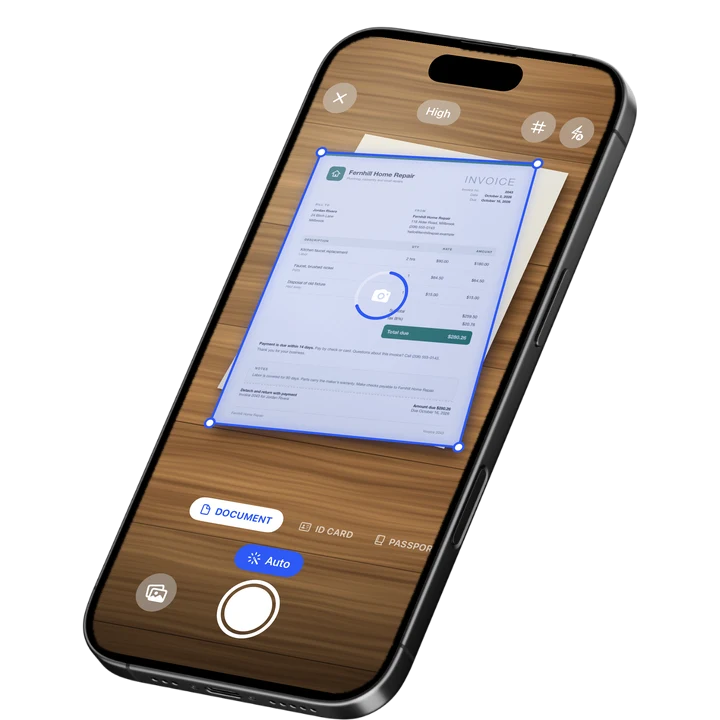
How to Scan an ID Card Front and Back
1
Add the front
Tap Take photo or choose a photo, then drag the four corner handles onto the corners of the card.
2
Add the back
Do the same for the back, or add both photos at once and check the corners of each.
3
Save the PDF
Pick ID card or Passport, A4 or Letter, and Color or Grayscale, then press Save PDF.
ID Card Front and Back on One Page
Banks, landlords and employers often ask for a copy of an ID with both sides on one sheet. This tool makes that page. It straightens each photo and places the front above the back, in the middle of the page, with the card's rounded corners and a thin gray outline.
Each side is shown at true size. That is the standard ID-1 card size, 85.60 by 53.98 mm (3.370 by 2.125 inches). Driver licenses, national ID cards, bank cards and insurance cards all use it.
ID Card Scanner Settings
This ID card scanner has three choices. You can set each one before you press Save PDF. The page is one PDF page, ready to send or print.
- Document: ID card for two sides, or Passport for one photo page.
- Paper: A4 or Letter. It starts on the paper your country uses, and you can switch.
- Color: Color or Grayscale. Many recipients ask for a black and white copy.
A small button under each side turns it upside down if it came out the wrong way round. Another removes it. For full pages of paper, use the online document scanner.
Scan Passport Photo Page
To scan a passport, choose Passport. The tool takes one photo, the photo page, and places it on the page at 125 by 88 mm. That is the ID-3 size of a passport page. It is a copy of the photo page only.
Open the passport flat, with all four corners in the photo. The same corner handles let you fix the edges if the tool placed them a little off.
What This Tool Does and Its Limits
The tool turns photos of a card into one clean PDF page. It does not read the card. Here are the limits, so you know what to expect before you start.
- Each photo can be up to 100 MB on a computer and 30 MB on a phone. It accepts JPG, PNG, HEIC and WebP.
- Each side is saved up to 1,520 pixels across, which is about 450 dpi at card size.
- The size is true when the PDF is printed at 100 percent, also called actual size. A fit to page setting in the print dialog changes it.
- The tool assumes the standard card size. A document with another shape is reshaped to it, so use it for standard cards and passport photo pages.
- The PDF holds pictures of the card. The tool does not read the name, the numbers or the barcode, and it does not check whether a document is genuine.
- Finding the card works best on a plain surface that is darker or a different color than the card, with all four corners in the photo. Glare from a flash or a lamp stays in the picture.
- The recipient decides what it accepts, such as color or black and white, or one page or two. This is not legal advice.
To cover a number the recipient does not need, use redact image on your photo first. To mark the copy with who it is for, try watermark PDF on the result.
Your ID Photos Stay in Your Browser
Every photo is processed in your browser and is not uploaded. For an ID, that matters. The corner finding, the straightening and the PDF all happen on your own phone or computer, and the page makes the file for you to save.
The PDF is made from new pictures of the card. It does not carry the hidden details a phone stores in a photo, such as the place and the device. The photos on your phone still have them. To clean a photo itself, use the metadata remover.
On-device OCR. Secure, built for iOS.
Frequently Asked Questions
How do I scan an ID card front and back on one page?
Take or choose a photo of the front, drag the four handles onto the card's corners, then add the back the same way. Press Save PDF. You get one page with the front above the back, each at true card size. It runs in your browser.
How do I make a copy of ID for a bank or landlord?
Use the ID card choice, pick your paper, and save the PDF. It puts both sides on one page, which is the usual form of a copy of ID. The recipient decides what it accepts, such as color or black and white, so ask if you are unsure.
Can I scan a passport with this tool?
Yes. Choose Passport, then add one photo of the photo page. The tool places it on the page at 125 by 88 mm, the ID-3 size of a passport page. Open the passport flat and keep all four corners in the photo for the best result.
Is the PDF really the size of my card?
Yes, when you print it at 100 percent, also called actual size. Each side is placed at 85.60 by 53.98 mm. If your print dialog is set to fit to page, the size changes. A document with another shape is reshaped to the card size.
Are my ID photos uploaded?
No. Every photo is processed in your browser and is not uploaded. There is nothing to install. The tool does not read your name, numbers or barcode, and it does not check whether a document is genuine. It only makes a PDF of the pictures.
Can I make the copy black and white?
Yes. Under Color, choose Grayscale before you press Save PDF. Many recipients ask for a black and white copy. The choice is yours, and the recipient decides what it accepts. You can run the tool again with Color for another copy.
What if the corners are not found?
The tool shows a card-shaped frame in the middle of the photo and asks you to place the corners. Drag each handle onto a corner. A magnifier shows the spot under your finger. A plain, darker surface and all four corners in the photo help.
Sources
More Free Tools
Online Document Scanner
Scan paper with your camera or a photo, fix the corners, pick a look and save a multi-page PDF.
Make a PDF Look Scanned
Give a PDF the look of a paper scan, with a slight tilt, grain and soft edges.
Image to Text
Extract the text from a photo or screenshot with text recognition, then copy it or save it.
PDF to Text
Pull the text out of a PDF. Scanned pages are read with text recognition.
PDF Word Counter
Count the words, characters and pages in a PDF, with a count for every page.
Signature Maker
Draw or type your signature and download it as a transparent PNG.