Censor Image Online
Cover faces and private details with a black box, blur or pixelation. Free, and it runs in your browser.
TL;DR
Censor image areas with this free tool: it covers faces, text and other private details with a black box, blur or pixelation. Draw a box over each one, pick the cover and save a new picture. It runs in your browser, so your picture is not uploaded.
Drop your JPG, PNG, HEIC or WebP hereChoose your JPG, PNG, HEIC or WebP
Your file is processed in your browser. It is not uploaded.
How to Censor an Image
1
Add a picture
Drop a JPG, PNG, HEIC or WebP on the tool, choose it from your files or photos, or paste it.
2
Draw your boxes
Drag over each part you want to hide, then pick Black box, Blur or Pixelate.
3
Save image
Press the button, check the preview and download the new picture.
Censor Image Online
You censor an image by covering the parts that others should not see, such as a face, a license plate, an address or a number. Draw a box over each one, choose how to cover it, and save. The tool gives you a new picture with the covers built in.
The saved picture does not copy the hidden details of the original photo, such as where it was taken. To strip those details from a photo or PDF without covering anything, use the metadata remover.
Redact Image: What the Tool Does
This tool lets you redact an image in your browser. Drag on the picture to draw as many boxes as you need, then move, resize or delete them. Pick one cover for the whole picture: a black box, blur or pixelate. The preview updates as you draw, and Save image makes a new file.
The saved picture has the same width and height as the original, unless it is very large. A PNG stays a PNG, so a screenshot keeps its sharp text. JPG, HEIC and WebP pictures are compressed again as a high-quality JPG, and a WebP with transparency is saved as a PNG. The covered pixels are replaced, so the original pixels under a box are not in the file. The name is the original name with -redacted added.
- A black box is the only cover that cannot be undone. Blur and pixelation of text can sometimes be reversed or guessed with software, especially on screenshots. Use the black box for names, addresses, account numbers and passwords.
- You draw every box by hand. The tool does not find faces or text for you.
- Boxes are rectangles, with one cover style per picture. One picture at a time, images only, not PDFs.
- A black box still shows how long the hidden text was, and letters that stick out past the box can give text away. Draw the box a little larger than the text and check the preview before you share.
- Up to 100 MB on a computer and 30 MB on a phone. A picture over 16 megapixels, or with a side over 8,192 pixels, is scaled down, and the tool shows the size it saves at.
- The tool saves a new file. The original on your device still shows everything, and so does any copy you already sent.
- The tool covers what you choose. It gives no legal advice and cannot promise that a result meets any rule for redaction.
Blur Image or Pixelate Image
Blur softens an area until the detail is gone. Pixelate turns it into large squares. Both look natural on backgrounds and faces. Neither is the safe choice for text. The blur and the square size follow the size of each box, so a bigger box gets a stronger blur and bigger squares.
There is no strength setting. If a soft cover is not enough, draw a bigger box or switch to the black box. Security researchers at Bishop Fox showed pixelated text being recovered, and they recommend black bars over the whole text.
Blur Face and Blur Text in Image
To blur a face, draw a box over it and choose Blur. To blur text in an image, draw a box over the text, but choose the black box if the text is private. Blur on text can sometimes be undone, so a name, an address or a password needs a solid cover.
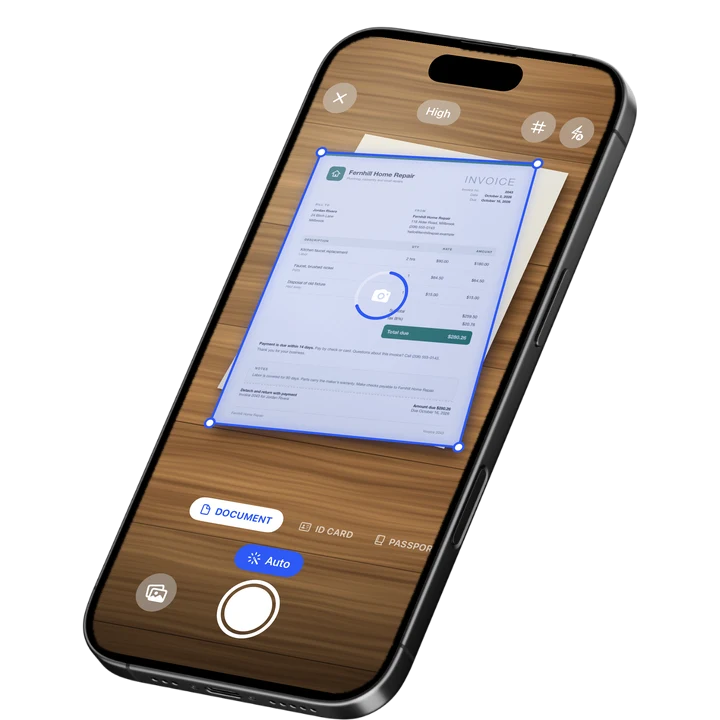
Phone screenshots open at full width, so you can cover a line of text in one pass. Zoom with the plus and minus buttons to place a box exactly. To read text from a picture instead, try image to text. To turn a photo of paper into a clean PDF, use the online document scanner.
On-device OCR. Secure, built for iOS.
Frequently Asked Questions
How do I censor image areas in my browser?
Add your picture, draw a box over each part you want to hide, choose Black box, Blur or Pixelate, and press Save image. You get a new file with the covers built in. It runs in your browser, so your picture is not uploaded, and it needs no installation.
How do I redact image details before I share a photo?
Draw a box over each detail, pick Black box and save. A black box replaces the covered pixels in the saved file, so the original pixels under it are not in the file. You draw every box by hand, because the tool does not find faces or text by itself. Check the preview before you share.
Is it safe to blur text in image files?
Not for private text. Blur and pixelation of text can sometimes be reversed or guessed with software, especially on screenshots with standard fonts. For names, addresses, account numbers and passwords, use the black box instead. Blur is fine for looks and for backgrounds.
How do I blur a face in a photo?
Draw a box over the face, choose Blur and save. The blur is set from the size of the box, so a bigger box gives a stronger blur. There is no strength setting. Blur works for faces where a soft cover is enough, but it is not the right cover for private text.
Should I blur or pixelate a picture?
Blur smooths an area, and pixelate turns it into large squares. Both are set from the size of the box. Neither is a safe cover for text, because software can sometimes recover it. Pick the look you like for faces and backgrounds, and use the black box for text.
Does the saved picture keep my photo's location?
No. The saved file is a new picture and does not copy the metadata of the original, such as GPS location, camera make and model, and date and time. The original file on your device still has that data, so share the saved copy.
Which pictures and sizes work?
The tool opens JPG, PNG, HEIC and WebP pictures, up to 100 MB on a computer and 30 MB on a phone. The saved file has the same pixel size as the original. Pictures over 16 megapixels, or with a side over 8,192 pixels, are scaled down, and the tool shows the size it saves at.
Sources
More Free Tools
Signature Maker
Draw or type your signature and download it as a transparent PNG.
Signature to PNG
Turn a photo of your signature on paper into a clean PNG with a transparent background.
Metadata Remover
Strip hidden details such as author, device and location from PDFs and photos.
Watermark PDF
Add a text watermark such as DRAFT or CONFIDENTIAL to all pages of a PDF or a range: diagonal, tiled or in a corner.
Online Document Scanner
Scan paper with your camera or a photo, fix the corners, pick a look and save a multi-page PDF.
ID Card to PDF
Put the front and back of an ID card on one A4 or Letter page at true size and save it as a PDF.