Make PDF Look Scanned
Give a PDF the look of a paper scan, with tilt, grain and dust. Free, and it runs in your browser, so your file is not uploaded.
TL;DR
Make PDF look scanned with this free tool, which runs in your browser. Pick an office scan, photocopy or fax look, set tilt, grain and blur, and download a new PDF. Your file is not uploaded. Every page becomes an image, so the text cannot be selected.
Drop your PDF hereChoose your PDF
Your file is processed in your browser. It is not uploaded.
How to Make PDF Look Scanned
1
Choose a PDF
Drop one PDF on the tool, choose it from your files or paste it.
2
Pick a look
Choose office scan, photocopy or fax, then adjust tilt, grain and blur while the preview updates.
3
Download
Press the button and save the new PDF, which has -scanned added to its name.
What the Scan Effect Does
The tool redraws every page of your PDF so it looks like it went through a scanner. Each page gets its own slight tilt, off-white paper, uneven light, grain and a few dust specks. Some specks sit in the same spot on every page, like dust on a scanner glass. Page size and order stay the same.
Paper is never pure white and ink is never pure black. The preview shows page 1 as it will come out. Each time you open a PDF, the tool picks new random tilts and dust, so two runs of the same file do not match exactly.
Scanner Effect: Three Looks
Pick one of three looks. Office scan is a clean gray scan with soft paper edges and light grain. Photocopy has hard contrast, darker edges, more dust and a faint line like a scratch on the glass. Fax is pure black and white with ragged letters and specks. Each look sets the sliders to its own start.
- Tilt: the largest angle a page can get, from 0 to 2 degrees. At 0 the pages stay straight.
- Grain: paper grain, sensor noise and dust specks, from 0 to 100.
- Blur: how soft the page is, from 0 to 100.
- Keep color: pages keep their colors, slightly washed out, on warm paper. Off, pages are gray. A fax is always black and white.
PDF to Scanned PDF: What Changes
Every page of the result is an image. Its text cannot be selected, searched or copied, and links, form fields and bookmarks are gone. Keep your original. The title and author stored in the original are not copied into the result. The tool changes how pages look and nothing else.
Office scan and photocopy pages are saved as JPEG images at 150 dpi. Fax pages are 1-bit images at 200 dpi. On letter-size pages, an office scan is about 70 to 150 KB per page, a photocopy about 130 to 200 KB and a fax about 10 to 30 KB. A page full of text comes out larger than a page with little text, and keeping color adds about 10 KB per page.
A PDF made by an app holds real text and is tiny, so its result is much larger. A PDF that already is a scan comes out about the same size or smaller. At 150 pages full of text, the office scan look comes to about 22 MB and a photocopy to about 30 MB, which matters if you send the file by email.
- Up to 100 MB and 150 pages on a computer. Up to 30 MB and 40 pages on a phone, because a phone browser has less memory.
- A password-protected PDF has to be unlocked first. Save a copy without the password, then use the tool.
- One PDF at a time, and PDF only.
- Very large pages, such as posters and plans, are drawn at a lower resolution, because one page image is capped at 16 megapixels.
Fake Scanner: When It Helps
Use it when you filled in or signed a form on screen and the other side expects a scanned copy. It also helps when no printer or scanner is at hand, when you want to save paper, and for props, mockups and teaching material that should look like paper.
Need a signature first? Draw one and place it on the form. For plain gray or black and white without the scan look, use PDF to black and white. To scan real paper with a phone camera, try the online document scanner. This tool does not sign, stamp or certify anything. Whether someone accepts the result as a scan is up to them and their rules.
On-device OCR. Secure, built for iOS.
Frequently Asked Questions
How do I make PDF look scanned?
Drop your PDF on the tool, pick Office scan, Photocopy or Fax, and adjust tilt, grain and blur while the preview updates. Press the button and download the new PDF. It is named like your original with -scanned added. The tool runs in your browser, so your file is not uploaded.
Can I convert PDF to scanned PDF for free?
Yes. This tool is free and turns a PDF into a scanned PDF in your browser. Each page is redrawn as an image with a slight tilt, a paper tone, grain and dust. Nothing is uploaded. The result is a new file, and your original is not changed.
How is the photocopy effect different from an office scan?
Office scan is gray, with off-white paper, a soft shadow where the paper ends and light grain. Photocopy has harder contrast, darker edges, more grain and dust, and a faint line like a scratch on the glass. Fax is pure black and white with ragged letters and specks.
Can I select or search text in the scanned PDF?
No. Every page of the result is an image, so its text cannot be selected, searched or copied. Links, form fields and bookmarks are gone too. Keep your original PDF if you need the text. The title and author stored in the original are not copied into the result.
Why is the scanned PDF bigger than my original?
A PDF made by an app holds real text and is tiny. The result holds a picture of every page. A 12-page test file of 11 KB became about 900 KB. Grain and text add size, so lowering Grain makes the file smaller. Ten pages with the office scan look come to about 1 MB, up to 1.5 MB if every page is full of text.
Can I make a document look scanned on my phone?
Yes. The tool works in a phone browser, with a lower limit: up to 30 MB and 40 pages, because a phone browser has less memory. On a computer the limit is 100 MB and 150 pages. A password-protected PDF has to be unlocked first. Very large pages are drawn at a lower resolution.
Will the result be accepted as a real scan?
The tool changes how pages look and nothing else. It does not sign, stamp or certify anything. Whether someone accepts the result as a scan is up to them and their rules. Check what the other side requires before you send it.
More Free Tools
Online Document Scanner
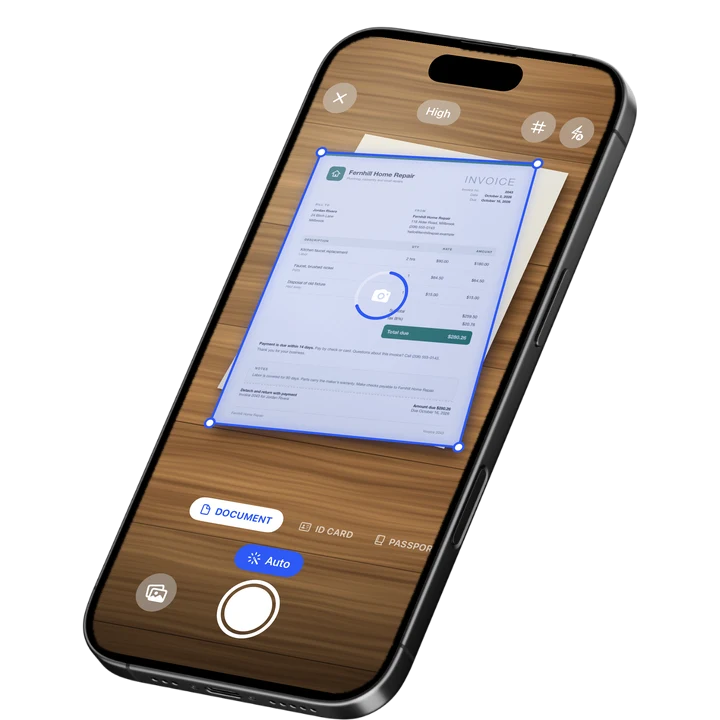
Scan paper with your camera or a photo, fix the corners, pick a look and save a multi-page PDF.
ID Card to PDF
Put the front and back of an ID card on one A4 or Letter page at true size and save it as a PDF.
Image to Text
Extract the text from a photo or screenshot with text recognition, then copy it or save it.
PDF to Text
Pull the text out of a PDF. Scanned pages are read with text recognition.
PDF Word Counter
Count the words, characters and pages in a PDF, with a count for every page.
Signature Maker
Draw or type your signature and download it as a transparent PNG.