JFIF to PDF Converter
A JFIF is just a JPEG. Turn one or many into a PDF without losing any quality, free and right in your browser.
TL;DR
JFIF to PDF turns your .jfif pictures into one PDF without losing any quality. A JFIF file is a JPEG, and this free tool puts its data into the PDF byte for byte, with no new compression. It runs in your browser, so your files are not uploaded.
Drop your JFIF files hereDrop your JFIF files here
JPG, PNG, WebP, TIFF, SVG, GIF and BMP work too.
Your files are processed in your browser. They are not uploaded.
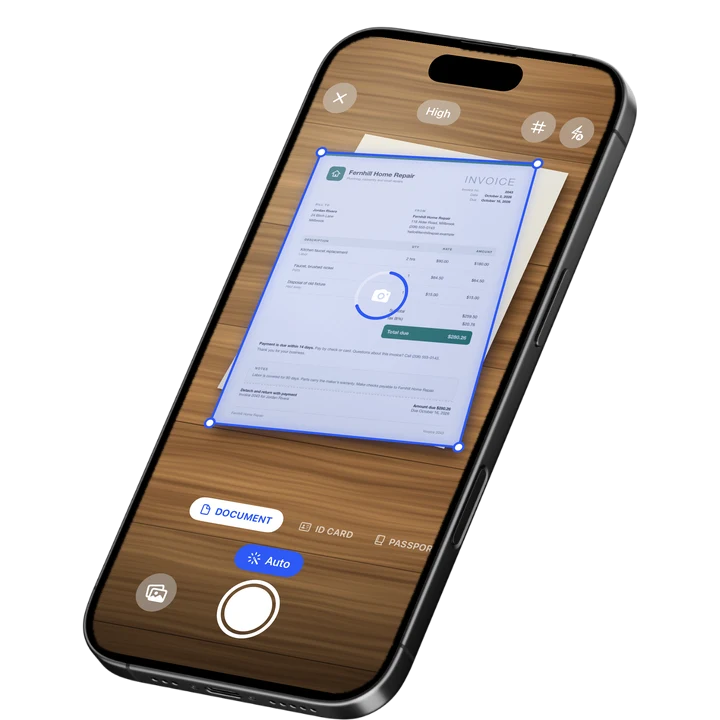
How to Convert JFIF to PDF
1
Add your JFIF
Drop one or more .jfif files on the tool, or choose them from your files.
2
Order and size
Move pictures up or down, then pick Fit to image, A4 or Letter.
3
Convert and save
Press Convert to PDF and download the PDF with one page per picture.
What Is a JFIF File
A JFIF file is a JPEG picture. JFIF stands for JPEG File Interchange Format, the standard wrapper around JPEG picture data. It was published in 1992, and version 1.02 is the common one. A .jfif file holds the same kind of data as a .jpg file.
Only the ending of the name differs. That is why you do not need to fix anything inside the file. You only need a place that accepts it, and a PDF is one.
JFIF vs JPG
JFIF and JPG are the same thing under two names. Both are JPEG pictures, with the same colors, the same sharpness and the same compression. Rename photo.jfif to photo.jpg and you get a normal JPG that opens anywhere. Nothing about the picture changes.
This page takes .jfif, .jpg, .jpeg and .jpe files, and you can mix them in one PDF. It also takes PNG, WebP, TIFF, SVG, GIF and BMP, so a pile of mixed pictures still ends up as one document.
JFIF to PDF Without Quality Loss
A PDF can hold JPEG data as it is. So this tool does not open the picture and save it again. It copies the JPEG data from your JFIF into the PDF byte for byte. There is no re-compression and no quality setting to choose, because there is nothing to lose.
In a test, the JPEG data inside the finished PDF was identical to the JFIF file, byte for byte. A 159 KB JFIF became a 160 KB PDF, the picture plus about 1 KB for the page around it. Progressive, grayscale and CMYK JPEGs are kept as they are, and a photo shot sideways is shown upright on the page.
Because the picture data is copied and not compressed again, large photos convert in a moment. A 35 megapixel JPEG worked in a test. A rare JPEG kind that a PDF cannot hold, such as lossless or 12-bit JPEG, is read by your browser first, if the browser can open it.
Where JFIF Files Come From
Windows sometimes saves a picture from a web browser such as Chrome or Edge with the .jfif ending instead of .jpg. The picture is a normal JPEG. Many upload forms, older programs and some phones do not list .jfif as an accepted type, which is why people search for a converter.
If your picture came from an iPhone as a HEIC file instead, open it with the HEIC viewer and save it as a JPG first. For a WebP file, the WebP to PDF page does the same job as this one.
What This JFIF Converter Does
The tool makes one PDF with one page per picture, in the order of your list. Use the arrows to reorder and the X to remove a file. Fit to image makes each page as large as its picture. A4 or Letter centers the picture as large as it fits, with a landscape page for a wide one.
Fit to image reads the resolution stored in the file. A 300 dpi scan of a Letter page becomes a Letter page. When the file states none, 96 pixels per inch is used.
- On a computer, up to 50 files, 100 MB each and 1,000 pages in total. On a phone, up to 20 files, 30 MB each and 300 pages in total.
- The date, the camera model and sometimes the location that your camera wrote into the JPEG stay inside the PDF. Run the photo through the metadata remover first if that matters.
- The PDF holds pictures. Text in it cannot be selected or searched. To pull the words out of a picture, use image to text.
- Transparent areas in PNG, WebP or GIF files turn white. An animated GIF or WebP uses its first frame.
On-device OCR. Secure, built for iOS.
Frequently Asked Questions
How do I convert JFIF to PDF?
Drop your .jfif files on the tool, or choose them from your files. Put them in the order you want, pick Fit to image, A4 or Letter, and press Convert to PDF. You get one PDF with a page per picture. It runs in your browser, so nothing is uploaded.
What is a JFIF file?
A JFIF file is a JPEG picture. JFIF stands for JPEG File Interchange Format, the standard wrapper around JPEG picture data, published in 1992. It holds the same kind of data as a .jpg file. Only the ending of the file name is different.
Is JFIF the same as JPG?
Yes. Both are JPEG pictures, with the same colors and the same compression. Rename photo.jfif to photo.jpg and you have a normal JPG that opens anywhere. Windows sometimes saves pictures from a browser with the .jfif ending, which is why you see both names.
Does converting JFIF to PDF reduce quality?
No. The tool puts the JPEG data from your file into the PDF untouched, byte for byte. It does not decode the picture or compress it again, so there is no quality loss and no quality setting to choose. The PDF is the picture plus a small page around it.
How do I open a JFIF file?
Since a JFIF is a JPEG, the simplest way is to rename it from .jfif to .jpg, and it opens in any photo app. You can also turn it into a PDF on this page, which most devices and programs open without trouble.
Can I combine several JFIF files into one PDF?
Yes. Add as many as the limit allows, 50 files on a computer or 20 on a phone. Move them into order with the arrows and press Convert to PDF. Each picture becomes one page. You can mix in JPG, PNG, WebP, TIFF, SVG, GIF and BMP files too.
Does the PDF keep the photo details?
Yes. Because the JPEG data is not touched, details your camera or phone stored in it, such as the date, the camera model and sometimes the location, stay inside the PDF. If you plan to share the file, remove those details from the photo first.
Sources
More Free Tools
Text to PDF
Turn plain text, Markdown or a CSV table into a clean PDF.
HEIC Viewer
Open HEIC photos from an iPhone in any browser and save them as JPG or PNG.
TIFF to PDF
Convert a TIFF to a PDF, with every page of a multi-page fax or scan.
SVG to PDF
Turn an SVG drawing or logo into a PDF page, as a sharp image at 150, 300 or 600 dpi.
WebP to PDF
Convert one or more WebP images to a PDF.
Pixels to Inches
Convert pixels, inches, cm and mm at any DPI, with a PPI calculator and paper sizes in pixels.