SVG to PDF Converter
Your SVG as a PDF page in seconds, as a sharp image at the resolution you choose. Free, and it runs in your browser, so your files are not uploaded.
TL;DR
SVG to PDF turns a drawing into a PDF page you can email, print or attach to a form. This free tool draws your SVG in your browser and saves it as a sharp image at 150, 300 or 600 dpi. The PDF is not vector, and its text cannot be selected. Your files are not uploaded.
Drop your SVG files hereDrop your SVG files here
JPG, PNG, WebP, TIFF, GIF and BMP work too.
Your files are processed in your browser. They are not uploaded.
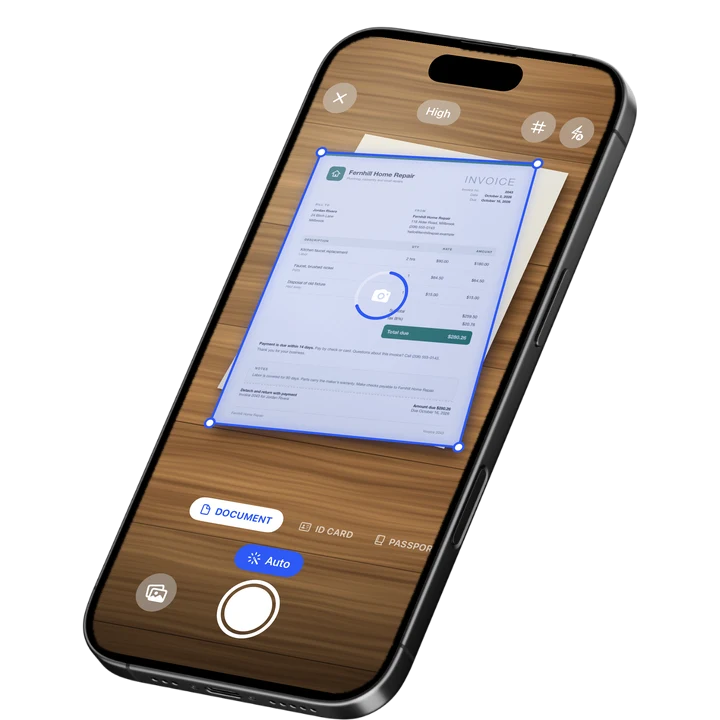
How to Convert SVG to PDF
1
Add your SVGs
Drop one or more SVG files on the tool, or choose them from your device.
2
Pick size and dpi
Choose Fit to image, A4 or Letter, then 150, 300 or 600 dpi, and put the files in the order you want.
3
Convert and save
Press Convert to PDF and download one PDF with one page per drawing.
What Is an SVG File
An SVG is a drawing described with shapes, lines and text instead of pixels, so it stays sharp at any size. SVG stands for Scalable Vector Graphics. It is an open standard of the W3C, based on XML, and all current browsers show it.
Logos, icons, charts and diagrams are often saved as SVG because the files stay small. Design and charting tools export it, such as Inkscape, Illustrator and Figma, and so do many chart libraries. It became a W3C Recommendation in 2001. The catch is that many email programs, office tools and forms do not take an SVG, and a PDF is easier to send.
Convert SVG to PDF as an Image
The tool draws your SVG with your browser's own renderer and puts the result into the PDF as an image, at 150, 300 or 600 dpi. The default is 300 dpi, the usual resolution for print. The PDF holds a picture of your drawing, not its shapes.
Flat drawings such as logos, icons, diagrams and charts are stored without loss, so edges and text stay crisp and the file stays small. A test drawing of 800 by 600 pixels became a PDF of about 74 KB at 300 dpi. Drawings with photo-like content, such as many gradients or embedded photos, are stored as JPEG at quality 90.
A small drawing still comes out sharp. Every drawing is rendered at least 1,200 pixels on its long side, so an icon of 24 by 24 units becomes 1,200 by 1,200 pixels. A transparent background becomes white, like paper.
SVG to PDF Page Size
With Fit to image, each page is the size of the drawing. The tool reads the width and height from the SVG. One SVG unit or CSS pixel is 1/96 inch, so an 800 by 600 drawing becomes a page of 8.33 by 6.25 inches. Units such as mm, cm, in and pt are understood.
Many SVGs have only a viewBox and no width and height, such as icons and exports from design tools. These work: the size comes from the viewBox. A file with neither is drawn at 300 by 150 pixels, the default browsers use.
With A4 or Letter, the drawing is centered and made as large as its shape allows, with no margin. A wide drawing gets a landscape page, and the dpi you chose applies to the whole page.
One image is at most 16 megapixels. A Letter-size drawing at 600 dpi would be about 34 megapixels, so it is rendered at about 410 dpi instead. At 300 dpi, A4 and Letter fit comfortably.
Image or Vector PDF
This tool saves your drawing as an image inside the PDF, not as vector shapes. It looks right on screen and in print at normal size. Zoomed in very far it shows pixels, and its text cannot be selected or searched.
For a file that must stay vector, such as a logo for a print shop or a plan that will be scaled up, export the PDF from the app that made the drawing, such as Inkscape, Illustrator or Figma.
This tool fits when you send a chart, diagram, logo or icon to someone who cannot open SVG, put it in a report, print it, or attach it to an email or a form that wants a PDF. If you need the words from the picture, try image to text.
- Text is drawn with the fonts on your device. If the SVG names a font that is not installed, the browser uses a fallback and the text can look different. Convert text to outlines in your design app before you export the SVG.
- The SVG is opened as a plain image. Scripts in it do not run, and nothing is loaded from the internet, so linked pictures and web fonts are left out.
- Pictures embedded inside the SVG file are drawn. SVGs with HTML labels, which some diagram tools write, work too.
- Animations are not played. The drawing is captured as it first appears.
- Compressed .svgz files are not accepted. Unzip them first.
Combine SVG Files Into One PDF
You can put several SVG files into one PDF, one page each, in the order of the list. Arrow buttons move a file up or down, and Add files adds more. Other images work too, so a mix of SVG, JPG, PNG, WebP, TIFF, GIF and BMP becomes one PDF.
On a computer, you can add up to 50 files, 100 MB each, and 1,000 pages in total. On a phone, the limit is 20 files, 30 MB each, and 300 pages in total. The PDF is named after the first file. Only the first frame of an animated WebP or GIF is used. For those formats, see WebP to PDF and TIFF to PDF.
On-device OCR. Secure, built for iOS.
Frequently Asked Questions
How do I convert SVG to PDF?
Drop your SVG files on the tool, pick a page size and a resolution of 150, 300 or 600 dpi, and press Convert to PDF. You get one PDF with one page per drawing. It happens in your browser, so nothing needs to be installed and your files are not uploaded.
Is the PDF vector or an image?
It is an image. The tool draws your SVG with the browser and stores the result as a picture at the resolution you chose. It looks right on screen and in print at normal size, but it shows pixels when zoomed in far. For a true vector PDF, export from the app that made the drawing.
Which dpi should I choose for SVG to PDF?
Use 300 dpi, the default, for most jobs. It is the usual resolution for print. Choose 150 dpi for a smaller file that is only read on screen, and 600 dpi for fine line work. Very large drawings are capped at 16 megapixels per image, so the real dpi can be lower.
Why does the text look different in my PDF?
The text is drawn with the fonts on your device. If the SVG names a font that is not installed, the browser uses a fallback font, and the text can look different. Fix it by converting the text to outlines in your design app before you export the SVG.
Does it work with an SVG that has no width and height?
Yes. When a file has only a viewBox, the page size is taken from the viewBox. Icons and exports from design tools often look like this. A file with neither is drawn at 300 by 150 pixels, the default browsers use. Small drawings are still rendered at least 1,200 pixels on the long side.
Is my SVG uploaded?
No. The conversion runs in your browser, so your files are not uploaded. The SVG is opened as a plain image: scripts in it do not run, and linked pictures and web fonts are not loaded from the internet. Pictures embedded in the file are drawn.
Can I put several SVGs in one PDF?
Yes. Add as many files as the limit allows, put them in order with the arrow buttons, and each one becomes one page. You can mix in JPG, PNG, WebP, TIFF, GIF and BMP. On a computer the limit is 50 files and 1,000 pages. On a phone it is 20 files and 300 pages.
Sources
More Free Tools
Text to PDF
Turn plain text, Markdown or a CSV table into a clean PDF.
HEIC Viewer
Open HEIC photos from an iPhone in any browser and save them as JPG or PNG.
TIFF to PDF
Convert a TIFF to a PDF, with every page of a multi-page fax or scan.
WebP to PDF
Convert one or more WebP images to a PDF.
JFIF to PDF
Convert one or more JFIF images to a PDF. The JPEG data goes in untouched, with no quality loss.
Pixels to Inches
Convert pixels, inches, cm and mm at any DPI, with a PPI calculator and paper sizes in pixels.